You can view your Ottimate uploads immediately after action was done. To see them, go to Invoices - Uploads:

The Upload screen displays a list of your uploads, organized by batches. A batch is an invoice or group of invoices uploaded by the same person to the same location during the same time period. For example, if you scan a stack of invoices from multiple files to the same location, that group of files would be grouped on our end as a batch.
The Status column will indicate whether or not a batch has been processed. A green “Processed” indicates that all the invoices in the batch were successfully processed (which means they're now viewable in the Needs Attention, Approval, or Pending Export tabs). A yellow “In Progress” means that one or more invoices within the batch are still being processed.
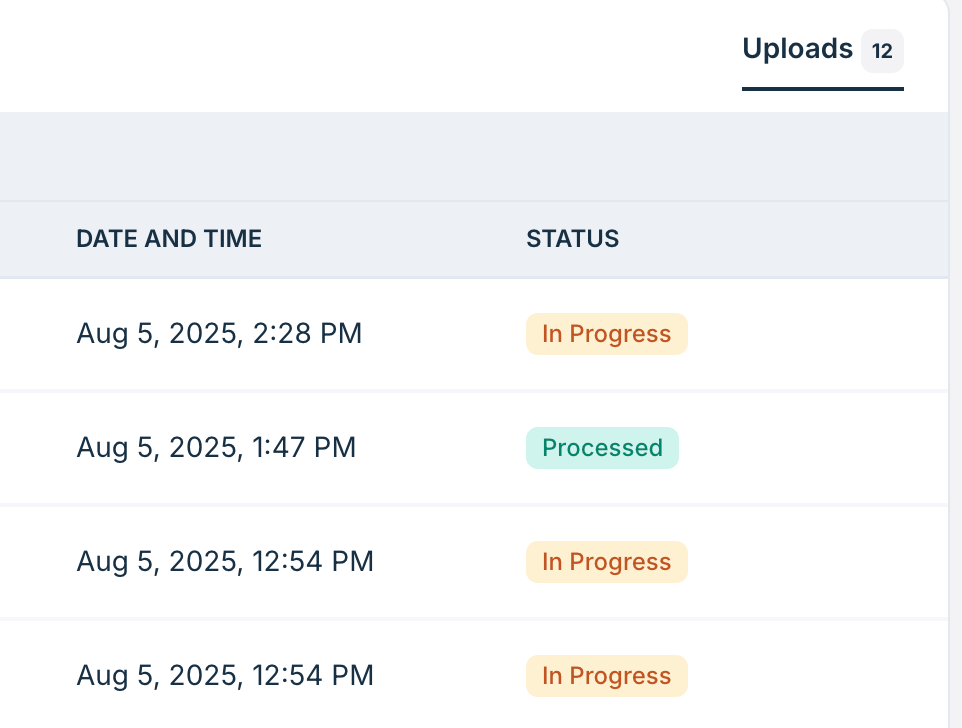
Click the invoice row to view the individual invoices within the batch:
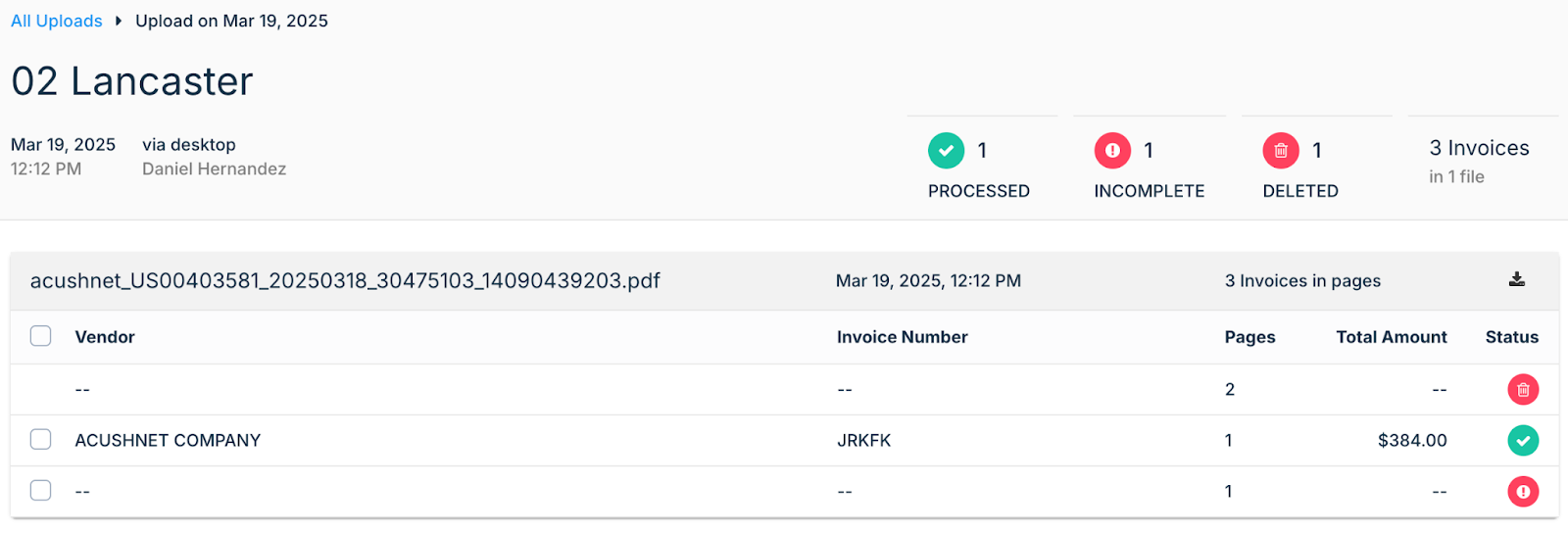
In this batch:
1 invoice was successfully processed and is ready to view. This invoice can be viewed in the Needs Attention, Your Approval, or Pending Export tabs.
1 invoice was marked as incomplete and moved to the Needs Attention tab for next steps.
1 invoice was deleted prior to completing the upload process.
You will also see the upload details here. It will include the upload method, a time-stamp and details on the user who initiated the upload. These details are also included in the History tab for each invoice.
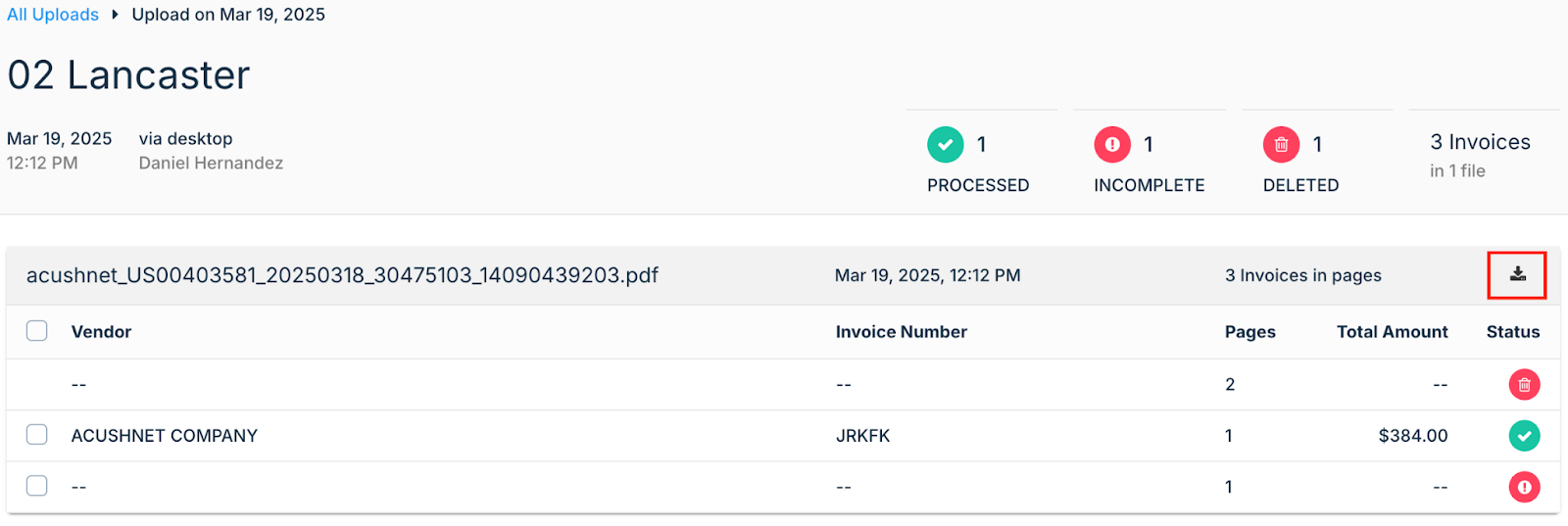
To download an invoice, click the Download icon on the right:
Related articles:
Was this article helpful?
That’s Great!
Thank you for your feedback
Sorry! We couldn't be helpful
Thank you for your feedback
Feedback sent
We appreciate your effort and will try to fix the article