A guide to what's changing, what's new, and how to switch between designs.
What's changing
The Invoice List and Invoice Details screens are getting an upgraded experience. Everything works the way it does today, and your buttons stay where you expect them. The upgrade helps you see more of your invoice at once, fix issues faster, and edit many line items in one go.
The new design reaches accounts in phases. Once it reaches yours, the current (legacy) design stays available for 60 days so you can switch back anytime while you adjust. After that, the legacy design is retired.
Watch the walkthrough
The video below walks through everything in this article on the live screens
What's new on the Invoice List
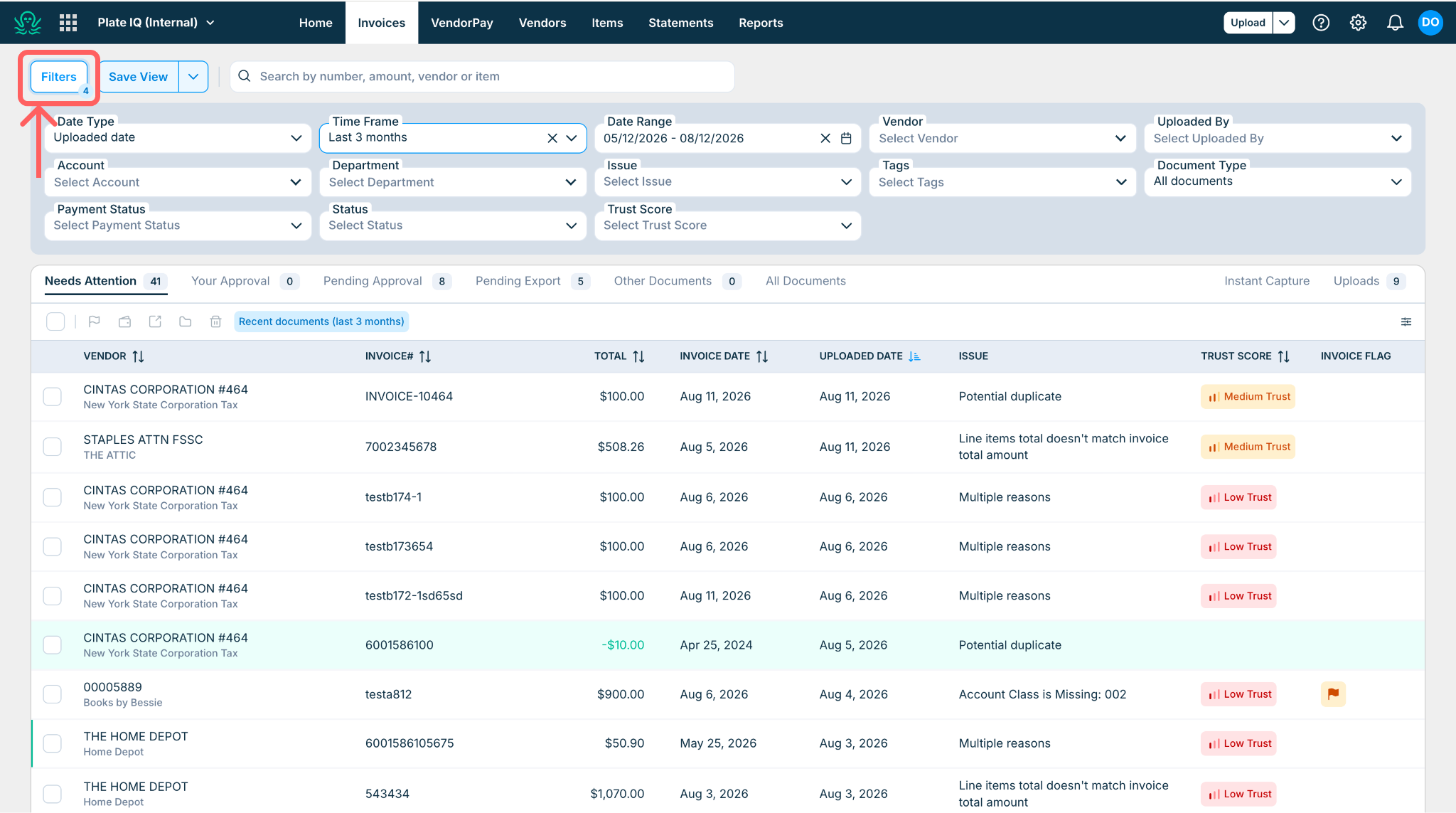
Filters
Filters used to sit in a permanent sidebar. They now open in a panel when you need them and collapse when you don't, giving your invoice list the full width of the screen.
Saved views
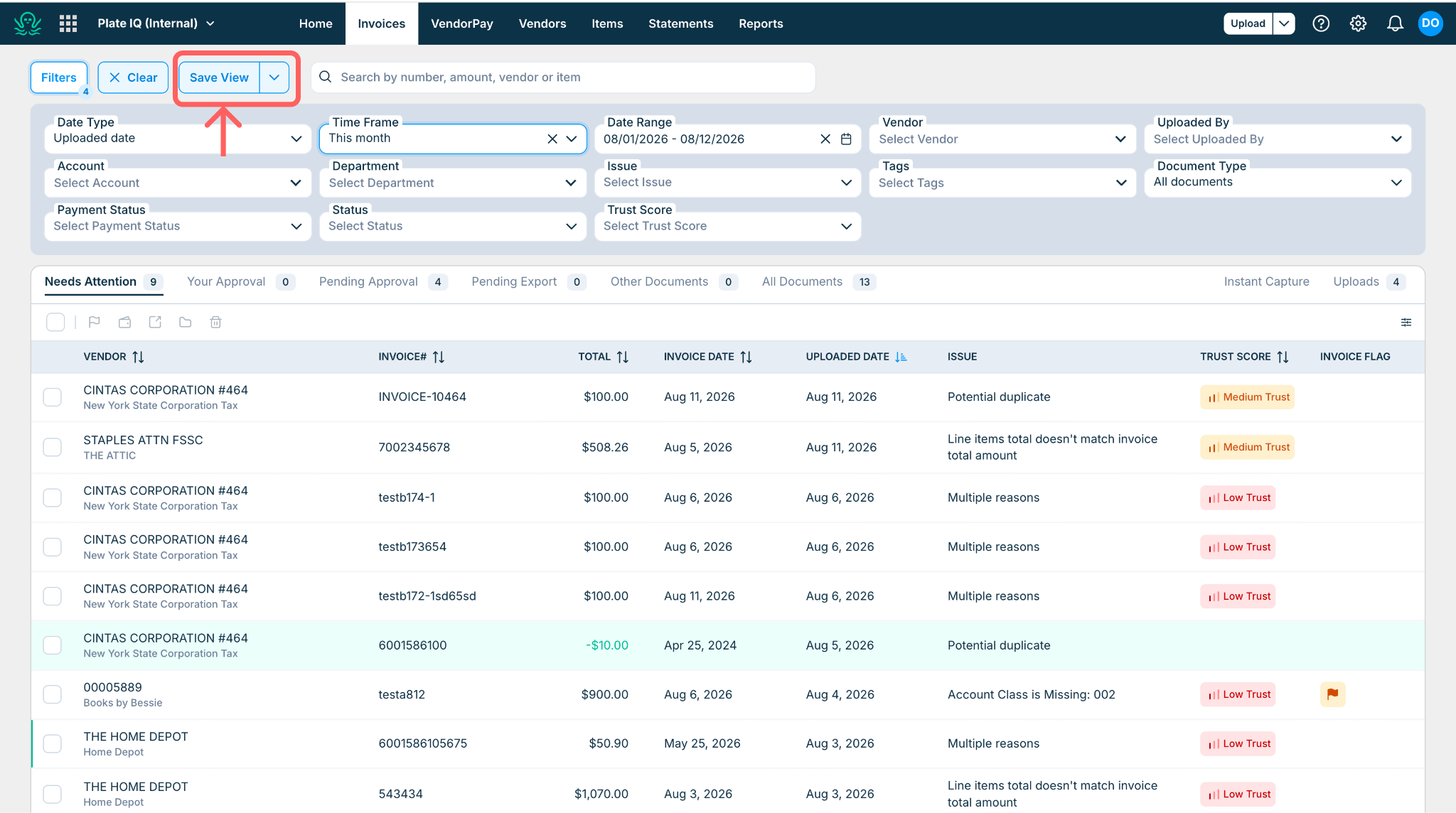
Build a filter once, save it, and reuse it with one click. Saved views are personal to you and do not change what your teammates see.
Click Filters and choose your criteria.
Click Save View and give it a name.
Find it anytime in the Save View dropdown.
Customize columns
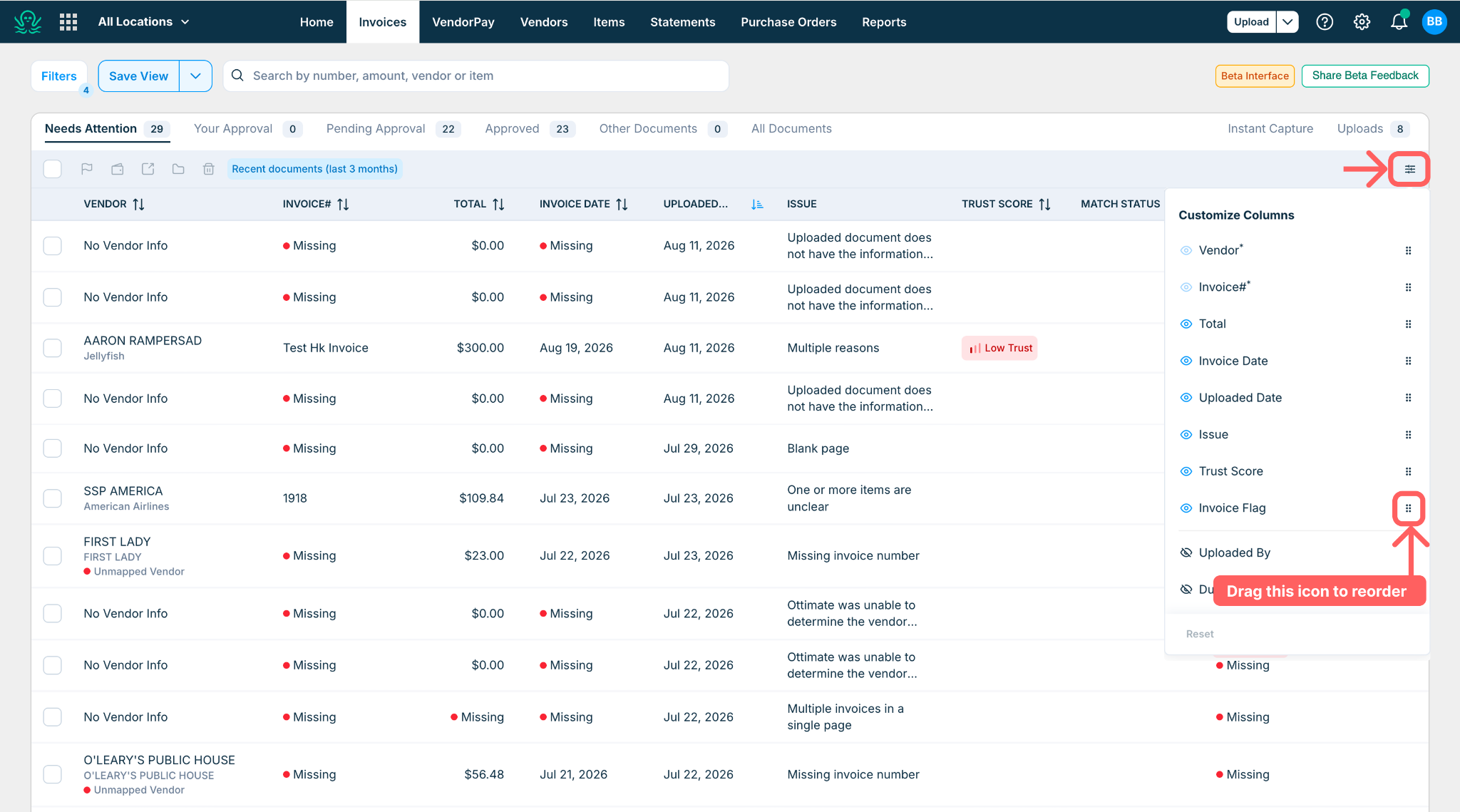
Choose which columns appear on your invoice list (up to 10) and arrange them in the order you work. Your layout is remembered.
What's new in Invoice Details
Search line items
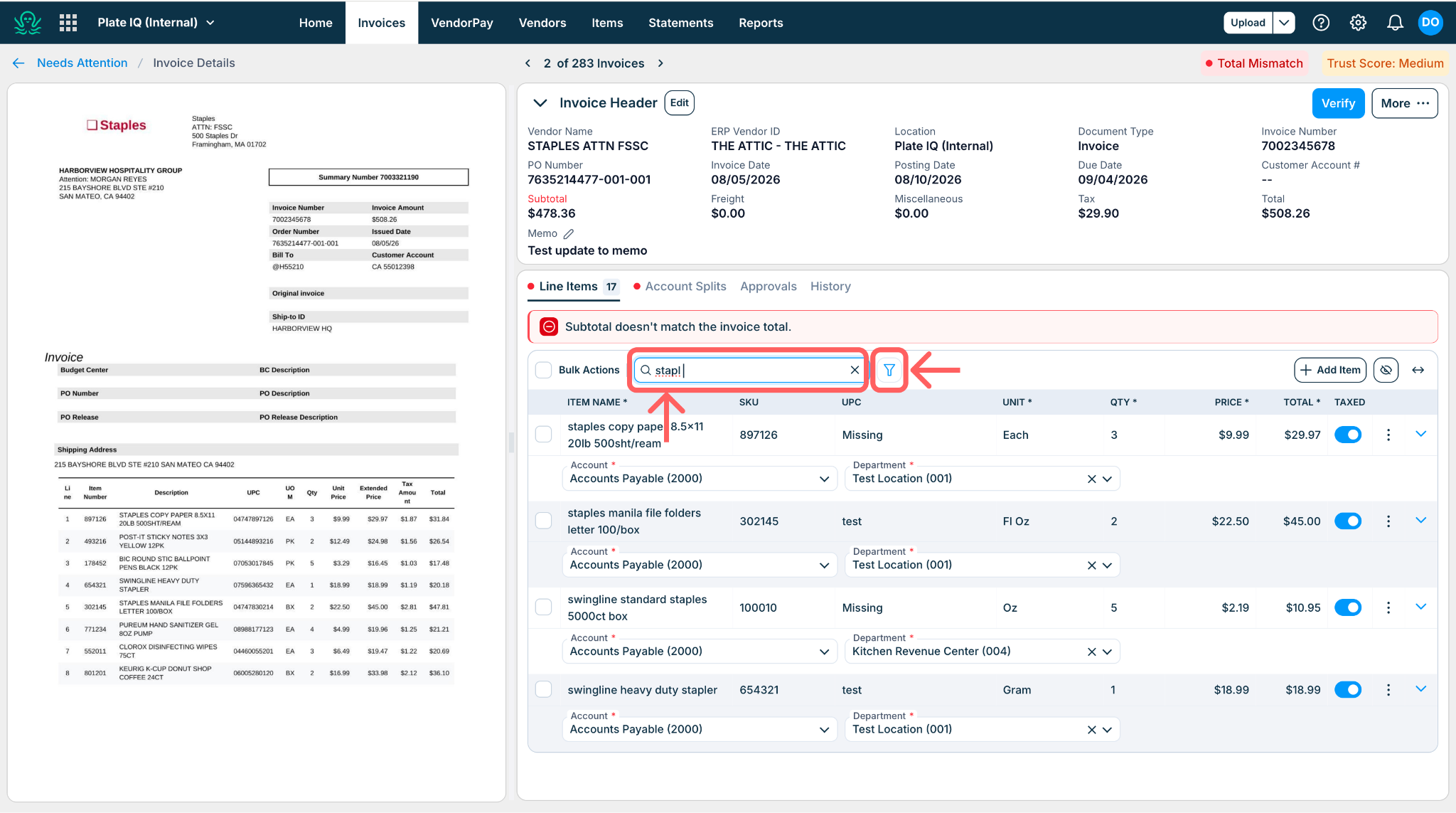
On long invoices, use the search bar above the line items to find an item by name, SKU, or price. The filter next to it narrows the list further. If your account uses freight and miscellaneous detection, you can also filter to just those charges.
See more line items on screen
The layout is more compact, so more of your invoice fits on screen without scrolling. When you want even more room:
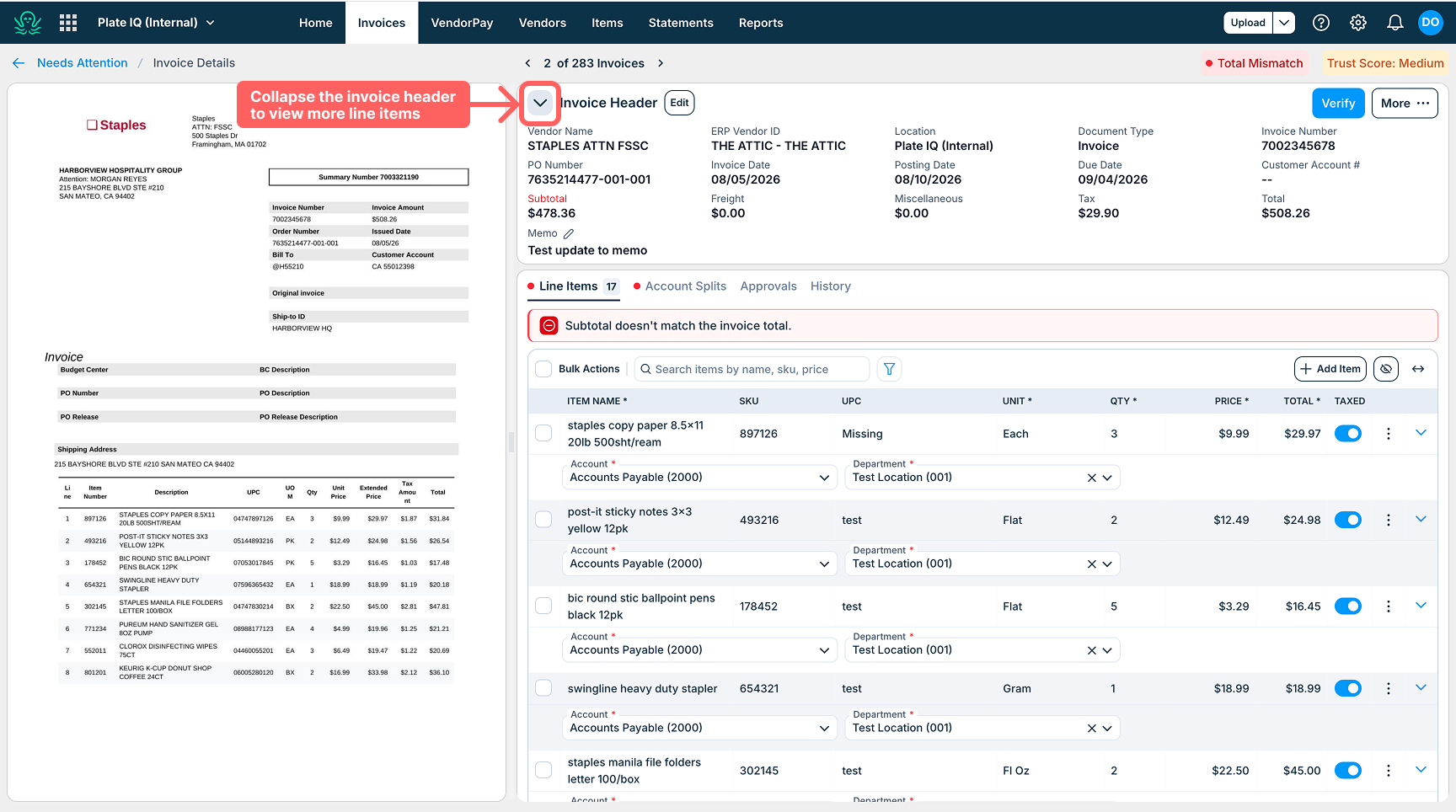
Collapse the invoice header to tuck away the invoice summary while you work through line items.
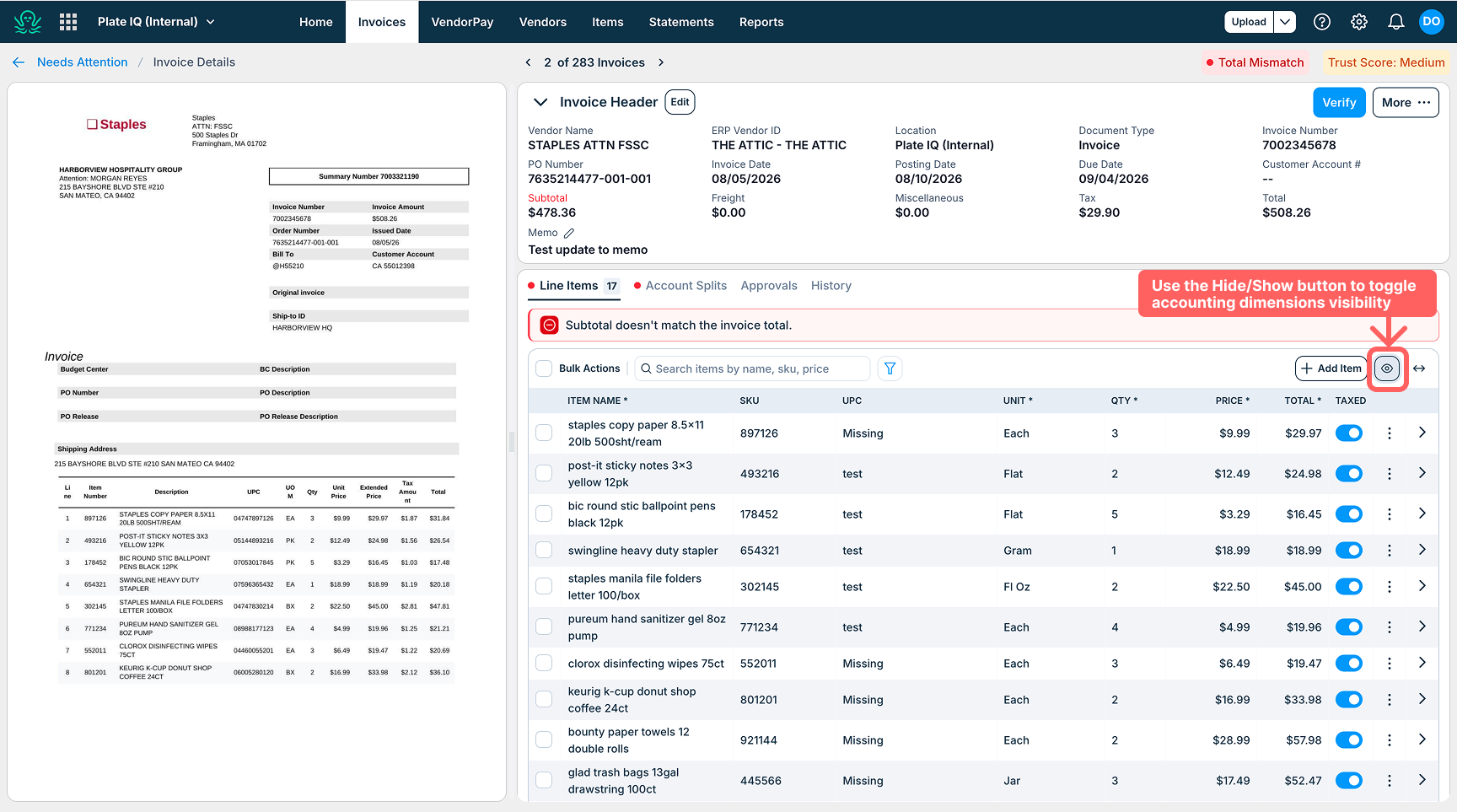
Hide the accounting fields (like GL account and department columns) with the hide/show toggle when you only need item names and amounts.
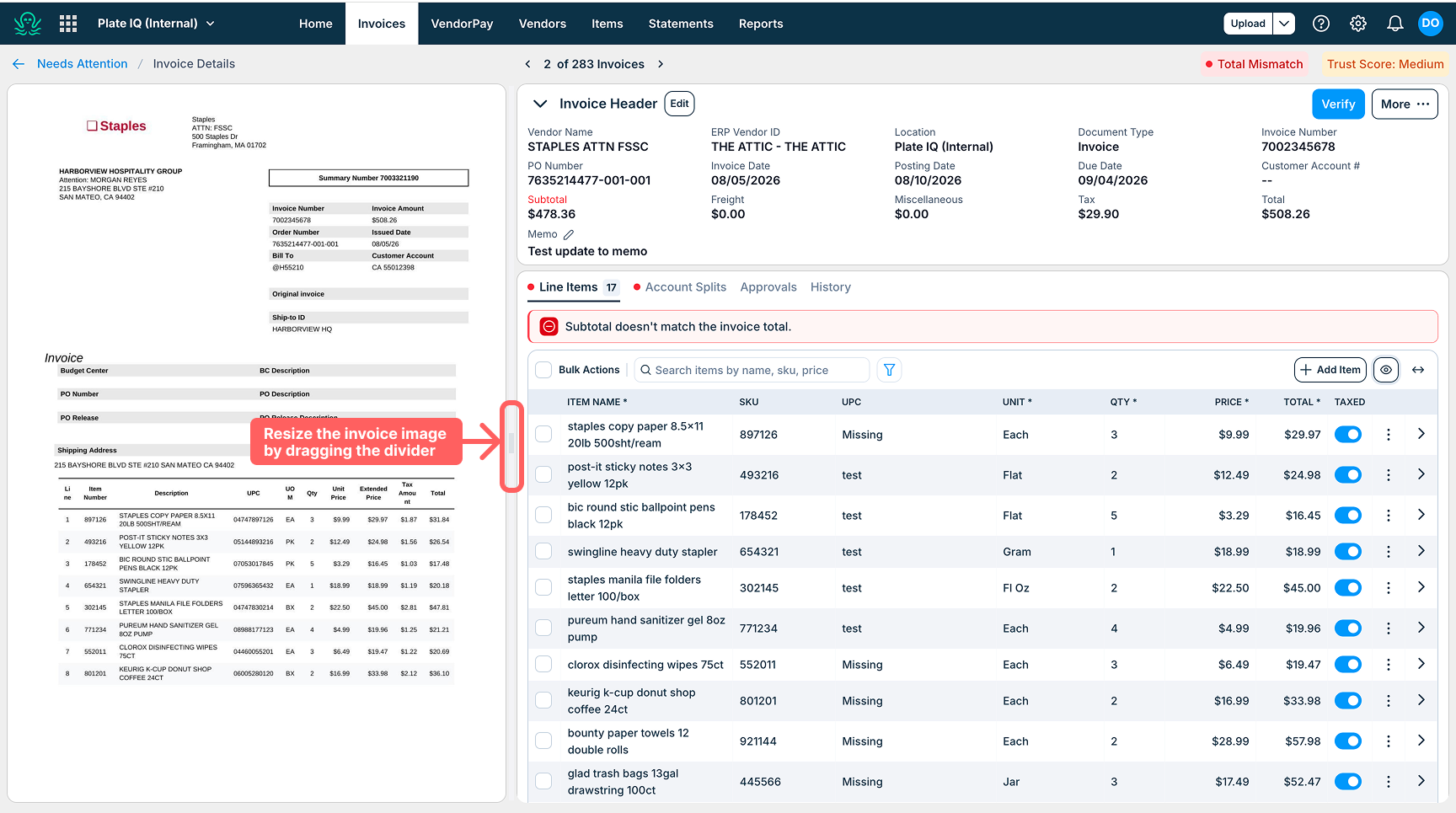
Resize the invoice image by dragging the divider between the invoice image and the line items, giving whichever side you're working in more space.
Alerts
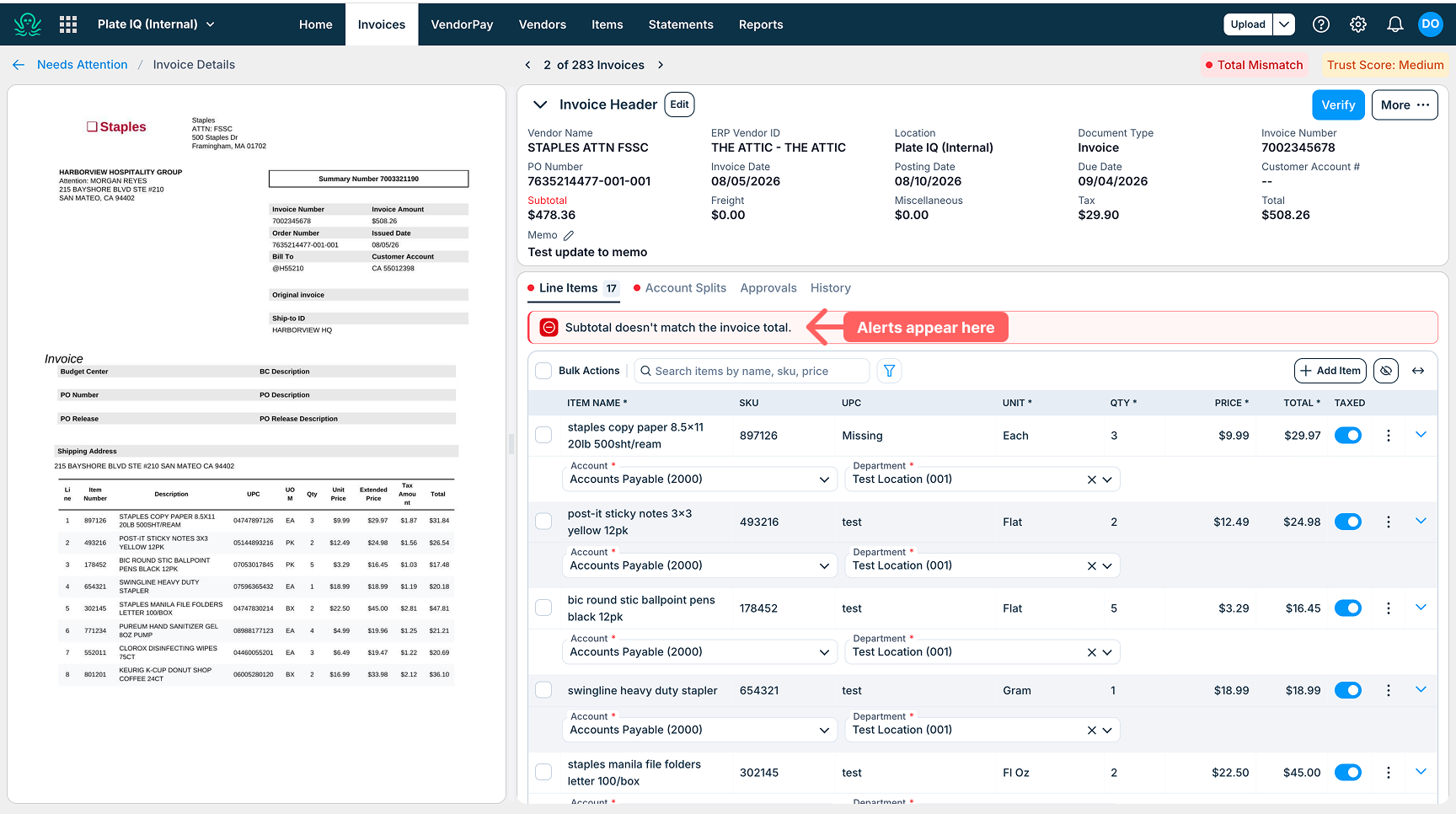
Anything that needs your attention, like missing fields, mismatched totals, or an unmapped vendor, still appears in an alert banner, just as it does today. What's new: alert indicators now also appear in the invoice header, ordered by priority, errors first, then warnings, then everything else. You can see what needs fixing, and how urgent it is, at a glance, before you even scroll.
Edit line items
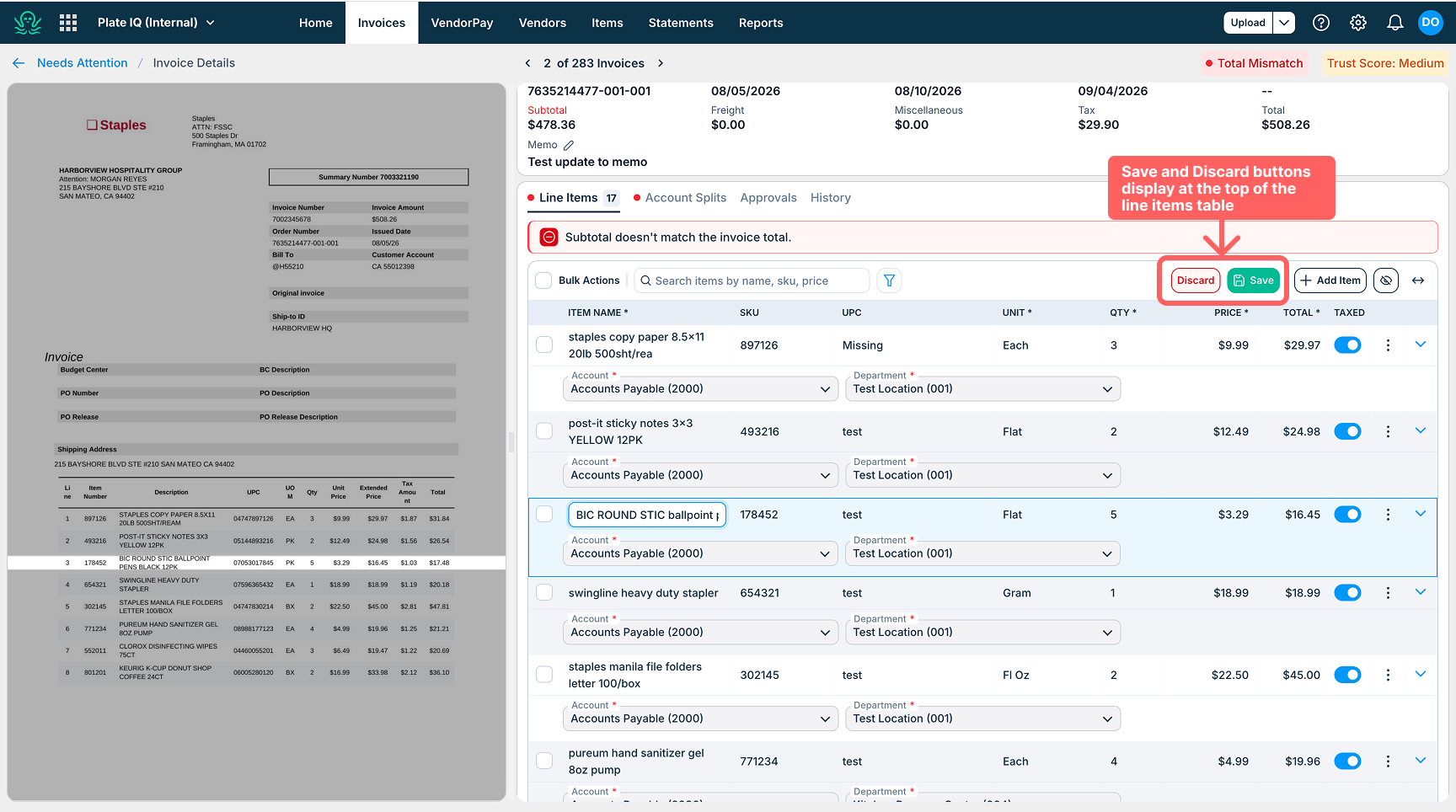
Click into any cell to start editing, no Edit button needed. Previously, every line item saved one at a time, with a short wait after each. Now you can edit as many line items as you need, then save them all together with one click. Save and Discard stay visible at the top of the line items section, so they never scroll out of view.
Bulk actions
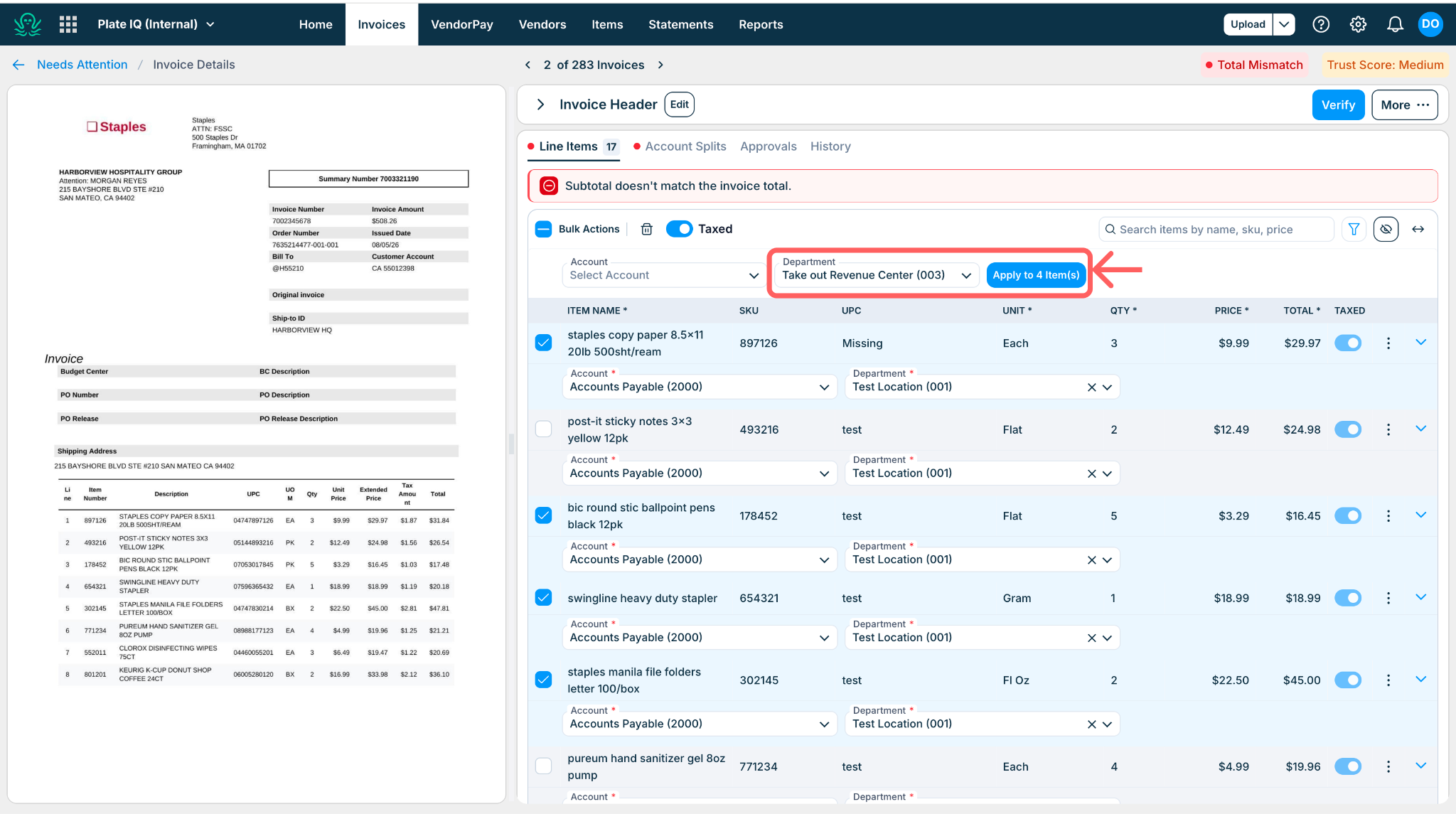
Select multiple line items to apply a change to all of them in one action:
Tick the checkbox on each line item you want to change (or the top checkbox to select all).
Apply what you need: a GL account or other accounting field, tax treatment, accepting AI suggestions, or deleting the selected items.
Click Apply once to save everything.
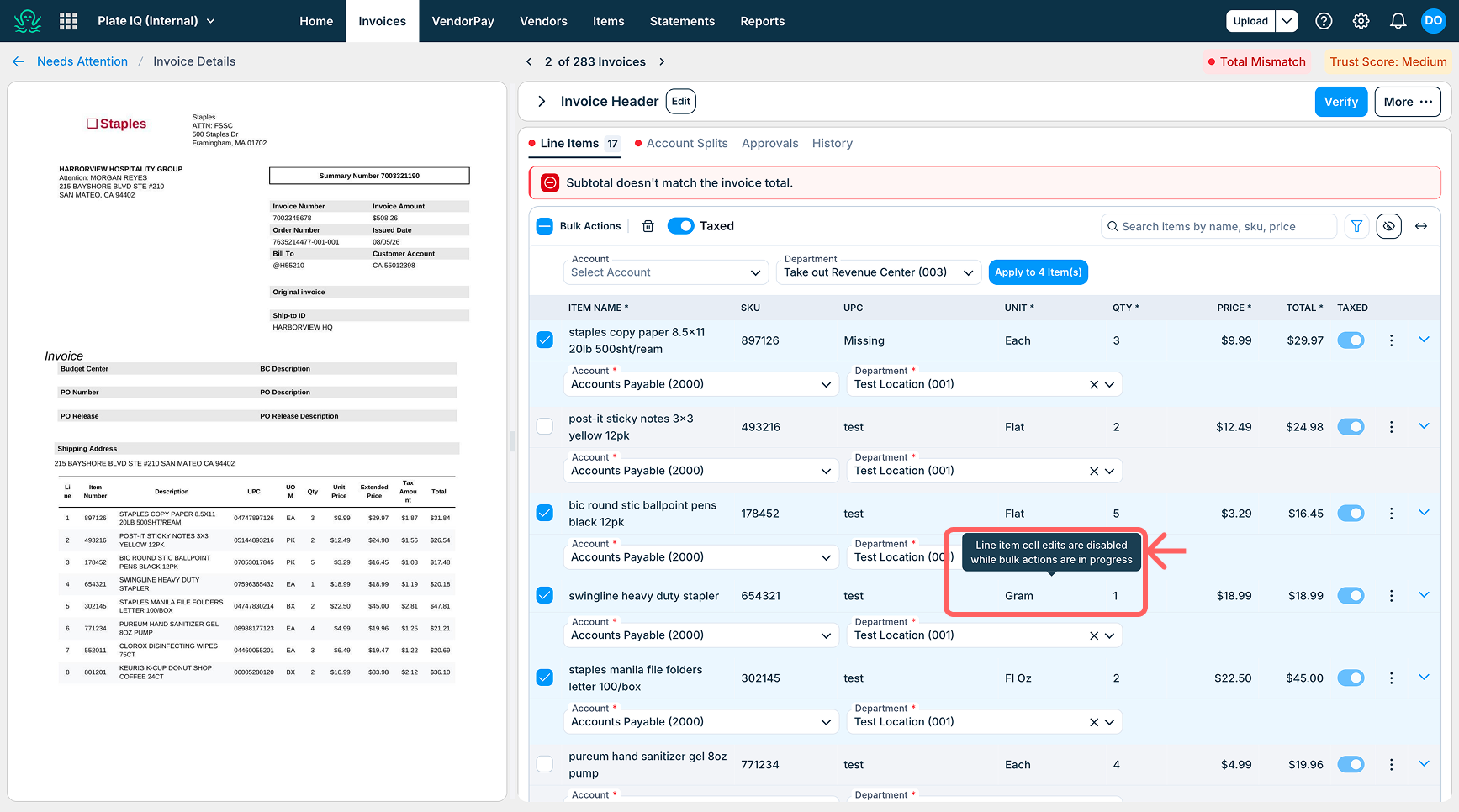
To protect your work, individual cell edits pause while bulk actions are open, finish or close bulk actions to resume them (accounting fields can still be edited individually). And if you have unsaved line-item edits when you open bulk actions, you will be prompted to save them first, so nothing is lost.
Freight and miscellaneous charges
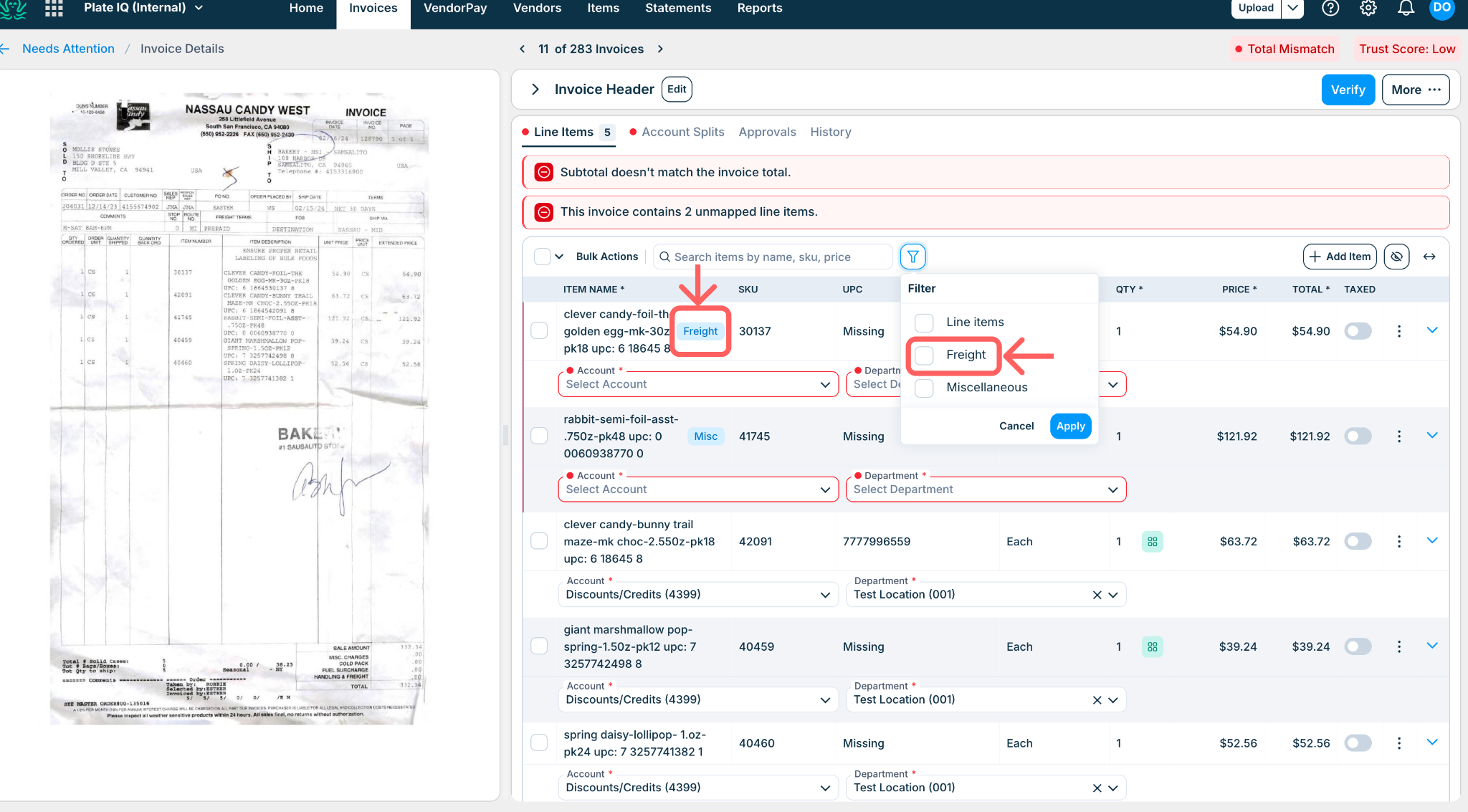
If your account uses freight and miscellaneous detection, these charges are now labeled so they stand out from regular line items, and a filter lets you view just those charges, useful when checking a batch of invoices for extra fees.
Visual design
Color is now reserved for things that need your action, like required fields and errors. Everything else steps back, making the screen easier to read for long sessions.
Account Splits, Approvals, and History
The other tabs on the invoice got the same treatment:
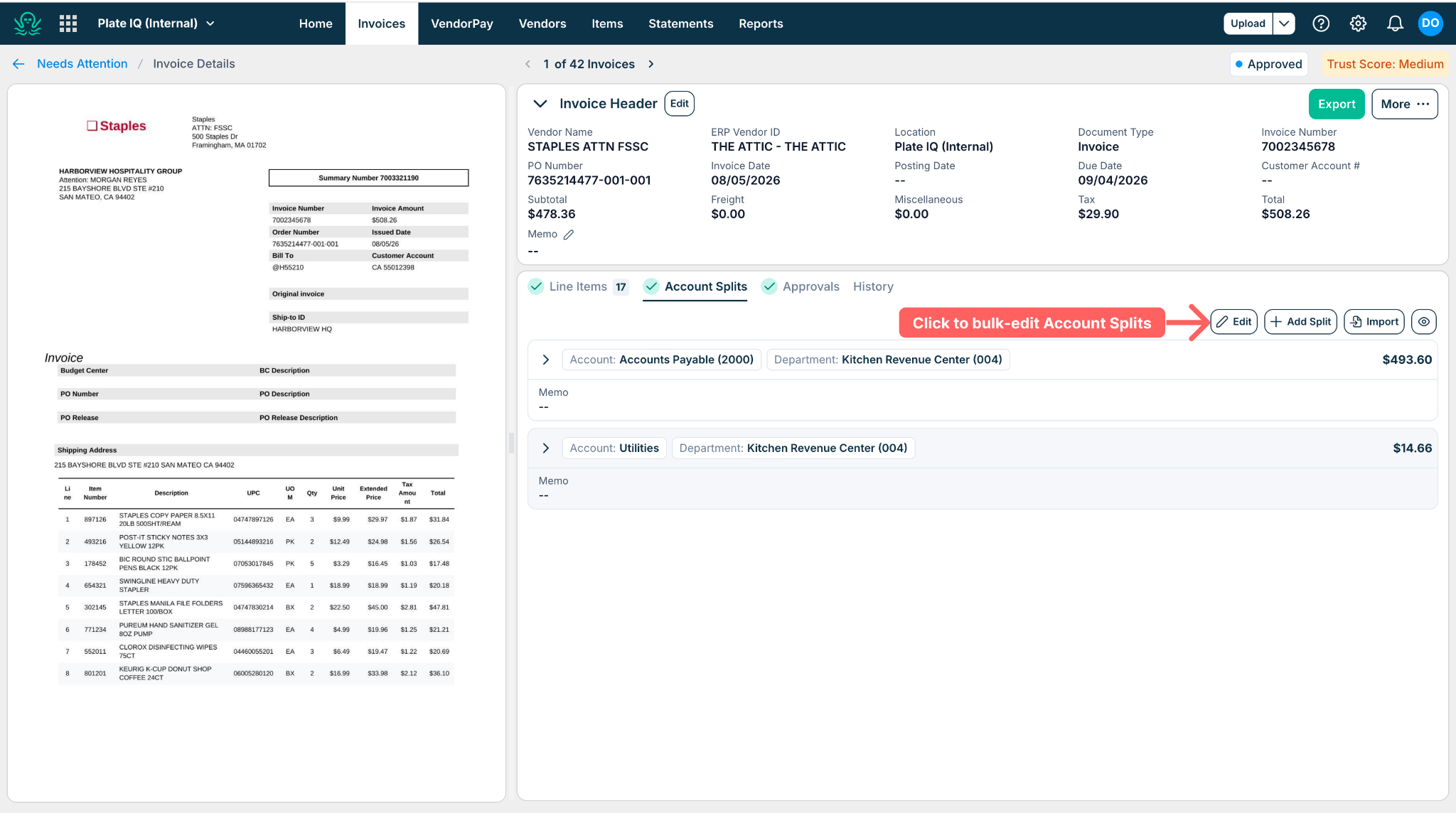
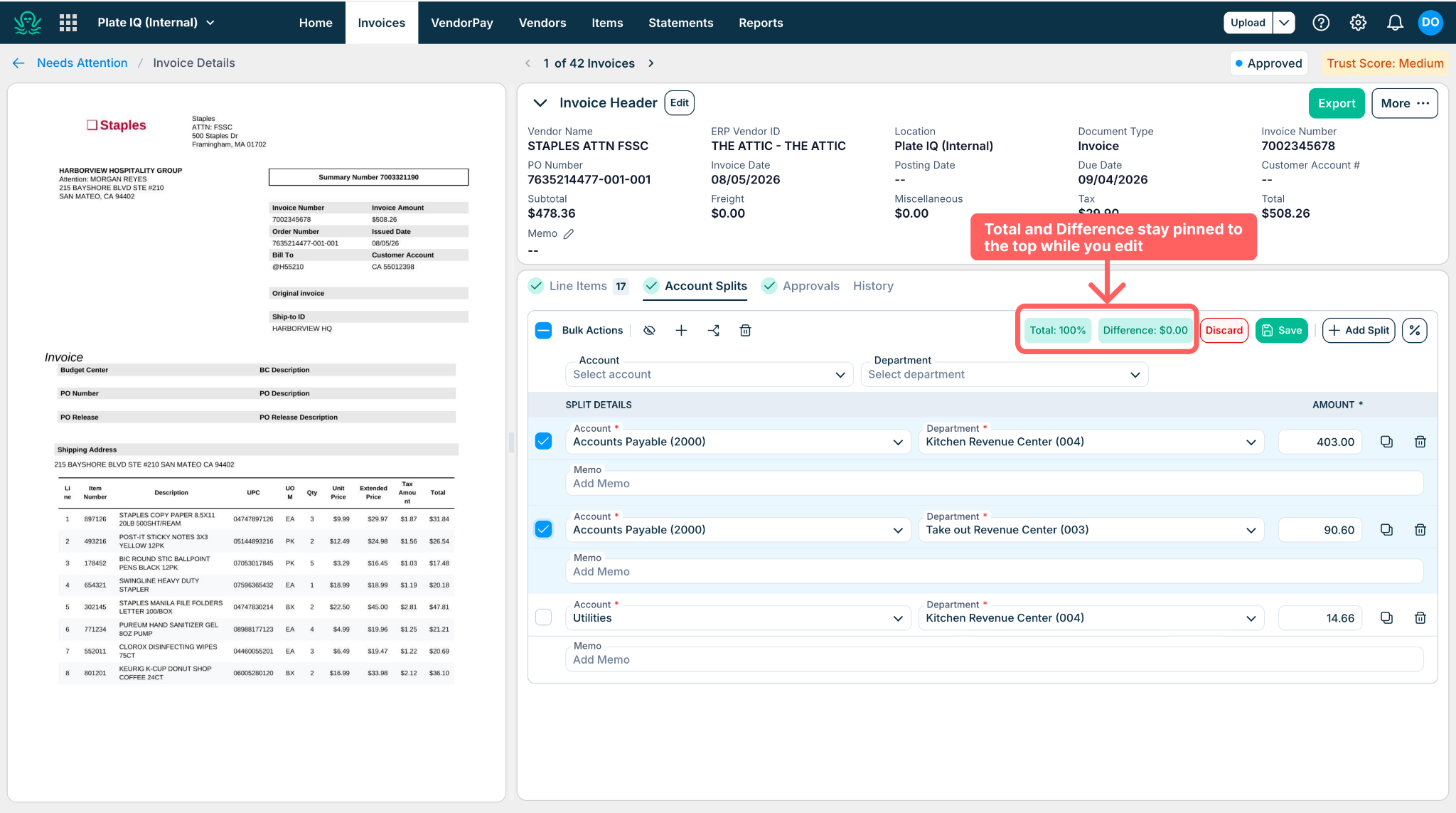
Account Splits: bulk actions work here too, and the running Total and Difference stay visible at the top while you work. You can update the memo directly, and a new clone option copies an existing split instead of rebuilding it.
Approvals: a more compact view shows more approvers at once, with clearer color indicators for each approval state.
History: a more compact view, plus new search and filters to find a specific change quickly.
Other improvements
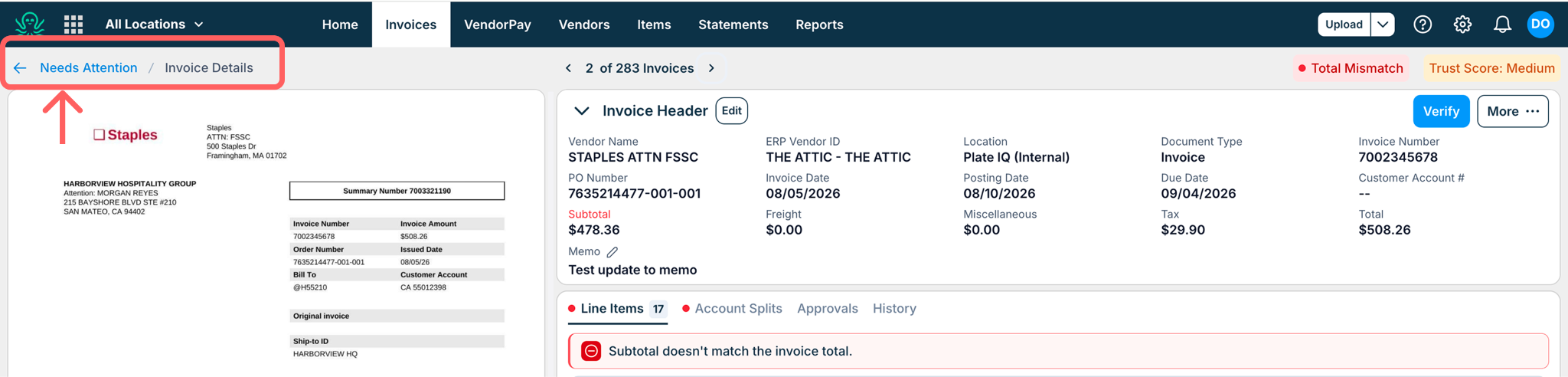
See where you are: a trail at the top of the invoice shows your location, so you can step back to your invoice list without losing your place.
Edit the memo anytime without entering edit mode.
Full item names are shown instead of being cut off (on invoices up to 25 line items).
Faster editing: changing an accounting field no longer reloads the whole screen, only the field you touched updates.
Clearer AI suggestions: a clean suggestion icon with accept and reject actions replaces the yellow dot.
Switching between designs
While the legacy design is still available for your account, you can move between the two designs at any time.
To switch back to the legacy design:
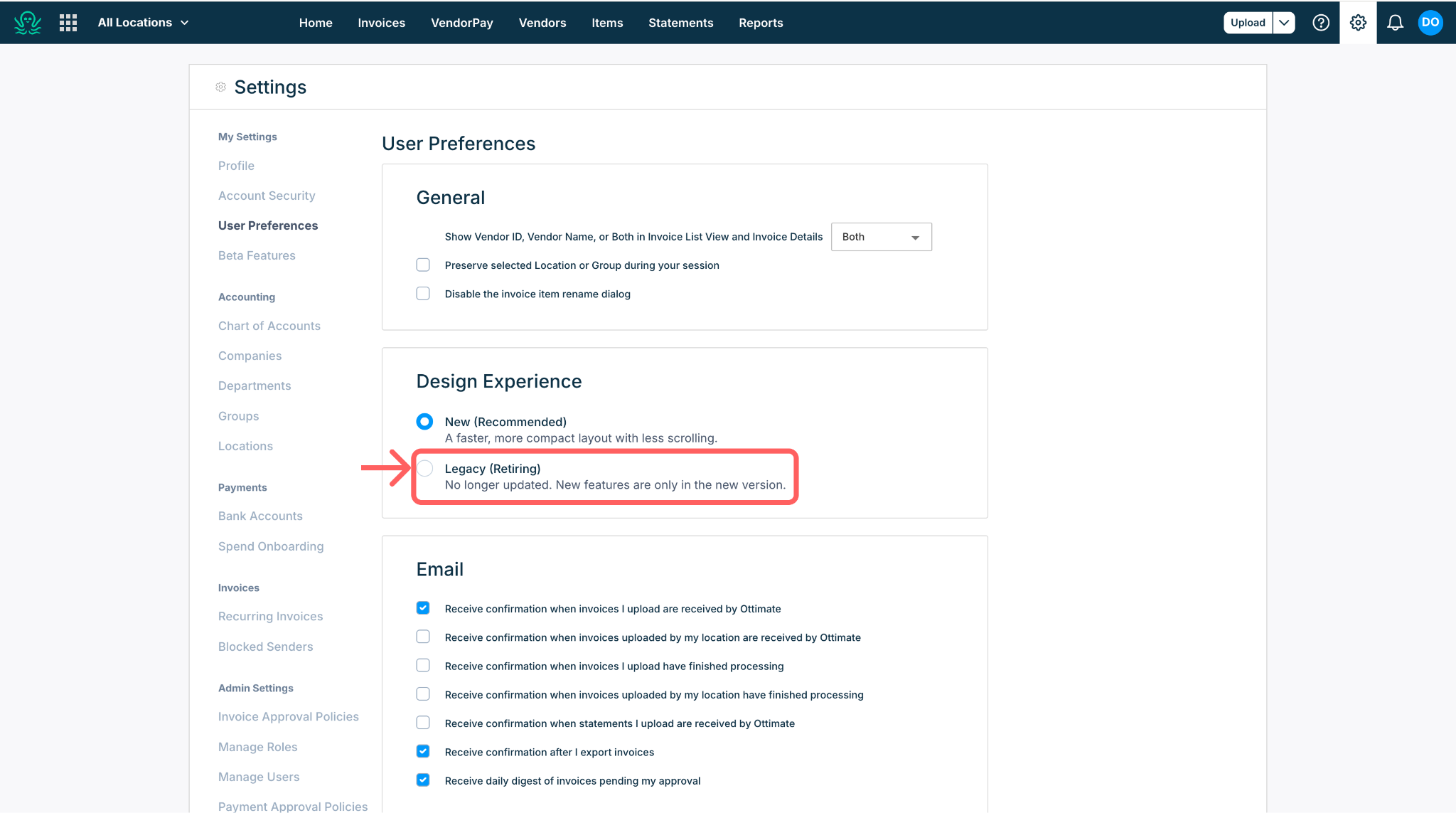
Go to Settings > User Preferences > Design experience.
Select Legacy and confirm. Keep in mind the legacy design no longer receives new features.
To return to the new design: click Switch to new version at the top right of the Invoice List or Invoice Details page, or change your selection in User Preferences.
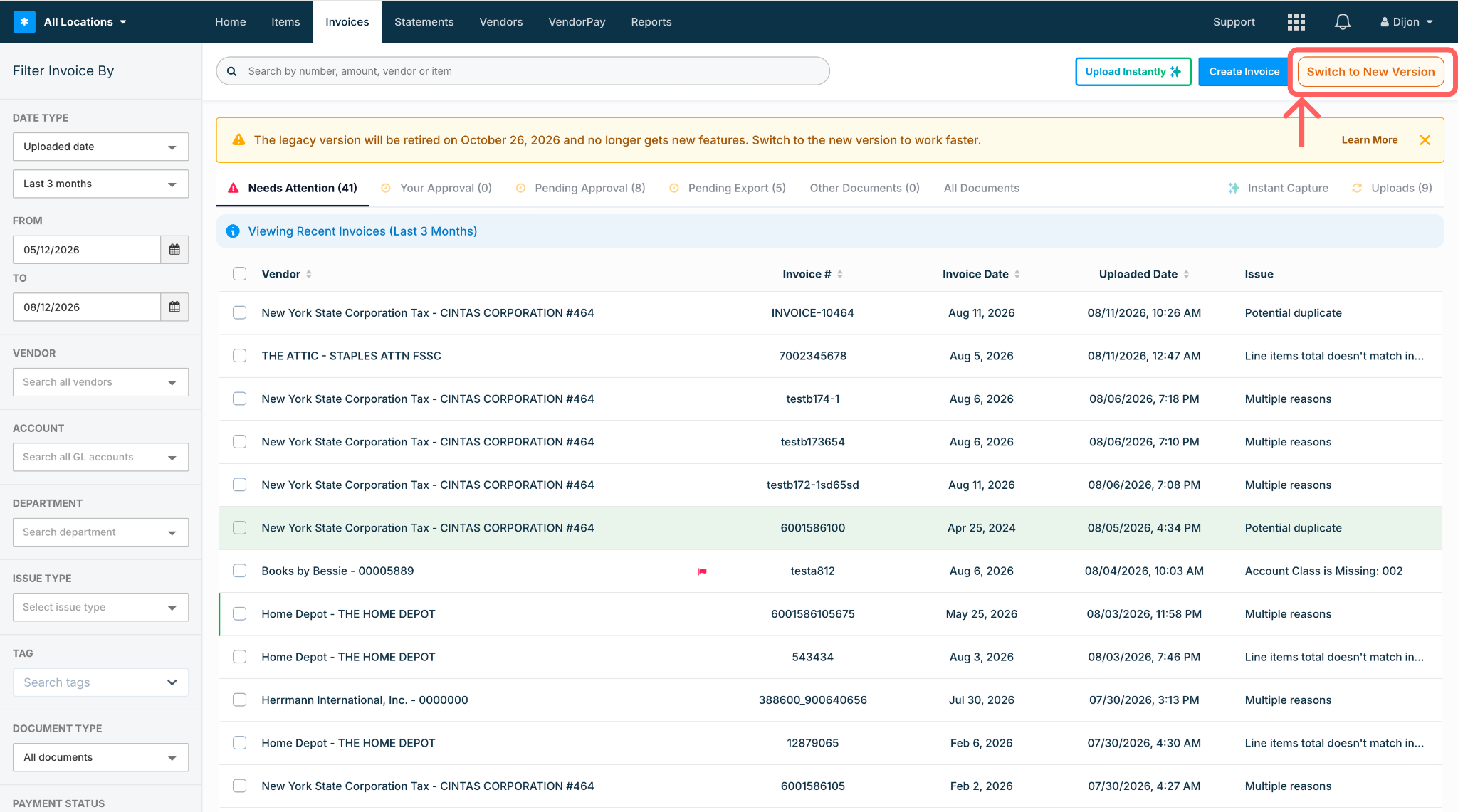
Switching is available until your account's retirement date, after which everyone moves to the new design permanently.
What's not changing
Only these two screens are being redesigned. Everything else in Ottimate, your data, your workflows, and how the rest of the product works, stays exactly as it is today. There is nothing you need to set up or migrate.
Need help?
If anything looks off after the change, contact your Ottimate support contact or submit a ticket through the Helpdesk, and use the video above for a quick tour of the new screens.
Was this article helpful?
That’s Great!
Thank you for your feedback
Sorry! We couldn't be helpful
Thank you for your feedback
Feedback sent
We appreciate your effort and will try to fix the article