OVERVIEW
Manual AP work hides in plain sight. A vendor mapping that breaks once a week, a GL code that gets edited on every fifth invoice, a location that consistently runs slower than the others. None of it shows up on the invoice itself, and most teams only feel it as a vague sense of being busy.
The Operational Efficiency Dashboard surfaces every edit, mapping fix, and processing delay already captured in your Ottimate invoices, organizes them by staff, location, vendor, and process, and shows you where the manual work is concentrated. You can use it to see who on your AP team is getting the most done, spot which vendors are creating the most rework, and find the locations and mapping gaps worth fixing first.
Key questions this dashboard answers:
Who on my AP team approves and processes the most, and how fast do they approve?
Where is my team's manual work going, and is it getting better or worse?
Which locations are running efficiently and which need coaching?
Which vendors are driving the most rework, and how do I fix it?
Where are mapping and approval bottlenecks slowing my AP team down?
HOW IT WORKS
The dashboard reads every invoice processed in your Ottimate account over the selected date range and classifies the manual work on each one. An invoice is "touchless" when it flowed through Ottimate with no edits to its header, line items, GL codes, vendor, or PO. Anything edited counts as manual work, and each edit is categorised by what was changed (GL code mapping, vendor mapping, PO number, invoice fields, duplicate check). On the Staff Performance tab, it also reads who approved each invoice and who created it, so it can show approval and processing throughput per person.
All time-savings estimates use blended industry averages (around 4 minutes per edit, with some edit types costing more time than others). You'll see these displayed as approximate values (~4.3 hrs/week), and your team's actual minutes per edit may vary.
The metrics used across the dashboard:
Invoices Approved and Avg Approval Time: on Staff Performance, the number of invoices a person approved and the average calendar days from when an invoice was assigned for approval to when it was approved. Every invoice has a human approver, so these cover the whole team.
Edit Rate (also shown as Correction Rate): share of invoices that required at least one manual edit. Excellent below 8%, good 8-12%, average 12-15%, needs attention above 15%, critical above 20%.
Avg Processing: average calendar days between when an invoice is received and when it's fully processed.
Invoices Processed: total invoice volume in the selected date range and locations. On Staff Performance, this is the number of invoices a person created or uploaded (auto-ingested invoices are credited to the system, not a person).
Corrections per active hour: on Staff Performance, a person's corrections divided by the number of hours they were active (hours in which they made at least one edit) in the period. It separates genuine efficiency from simply being logged in longer, and is shown to one decimal.
Invoices pending: on Staff Performance, the number of invoices currently waiting on a person to approve. This is a live, point-in-time backlog, so it reflects what is open right now and does not change with the date filter.
Exception Rate: share of invoices that hit a processing exception and required manual resolution.
Location Score and Vendor Score: composite 0-100 scores that blend touchless rates, edit rates, mapping accuracy, and processing time. Green above 90, blue 80-89, amber 70-79, red below 70.
All dashboard metrics are calculated against the invoice activity in the selected date range, and the date filter controls when each invoice was received and processed by Ottimate.
Data is refreshed daily. The page header shows a Last updated timestamp so you can confirm how current the view is.
Note: Edit rates (also shown as correction rates) reflect invoices that required manual changes, often because Ottimate's vendor mapping, GL mapping, or capture didn't have the right context yet. A high edit rate for a specific vendor or location is a signal to fix the underlying mapping or capture configuration. It isn't a measure of individual staff performance.
WHERE CAN I FIND THE OPERATIONAL EFFICIENCY DASHBOARD?
From the left navigation, go to Reports → Dashboards, then click the row labeled Operational Efficiency.

If you don't see the row, ask your Ottimate administrator to confirm your role has both the View Admin Reports and View Analytics Dashboards permissions enabled.
HOW DO I USE THE DASHBOARD?
Open Reports → Dashboards and click the Operational Efficiency row.
Set the date range and select the locations you want to review. The filters apply to every tab and persist as you navigate.
Start on Overview to see where manual time is going and how your touchless and edit rates are trending.
Click into Staff Performance to see who approves and processes the most and how fast, then Locations and Vendors to find the places and vendors driving the most work.
Use Processes when you want to dig into specific patterns: which fields are being edited most, which mappings are slipping, and where approvals are stalling.
On most tables, click a row to expand and drill into the underlying invoices.
HOW DO I USE THE DATE FILTER TO FILTER FOR A SPECIFIC INVOICE DATE RANGE?
In the filter bar at the top of the dashboard, click the date range control.
Pick a preset (Last 7 days, Last 30 days, Last 90 days) or choose Custom to set a specific From / To range. The end date can't go past today.
Every chart, KPI, and table on the dashboard updates automatically. The range stays applied as you switch tabs.

WHAT ARE THE ELEMENTS OF THE DASHBOARD?
The dashboard has five tabs, each answering a different question.
1. Overview: Where is my team's manual work going?
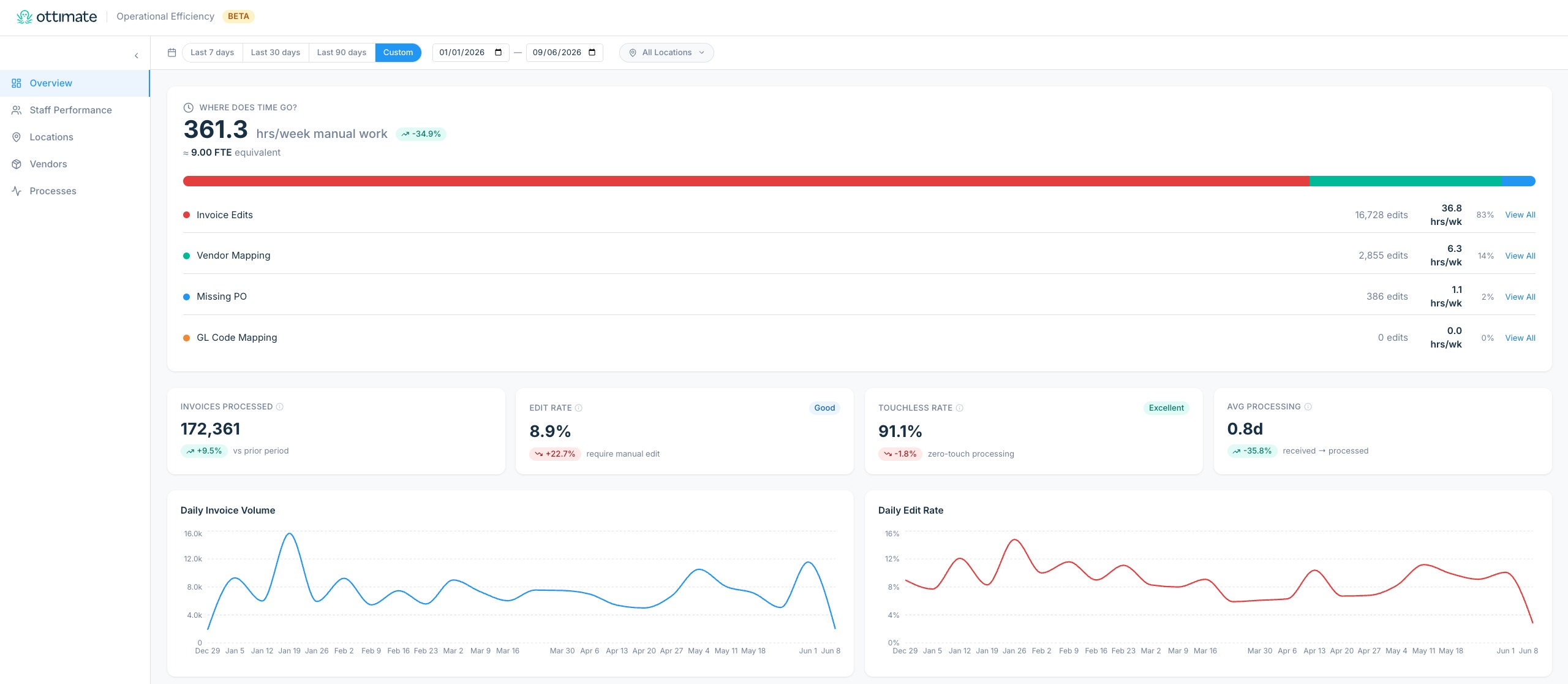
A single-page summary of touchless rate, edit rate, processing time, and where the manual minutes are concentrated.
Where does time go? A panel that estimates total manual hours per week and breaks them down by edit type (GL code mapping, vendor mapping, PO resolution, invoice edits). Click any edit type to open a drill-down of the specific invoices.
KPI cards. Invoices Processed, Edit Rate, and Avg Processing, each with a color-coded threshold badge and a week-over-week change. Click a card to see a PO vs Non-PO breakdown for that metric.
Daily Invoice Volume and Daily Edit Rate trend charts. The granularity switches automatically (daily for short ranges, weekly for longer ones).
Edit Breakdown chart. Shows how the edits decompose by category and what each category is costing in time.
2. Staff Performance: Who is approving and processing the most, and how fast?
A view of how much AP work each team member is getting done. It answers the question managers actually ask: who approves and processes the most invoices, and how quickly do they approve? Approvals and processing are shown side by side because AP has two roles, approving invoices and creating or uploading them, and a person can do a lot of one and little of the other. A banner at the top explains the framing, and a separate Ottimate Mapping Quality strip keeps the edit and correction numbers clearly labeled as a measure of Ottimate's classification, not the person.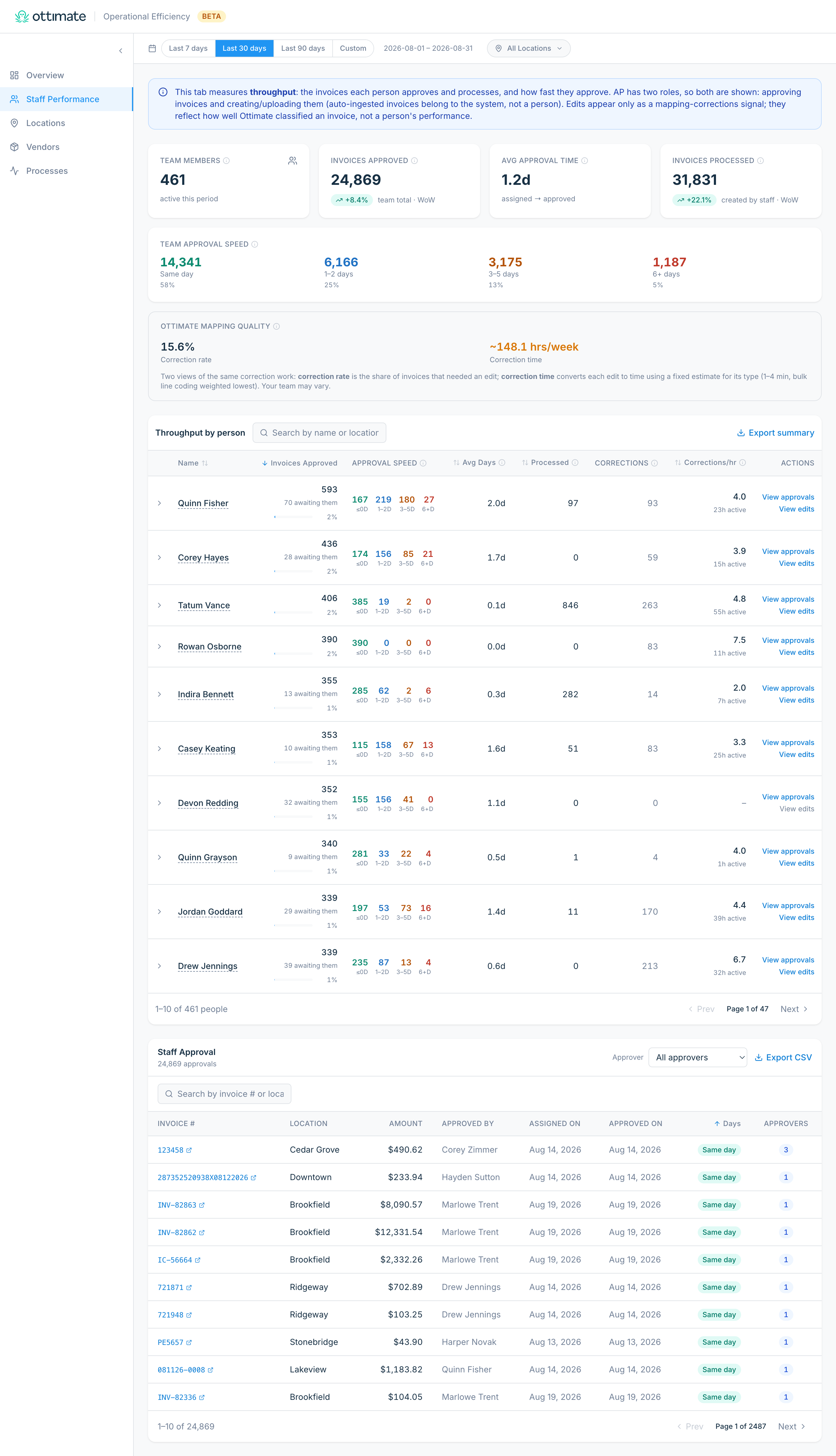
Summary cards: Team Members (everyone who approved or processed at least one invoice in the period), Invoices Approved (team total, with week-over-week change), Avg Approval Time (average days from assigned to approved), and Invoices Processed (invoices created or uploaded by staff, with week-over-week change).
Team Approval Speed: a numeric breakdown of how the team's approvals split by time-to-approve (same day, 1 to 2 days, 3 to 5 days, 6+ days), so you can see at a glance whether approvals are fast or dragging.
Ottimate Mapping Quality strip: two views of the same correction work. Correction rate is the share of invoices that needed an edit; correction time is those same edits expressed as hours per week. Both measure how well Ottimate classified invoices, not how the team performed.
Throughput by person table: one row per person, ranked by invoices approved. Sortable and searchable, with each person's approvals (and share of the team, plus how many invoices are currently awaiting their approval), approval-speed spread, average days to approve, invoices processed, corrections, and corrections per active hour (corrections divided by the hours the person was active, so you can tell efficient work apart from long hours). Use Export summary to download the table as a CSV.
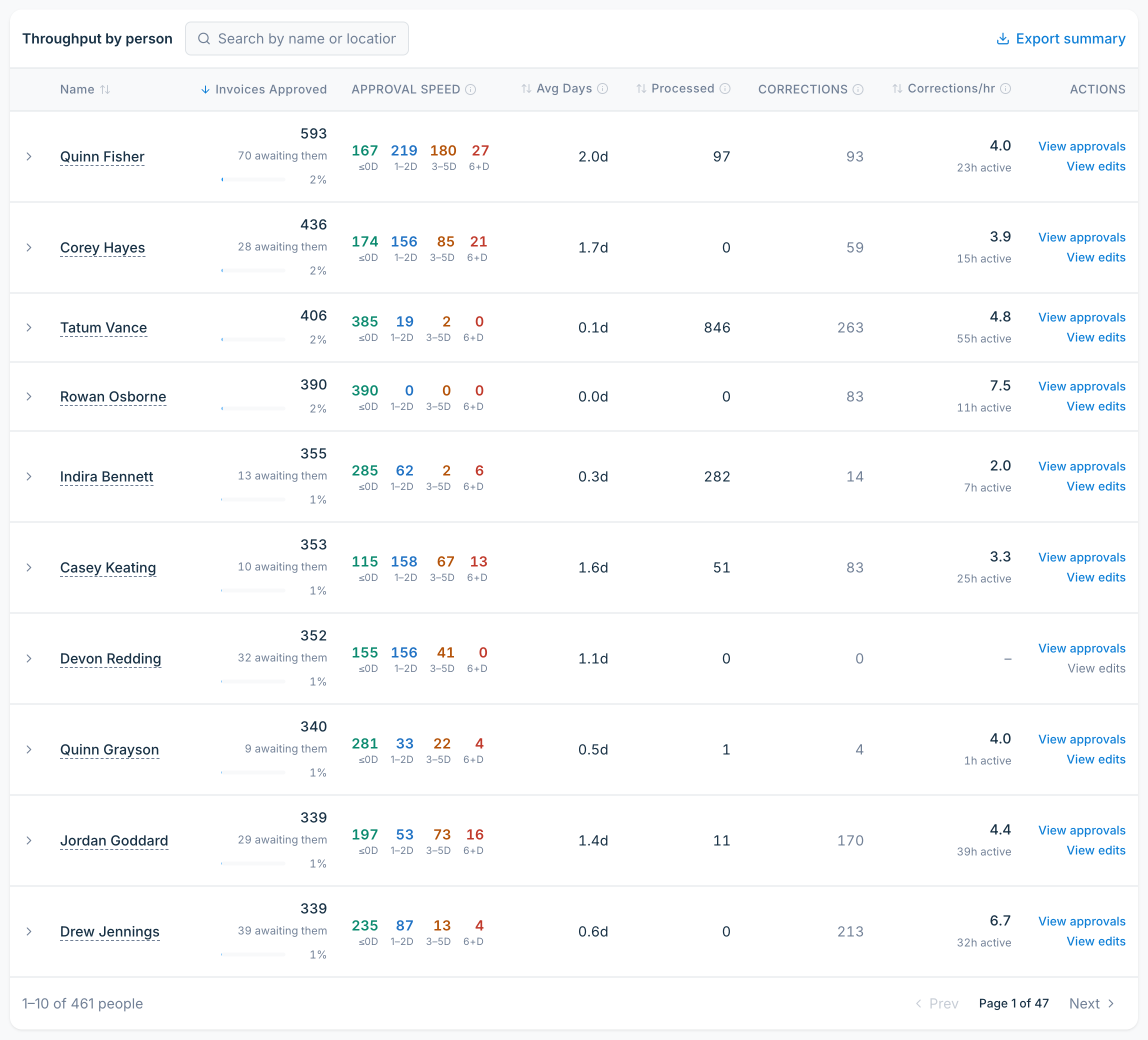
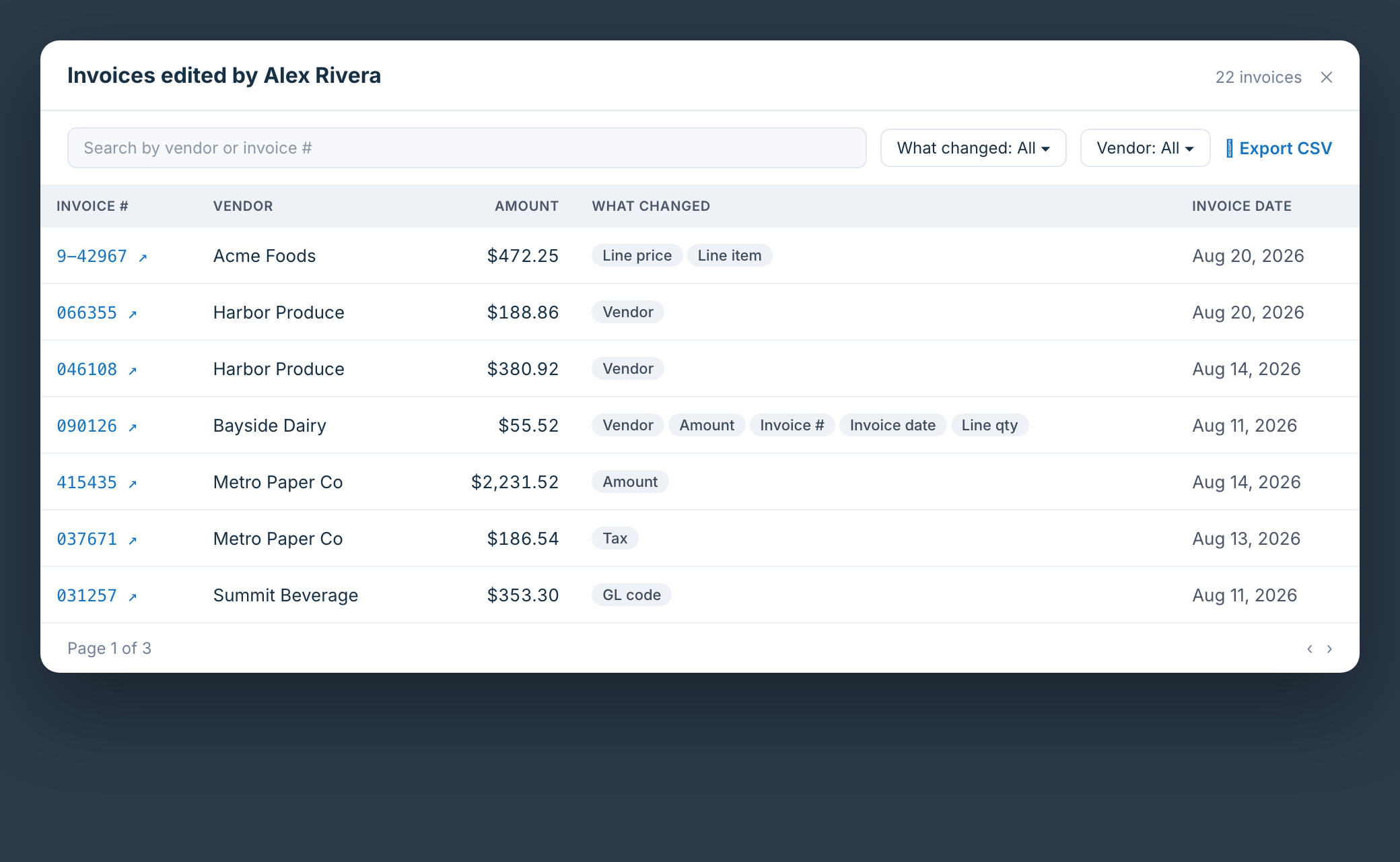
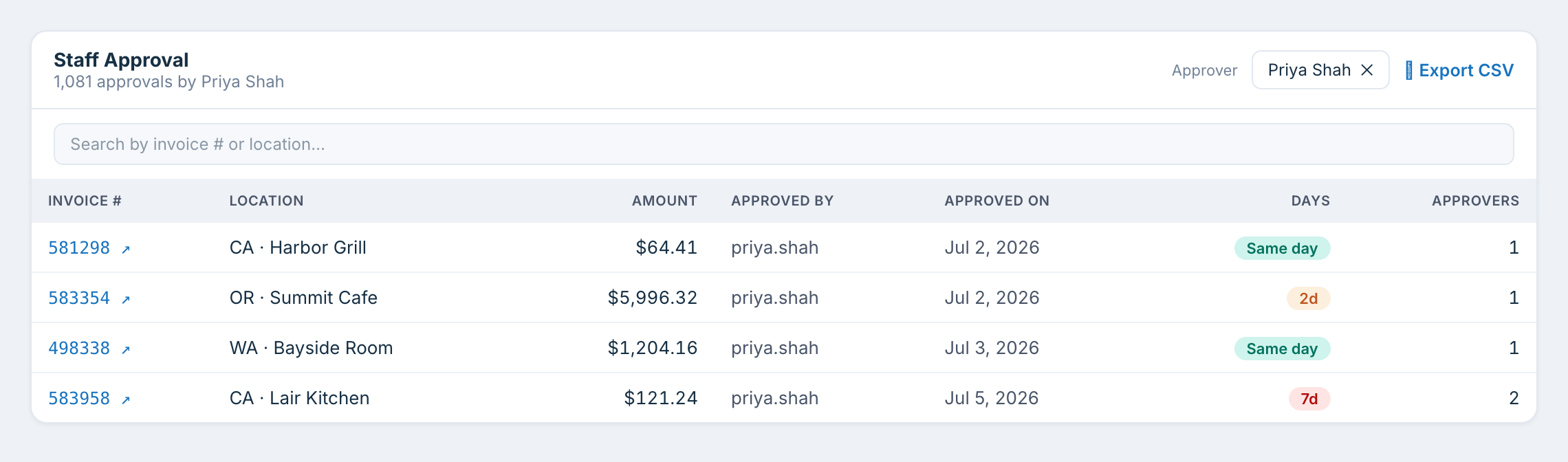
View approvals and View edits: on each person's row, click View approvals to filter the Staff Approval list below to that person's approved invoices, or View edits to open the invoices that person edited, with the specific fields they changed. When someone has no approvals or no edits, the link is greyed and a hover explains why.
Staff Approval list: a line-by-line list of approvals with the approver, the location, the amount, the days to approve, and a link to each invoice. Filter it by approver and export it to CSV.
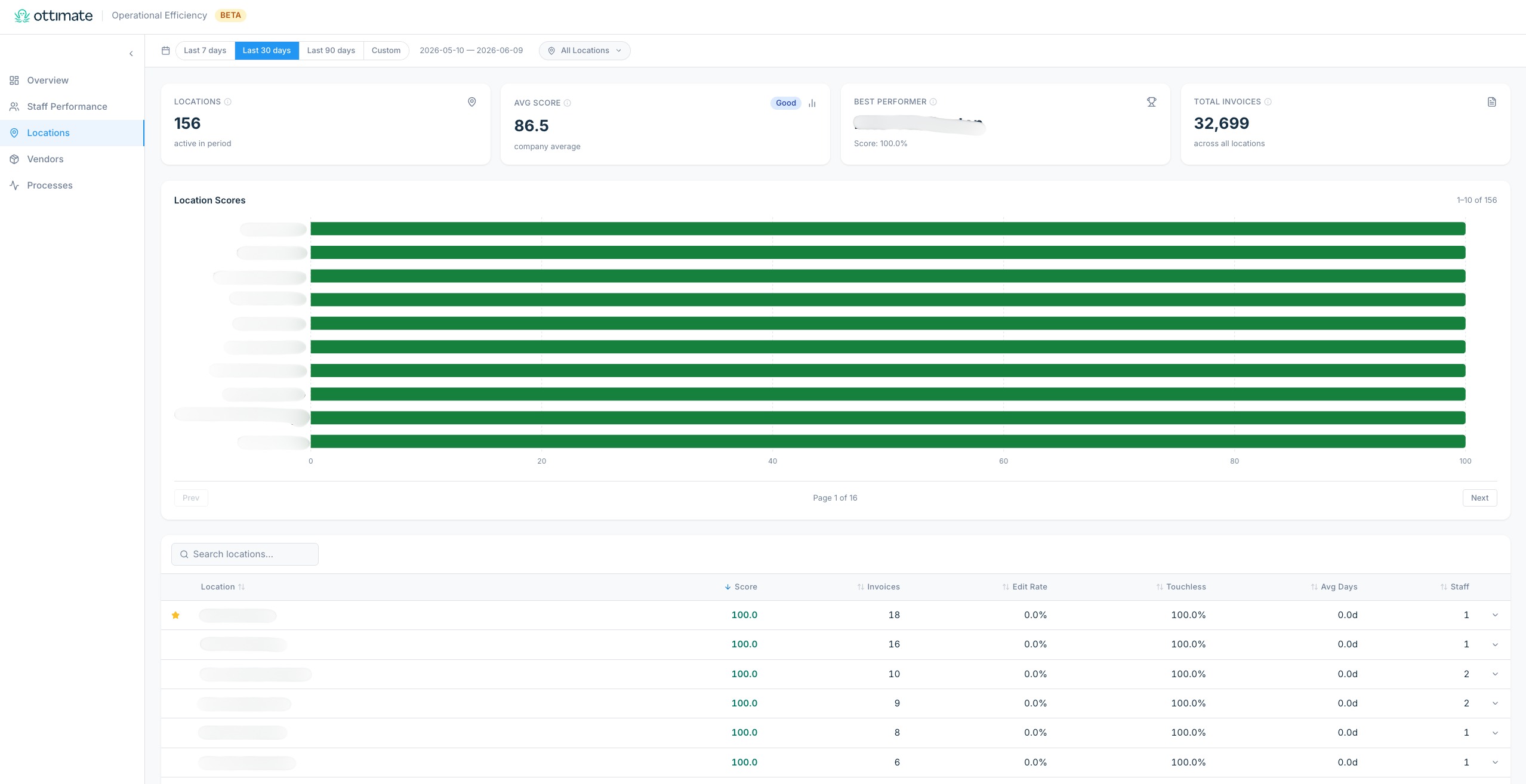
3. Locations: Which locations are performing, and which need support?
A side-by-side view of how each of your locations is processing invoices. Useful for multi-property and multi-unit operators comparing performance across sites.
Summary cards: number of locations, average location score, best performer, and total invoice volume.
Location score bar chart: a horizontal ranking of every location by score, color-coded by performance band.
Location table: sortable columns for score, invoices, touchless mapping rate, touchless capture rate, edit rate, average processing days, and staff count. Expand any row to see a process-efficiency timeline (uploaded → processed → approved → exported) and drill into the location's invoices.
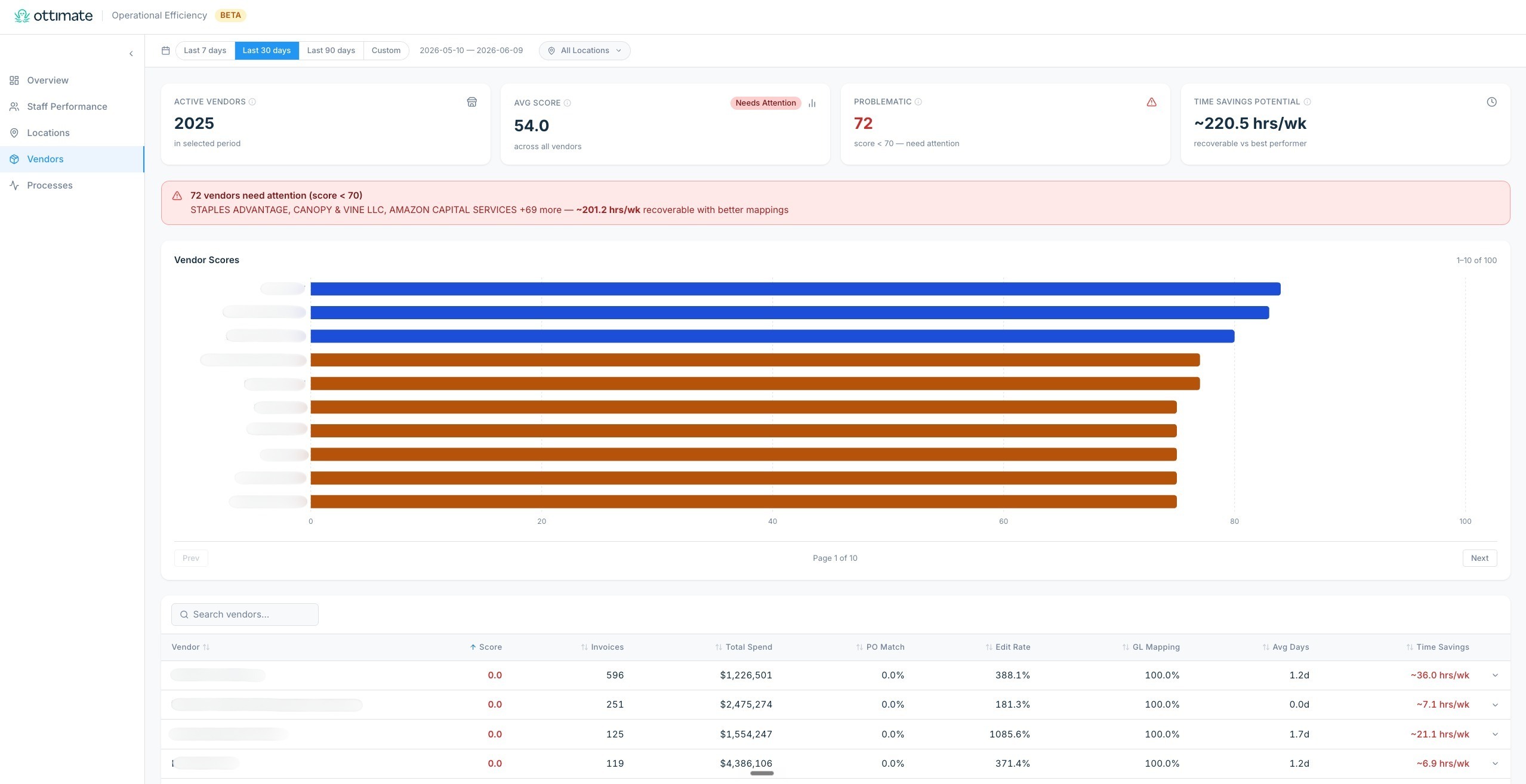
4. Vendors: Which vendors are creating the most manual work?
Most rework is concentrated in a small number of vendors. This tab finds them and quantifies the time impact.
Summary cards: active vendors, average vendor score, problematic vendors (score below 70), and time-savings potential if every vendor matched your best performer.
Alert banner: appears when one or more vendors score below 70, naming the vendors and the aggregate time impact.
Vendor score bar chart: ranks every vendor by score, sorted worst-first so the biggest issues surface immediately.
Vendor Performance table: sortable columns for score, invoices, total spend, PO and non-PO match rates, edit rate, GL mapping rate, average processing days, and Time Savings (hrs/week recoverable if this vendor's edit rate matched the best performer). Sort by Time Savings to rank vendors by the impact of fixing them.
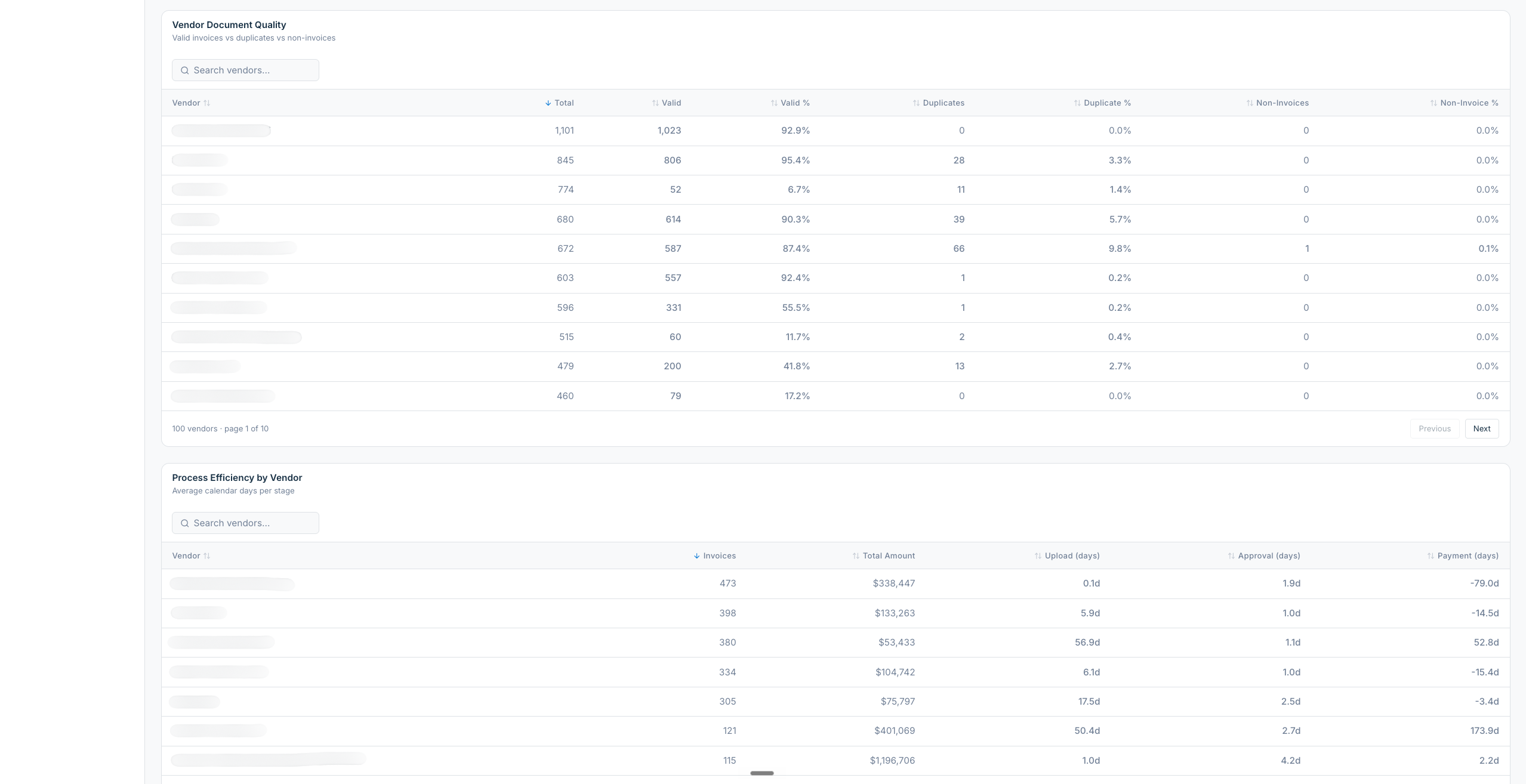
Vendor Quality view: splits each vendor's documents into valid invoices, duplicates, and non-invoices so you can see which vendors are sending noise alongside their invoices.
Vendor Process Efficiency view: shows upload, approval, and payment days per vendor, so you can see which vendors are slow at each step of the cycle.
5. Processes: Where are the bottlenecks in how invoices flow through Ottimate?
The deepest analytical tab. Four sub-views, each focused on a specific part of the AP workflow.
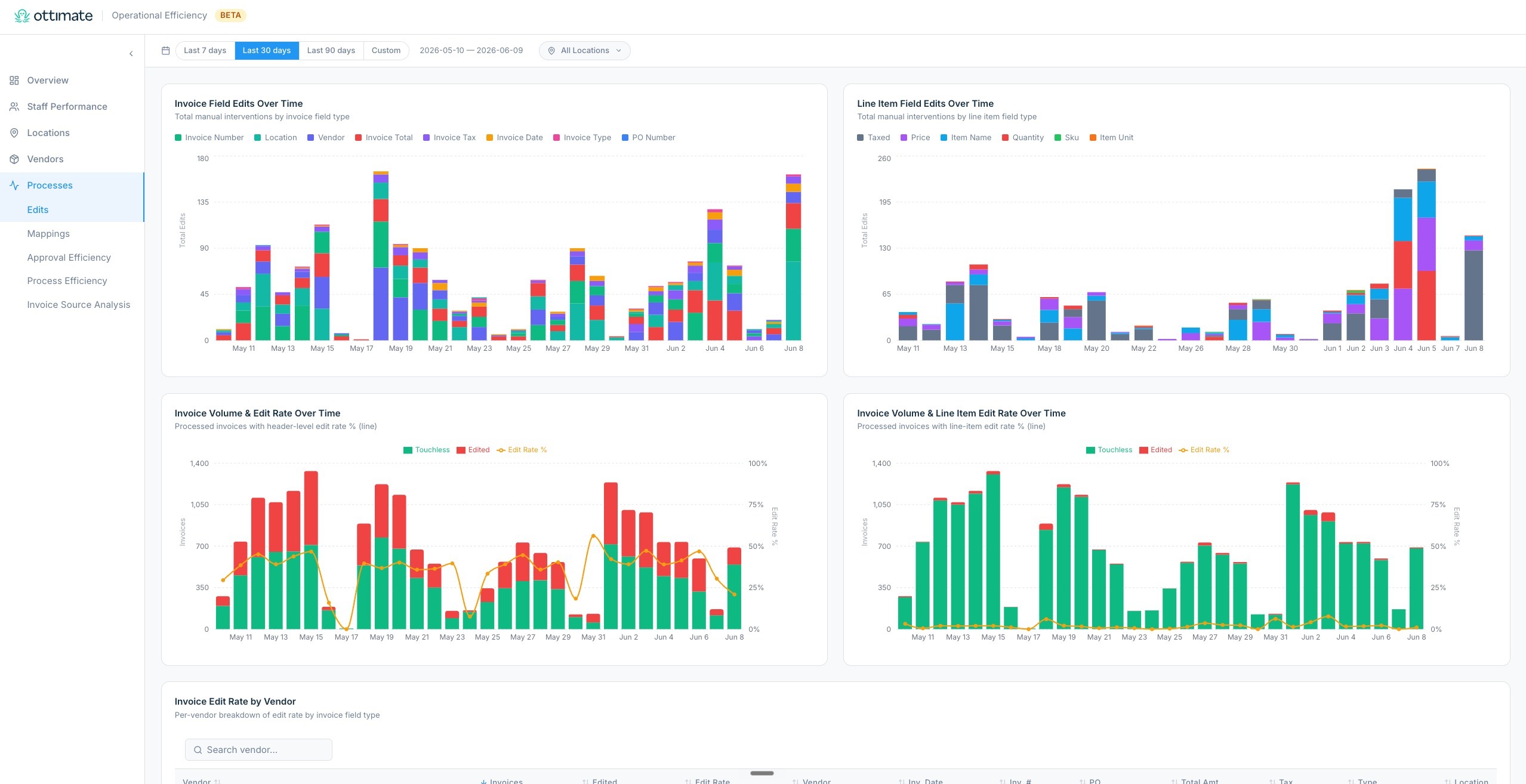
Edits: which invoice and line item fields are getting edited most often, the edit rate trend over time, and which vendors drive the most header-level and line-level edits.
Mappings: how often Ottimate's GL and vendor mappings are auto-applied vs needing manual fixes, broken down by vendor.
Approval Efficiency: weekly approval-duration trend, plus tables showing the history of approved invoices and invoices currently waiting for approval.
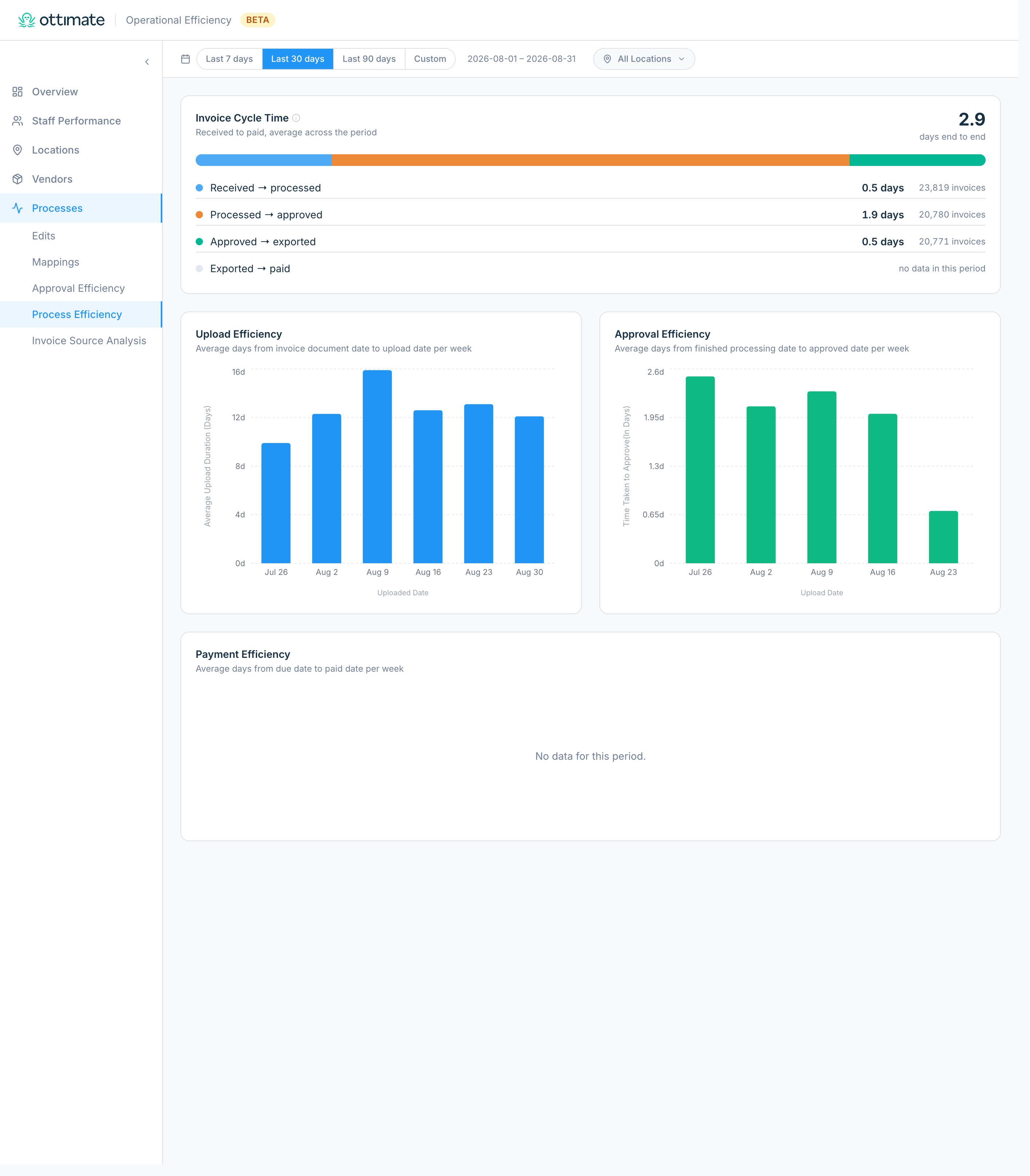
Process Efficiency: an Invoice Cycle Time bar at the top that shows the average days an invoice spends at each stage of its journey (received → processed → approved → exported → paid) and the end-to-end total, followed by weekly upload-duration, approval-duration, and payment-timing trends, so you can pinpoint where the AP cycle is slowing down. Each stage is averaged only over invoices that reached it, so invoices created late in the period can under-represent the later stages.
FILTERS AVAILABLE ON THE DASHBOARD
All filters apply to every tab and persist as you move between them.
Date range: presets (Last 7 days, Last 30 days, Last 90 days) or a custom From / To range. Defaults to Last 30 days. The end date can't be set past today.
Locations: multi-select, searchable. Only the locations you have access to in Ottimate are shown. Leaving the selection empty includes all of your accessible locations.
On the Staff Approval list and the invoice drill-downs, you'll also find in-view filters (by approver, by vendor, and by what changed) that apply only to that list.
ACCESS & PRICING
Available to users whose role has both the View Admin Reports and View Analytics Dashboards permissions enabled. Users without one or both of these permissions won't see the dashboard row under Reports → Dashboards.
If you or someone on your team is unable to find the dashboard, they're likely missing one of these permissions. Ask the user with Administrator role permissions to activate View Admin Reports and View Analytics Dashboards for the user with missing access.
Pricing and availability are handled as part of your Ottimate plan. Reach out to your Customer Success Manager for specifics.
FAQS
Q. Can I use the Staff Performance tab to compare how much my team gets done?
A. Yes. The tab ranks people by invoices approved and shows invoices processed and approval speed alongside, so you can compare output and turnaround across the team. Corrections (edits) are shown too, but as a separate signal: a high correction count usually reflects the vendors or locations a person handles, or gaps in Ottimate's mapping, so treat it as configuration to fix, not a performance score.
Q. What do the "awaiting them" and "Corrections/hr" numbers on Staff Performance mean?
A. The line under a person's approved count (for example "12 awaiting them") is their live approval backlog: the invoices waiting on them to approve right now. It is a point-in-time count, so it does not move with the date filter. Corrections/hr is that person's corrections divided by the hours they were active in the period, so you can tell someone who works efficiently from someone who was simply logged in longer. Like corrections, it reflects Ottimate's classification quality, not a performance grade.
Q. Why is my edit rate so high for a specific vendor or staff member?
A. A high edit rate usually means Ottimate's mappings, capture, or PO matching for that vendor or location aren't set up correctly yet. Click into the row to see which fields are getting edited most often. Once you fix the underlying mapping or capture rule, the edit rate will start dropping on the next invoices that come through.
Q. What's the difference between Invoices Approved and Invoices Processed?
A. They're the two AP roles. Invoices Approved counts the invoices a person approved. Invoices Processed counts the invoices a person created or uploaded. A person can do a lot of one and little of the other, which is why both are shown. Auto-ingested invoices (through EDI or email) are created by the system, so they don't count toward anyone's processed total.
Q. Are the "manual hours per week" numbers exact?
A. They're estimates, which is why they're shown with a tilde (~4.3 hrs/week). Each edit type uses an industry-average time-per-edit (around 4 minutes for GL coding and PO resolution, 3 minutes for vendor mapping and invoice edits, 2 minutes for duplicate checks). Your team's actual minutes per edit may vary, but the relative comparisons across staff, locations, and vendors are accurate.
Q. How far back does the data go?
A. The date filter currently supports up to 90 days as a preset, or a custom range you define. Data is calculated against the invoices in your selected range.
Q. Does the dashboard show all my locations?
A. Yes, by default. You'll see every location your role has access to. Use the Locations filter to narrow the view to a specific site or group of sites for comparison.
Q. Why doesn't my correction count for a staff member match what I see in their AP queue?
A. Corrections are attributed to the user who performed the edit, not the user who uploaded the invoice. The staff row reflects what each user did to the invoice in Ottimate, not what they uploaded, so the two won't always be the same person.
Q. How do I compare my numbers to other companies or industry benchmarks?
A. Trend charts include reference lines for the Ottimate platform median and top performer, so you can see how you're tracking against the broader Ottimate user base. External industry benchmarks aren't shown by design: peer comparisons across very different AP setups are often misleading, and internal benchmarking ("our Austin location does it, so our LA location can too") is usually the more useful framing.
Q. Can I drill down into the specific invoices behind a metric?
A. Yes. Most charts and tables let you click in. On Overview, click an edit type in the "Where does time go?" panel. On Staff Performance, click View approvals to see a person's approved invoices or View edits to see the invoices they edited (with the fields they changed). On Locations and Vendors, click the document icon on any row to open the invoice history for that location or vendor.
Q. Can I export this data or schedule a report?
A. Yes, in a few places. On Staff Performance, use Export summary to download the per-person table (approvals, speed, processed, corrections) as a CSV, and Export CSV on the Staff Approval list to download the approvals behind it. The invoice drill-downs (including View edits) also export to CSV, and each export respects the filters you have applied. Formatted PDF/HTML reports and scheduled email digests are on the roadmap.
Q. Does the dashboard work on mobile?
A. The dashboard is designed for desktop and laptop screens. A phone or tablet will technically load it, but the layout, tables, and drill-down modals are best on a larger screen.
Q. Why don't I see any data?
A. The most common reasons are: your account is new and hasn't processed enough invoices in the selected range, your filters are too restrictive (try a wider date range or clear the Locations filter), or your role doesn't have access to invoices from any of the locations being filtered. If none of those apply, reach out to support.
Q. How is this different from the other dashboards in Ottimate?
A. Other Ottimate dashboards focus on spend (Cost Analysis, Cost Overages, Surcharge Tracker). The Operational Efficiency Dashboard focuses on the process behind that spend: how invoices flow through your team, who is getting the most done, where the manual work concentrates, and which vendors, locations, or mappings are slowing you down. Most operators benefit from using both: spend dashboards for what you're paying, Operational Efficiency for how efficiently you're paying it.
For further assistance, contact Ottimate Support by emailing support@ottimate.com or click the link here and submit a support ticket.
Was this article helpful?
That’s Great!
Thank you for your feedback
Sorry! We couldn't be helpful
Thank you for your feedback
Feedback sent
We appreciate your effort and will try to fix the article