Overview
Your account homepage shows you what needs your attention with a personalized, ownership-based view of your AP work. The moment you log in, you see what to work on and in what order. You can also get answers from colleagues without giving them full invoice visibility.
The invoice upload methodology, and & every feature you are used to is still available.
Key Updates:
Know where to focus the moment you log in
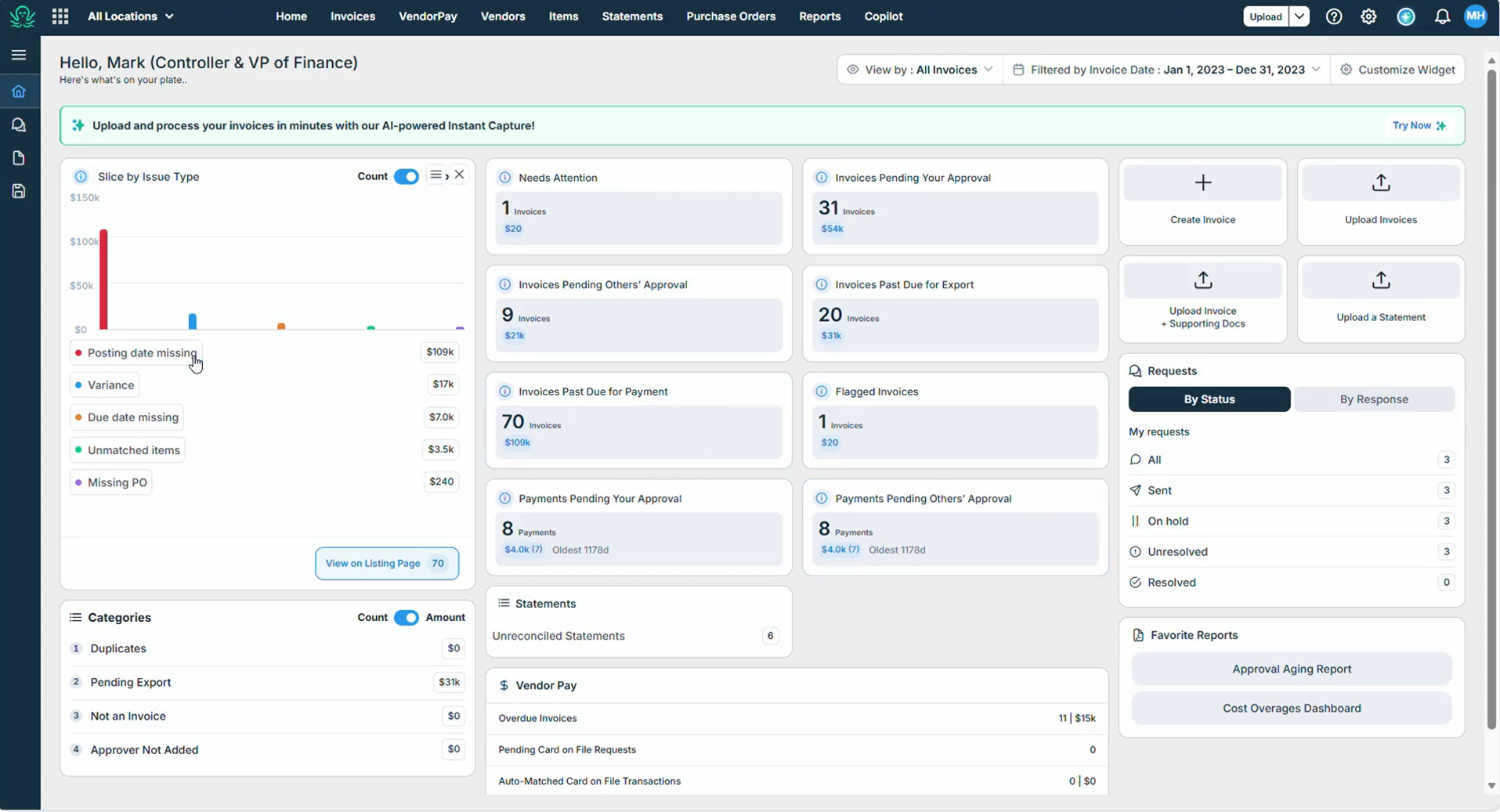
The homepage highlights where your attention is needed. Instead of searching for invoices stuck in bottlenecks, Ottimate organizes them by operational issue.
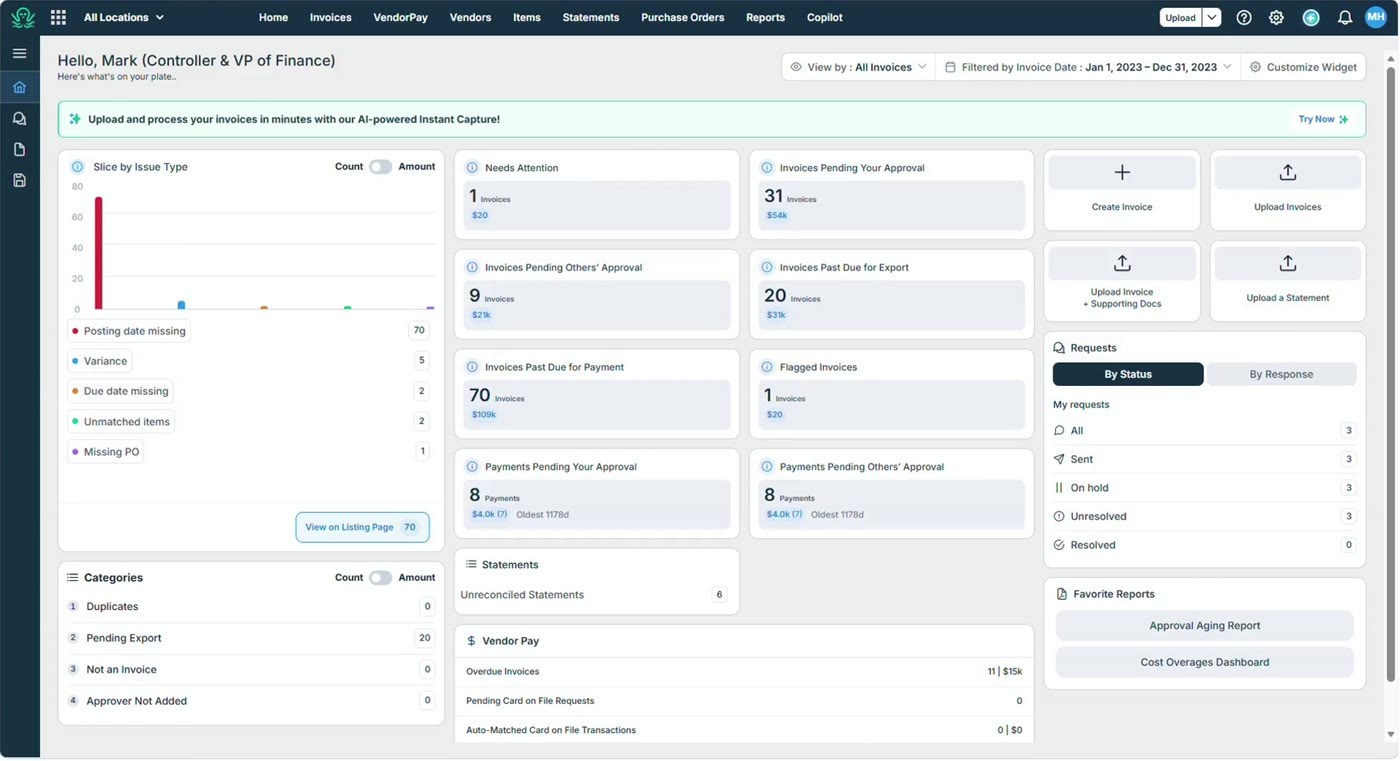
Easily view the number of invoice issues by count or dollar amount
Slice by Issue Type and Categories tables show how many invoices need action and the total dollars tied to them. Switch the Count / Amount toggle to see which issues carry the most value. With these metrics up front, teams can review, approve and pay on time without anything slipping through the cracks.
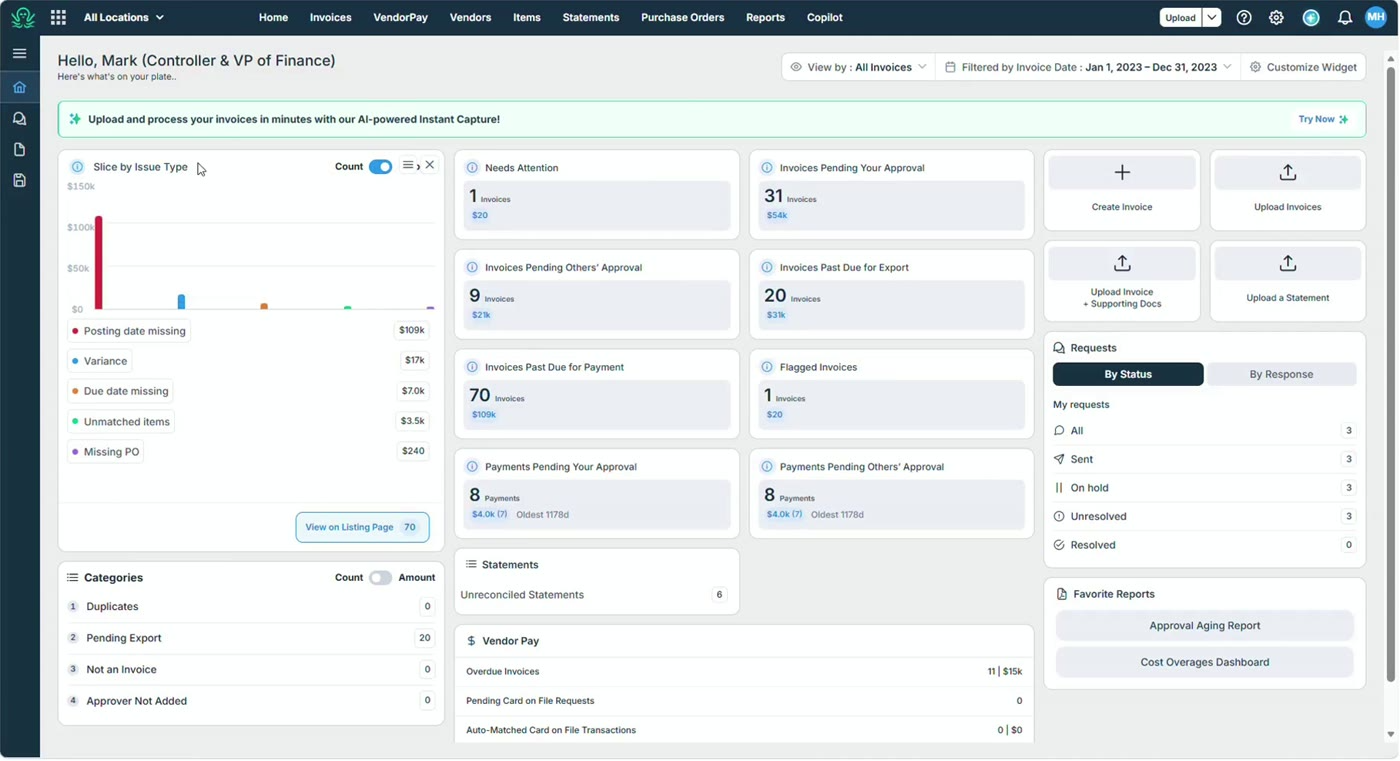
Personalized to your role and workflow
Every card and widget adapts to your role and permissions. AP processors get full operational visibility into invoices that need their attention. Approvers get a focused view of only what needs their sign-off.
Once your account administrator grants you access, you can tailor the layout yourself:
Drag and drop widgets to rearrange your layout
Hide widgets you don't need
Reset to the default layout in one click
Filter by date range and choose View by to see invoices assigned to you or all invoices
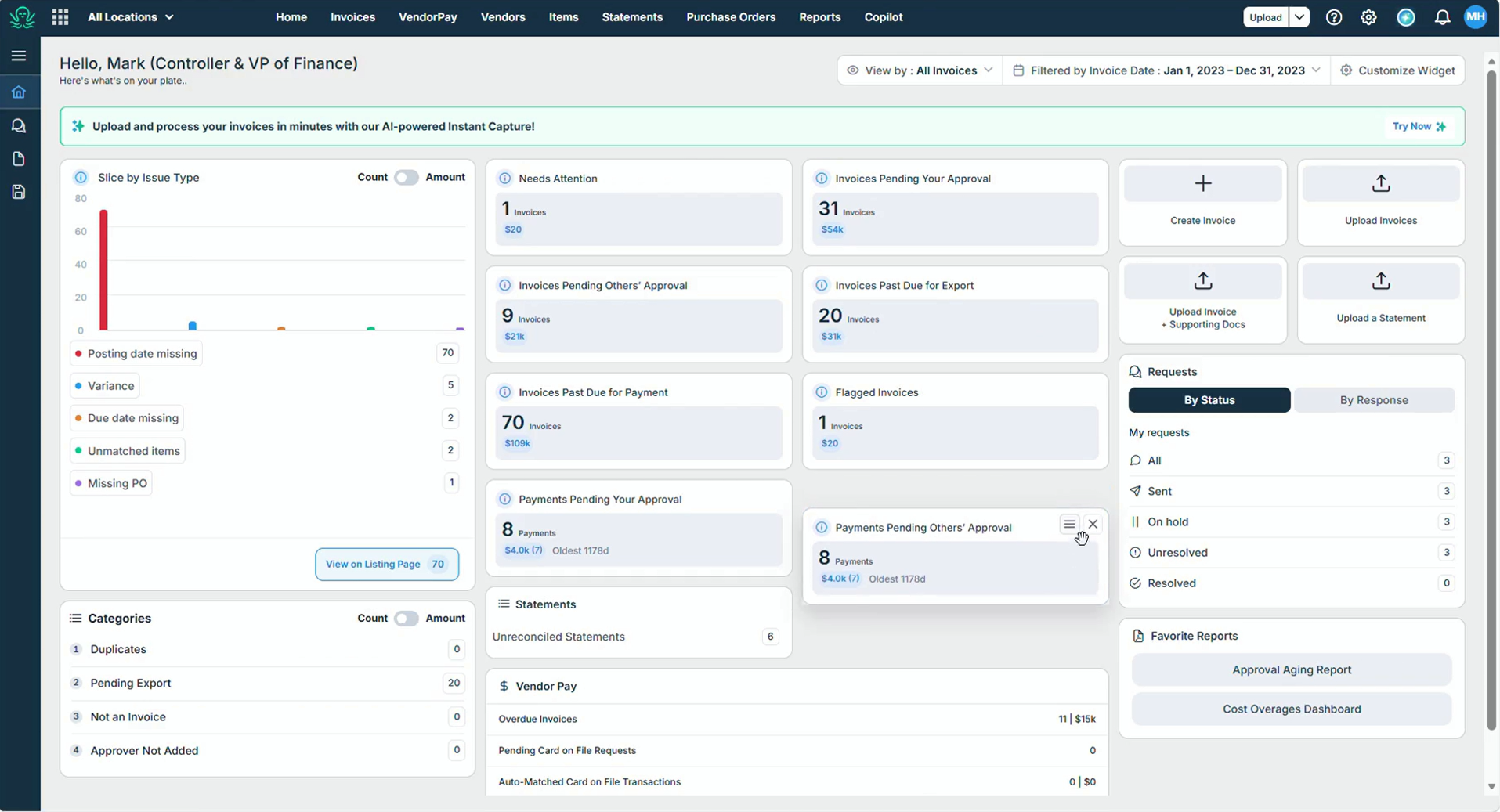
Requests enhance internal communication capabilities
Request functionality enhances internal communication with internal stakeholders directly in the platform, centralizing vendor-related inquiries and providing instant visibility. When you need input from an internal stakeholder, send a request straight from the invoice. The stakeholder gets access scoped to that request, not full invoice visibility.
The Homepage Request functionality then tracks every open request in real time:
How many requests are out
Whether you've received a response
Whether the request is resolved
Who is holding up the process
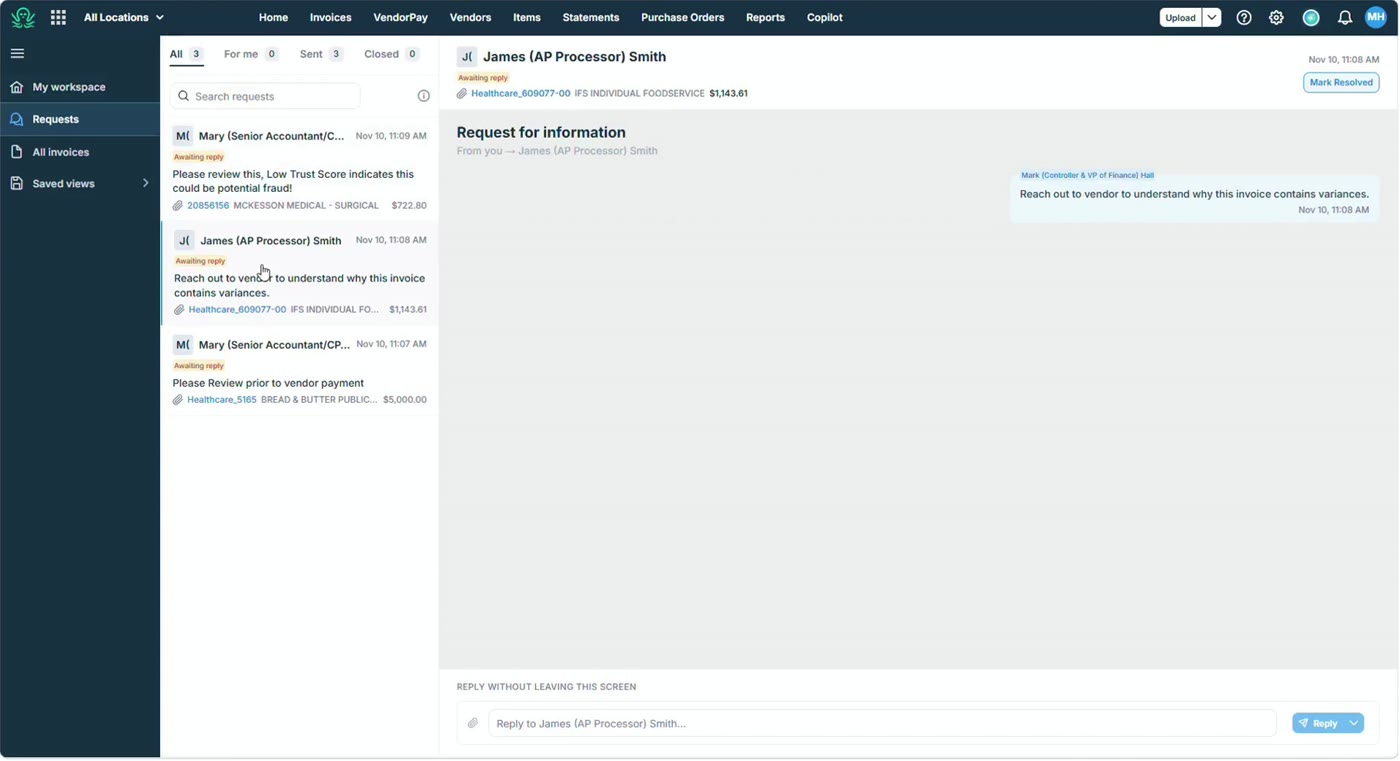
Cards on the Homepage expose the associated invoices with one click
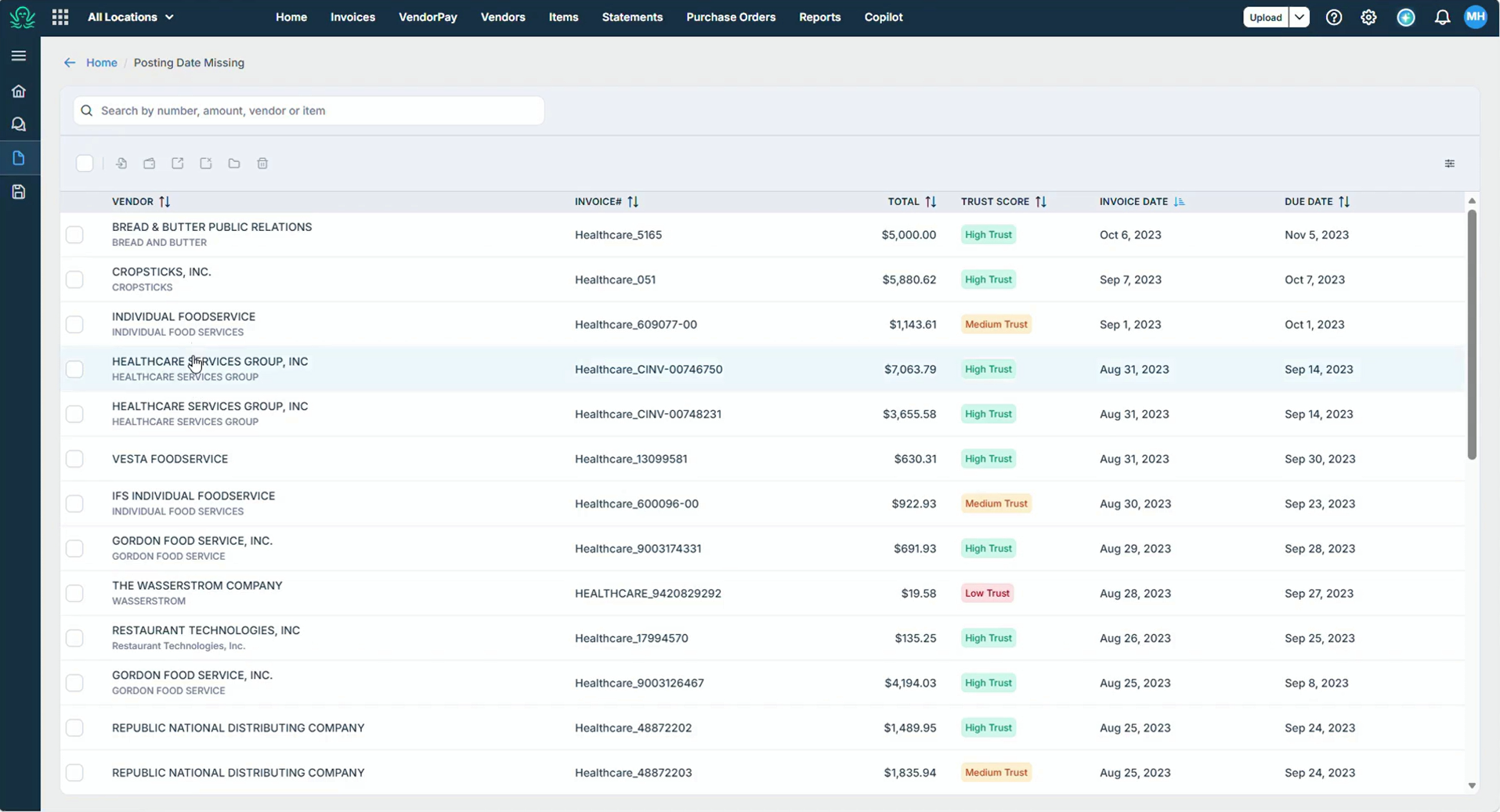
Every card, data point, and bar on the Homepage is interactive. Click any of them to open a pre-filtered list of those exact invoices, with no searching or complex filters. Jump straight to:
Invoices needing your attention
Invoices awaiting approval
Payments pending approval
Unreconciled statements
Overdue and flagged invoices
Your favorite reports
Every action you rely on, still one click away
Create invoices, upload invoices, upload invoices with supporting documents, and upload statements right from the Homepage. Instant Capture is linked at the top of the page for AI-powered processing in minutes.
Sidebar navigation
Getting started
Click Home or My Workspace to open your Homepage.
Set View by and the date range to focus on the invoices you own.
Review Slice by Issue Type and Categories, and toggle between Count & Amount to prioritize by value.
Click any metric to open the matching invoices and work through them.
Arrange or hide widgets to suit how you work. Reset to the default layout at any time.
Send a Request from an invoice when you need input, and track it from the Homepage.
FAQ
Is any functionality going away? No. Everything from the previous interface is available on the new Homepage.
What happened to Flagging functionality? Users can still flag an invoice directly, but now they can also send requests, which lets you send, track, and resolve questions with internal stakeholders.
Will stakeholders I send a request to see all my invoices? No. Their access is scoped to the request, user role & permissions available.
Can I undo changes to my layout? Yes. A one-click reset restores your default layout.
Why can't I customize my Homepage? Your Account Administrator needs to grant access first, enabling the new functionality.
Why does my Homepage look different from a colleague's? Cards and widgets adapt to each user's role and permissions.
Need help? Contact your Customer Success Manager or use the help (?) icon in the top bar.
Was this article helpful?
That’s Great!
Thank you for your feedback
Sorry! We couldn't be helpful
Thank you for your feedback
Feedback sent
We appreciate your effort and will try to fix the article