Permission to "Manage Users" is required to access Adding and Removing Users.
Add User
At the top right, click the Settings icon.
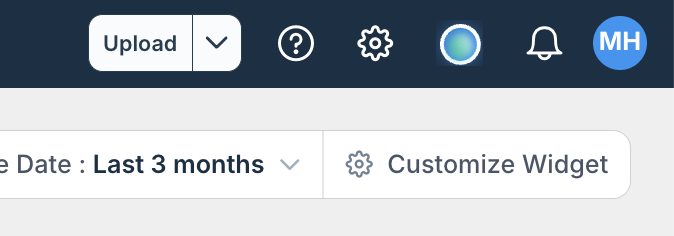
Once in Settings, click Manage Users on the left. Sort & filter users with the search headings.
To create a new user, click Add User on the right.

Enter their First Name, Last Name, Email, and select a Role from the dropdown. After selecting the Role, you will see a list of granted permissions.

You will also need to select their location(s). You can select a single location, multiple locations, or all locations.
Click Save when finished. They will receive a welcome email with a login link.

Remove User
To delete a user, click the three dots next to their information. Click Remove User Access. A pop-up will ask you to confirm. Please note: if you are an administrator and do not see this option, you can reach out to Support for help.
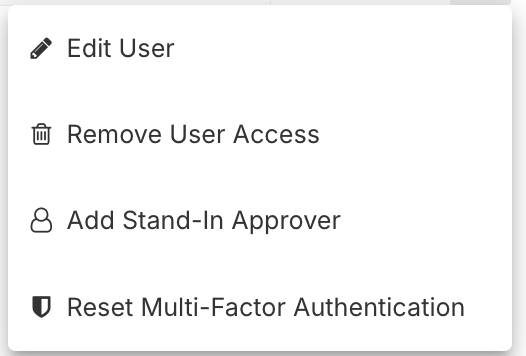
Edit User
To edit a user, click anywhere on their information to open their profile. You can edit their name, role, and/or location. You can't edit their email address. Click Save when finished or Discard to cancel editing.
Additional Info
For further assistance, contact Ottimate Support by emailing support@ottimate.com or clicking here.
Was this article helpful?
That’s Great!
Thank you for your feedback
Sorry! We couldn't be helpful
Thank you for your feedback
Feedback sent
We appreciate your effort and will try to fix the article