Overview
Ottimate MCP brings your Ottimate AP data into the AI assistant you already use, starting with Claude and ChatGPT. Instead of logging into Ottimate to pull a report, you can leverage Claude or ChatGPT's interface directly, with queries like "Show me my top vendors this quarter", "Which invoices are pending approval over $5,000", or "Am I getting overcharged on any items". The AI pulls the answer from your Ottimate account and replies in seconds.
If you also connect your ERP (like Sage Intacct or NetSuite) to the same AI tool, you can ask questions across both systems in a single conversation. You can learn more about budget vs. actuals, PO-to-invoice variance, AP reconciliation, cash flow planning, and more, all answered without switching tabs or building a spreadsheet.
Ottimate MCP is read-only today. It can look up and analyze your data, but it can't approve invoices, change anything, or send payments. You can access only the data you have permission to access in your Ottimate user permissions.
What is Ottimate MCP & How Does it Help Me?
Think of Ottimate MCP as a secure bridge that lets your AI assistant (Claude or ChatGPT) read your Ottimate data.
Instead of:
Logging into Ottimate, running a report, exporting to Excel, and rebuilding the same view every time you have a new question
Switching between Ottimate, your ERP, and a spreadsheet to answer a single question
Asking your AP team to pull data for you, then waiting hours or days for the answer
You can now:
Open Claude or ChatGPT, type a question, and get the answer pulled live from your Ottimate account
Combine Ottimate data with your ERP, your own files (CSVs, PDFs), and anything else you've connected to your AI tool
Drill down with follow-ups without re-pulling a report each time
Export results straight to Excel, CSV, or Notion from inside your AI tool
How to Connect Ottimate MCP — Step by Step
Ottimate MCP works with two AI tools today:
Claude Desktop — via the "Custom Connectors" option
ChatGPT — via "Developer Mode", currently in beta from OpenAI
Note: The 1-click install through the Claude marketplace is going through Anthropic's review process. Support for Cursor and other AI tools is coming soon.
What you'll need:
A paid Claude account (Pro, Team, or Enterprise) OR a paid ChatGPT account (Plus, Pro, Business, Enterprise, or Edu). ChatGPT Free does not support custom connectors.
Your existing Ottimate login
Setting Up in Claude Desktop
Step 1: In Claude, open Settings and find the "Connectors" section. Click "Add custom connector".
Works the same on Mac and Windows: Claude → Settings (or Customize) → Connectors → Add custom connector.
Step 2: Fill in the two fields:
Name: Ottimate
You can ignore the "OAuth Client ID" and "OAuth Client Secret" fields under Advanced settings, leave them blank. Click Add.
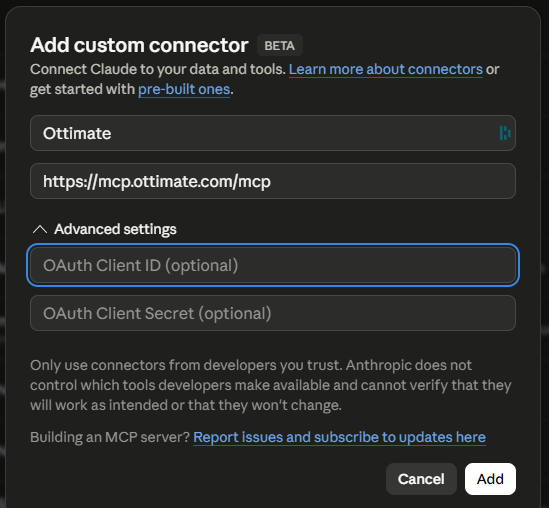
Step 3: A browser tab will open asking you to log in to Ottimate. If you're already logged in, you'll go straight to a pop-up showing that Claude wants to access Ottimate. Click Allow Access.
Step 4: Head back to Claude and start a new conversation. Try a simple query to confirm it's working, like:
"Using Ottimate, show me my top 5 vendors by spend this quarter."
Claude will pull the answer from your Ottimate account and return it in seconds. From here, you can ask follow-ups, request charts, export to CSV, or combine the data with anything else Claude has access to.
Setting Up in ChatGPT
ChatGPT's support for custom MCP connectors is currently in beta from OpenAI. The setup UI and toggle locations may shift slightly as OpenAI iterates.
Step 1: In ChatGPT, open Settings and find the Apps & Connectors section in the sidebar.
Step 2: Under Advanced Settings, enable Developer Mode. If you don't see this toggle, your plan or workspace permissions may not include it (see Troubleshooting below).
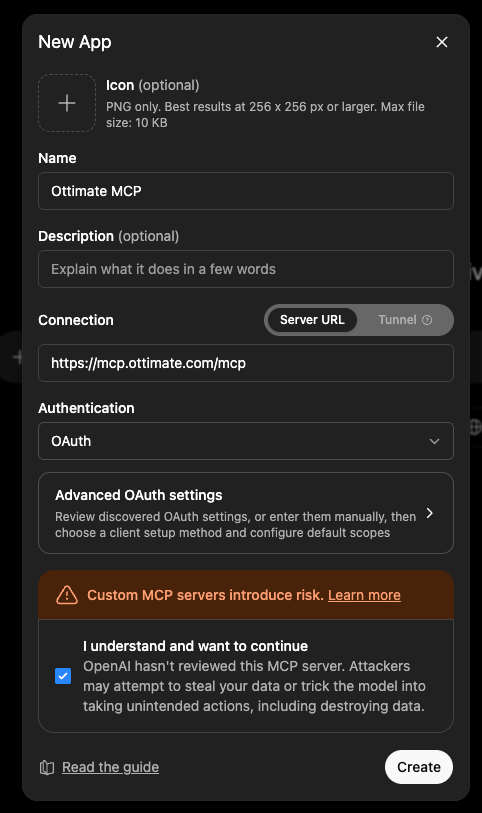
Step 3: Click Create (or + Add) to add a new connector. A "New App" dialog will open.
Step 4: Fill in the connector details:
Name: Ottimate MCP
Description: optional, leave blank or add "Read-only access to Ottimate AP data"
Connection: select Server URL
Server URL: https://mcp.ottimate.com/mcp
Authentication: select OAuth (you can skip the Advanced OAuth settings)
Check the "I understand and want to continue" box under the risk warning, then click Create.
Step 5: A dialog will appear titled "Add Ottimate MCP to ChatGPT" with a Sign in with Ottimate MCP button. Click it and complete the Ottimate login in your browser. You'll be redirected back once the connection is approved.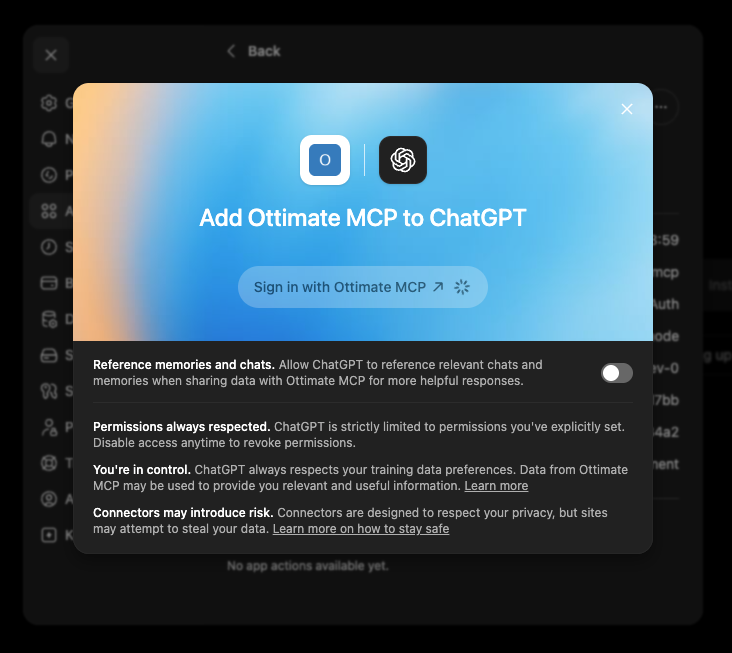
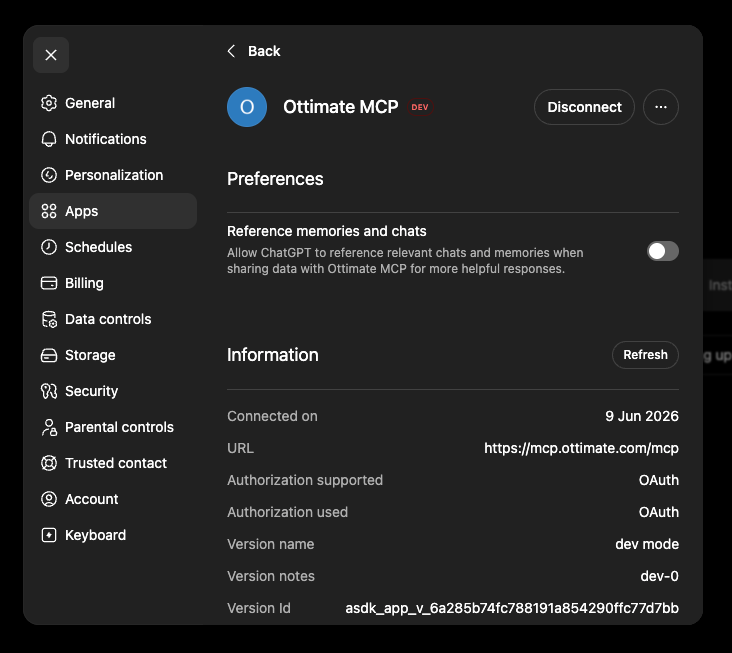
Step 6: Once connected, you'll see Ottimate MCP listed under your apps with a small DEV badge (this is expected while the connector is in Developer Mode). Start a new chat, enable Developer Mode for that chat (the toggle is in the chat's input area or under the source/connector selector), select Ottimate MCP as a source, and ask a question like:
"Using Ottimate, show me my top 5 vendors by spend this quarter."
What Can I Ask?
Tip: Begin your question with "Using Ottimate, ..." to help your AI tool contextualize your query.
Example Queries:
Spend & Vendor
What are my top 10 vendors by spend this quarter, and how does that compare to last quarter?
Break my spend down by location for the last 6 months
Which 5 vendors have raised prices the most in the last 3 months?
Show me Sysco invoices over $1,000 from the last 30 days
Price Variance & Overcharges
Show me every item where we were invoiced above the contracted price in the last 90 days, ranked by dollar impact
Which vendors have the biggest gap between invoiced price and catalog price?
Find any items where the price jumped more than 10% between invoices this month
Approval & Workflow Health
Which invoices have been pending approval for more than 7 days, who's holding them up, and what's the total dollar exposure?
Show me all invoices pending approval over $5,000
Which approvers are the slowest this month?
List all overdue invoices by due date for the last 30 days
Cash Flow & AP Planning
If I approve all pending invoices, what's the total AP outflow and when does each payment hit?
Show me a week-by-week AP outflow grid for the next 30 days. Which week has the biggest commitment?
Which invoices can I defer to next week without going past terms?
GL Coding & Automation Health
What's our GL auto-coding accuracy this month?
Which vendors or categories have the most manual GL overrides, and what's the pattern?
Find all invoices coded to GL 5001 (Food Cost) last quarter
Where have we coded "olive oil" before?
The examples above are a starting point. You can ask well beyond them. Ottimate MCP is built on the Ottimate API, which defines the full set of AP data you can reach: invoices, line items, vendors, approvals, and accounting dimensions. For the exact, technical reference on what's available, see the Ottimate API documentation. Ottimate MCP reads this data; it can't change it.
Combining Ottimate with Your ERP
If you also connect your ERP (Sage Intacct, NetSuite, QuickBooks, or anything else that publishes a connector for your AI tool) to the same account, you can ask questions across both systems in a single conversation. Each system is connected independently, log in once to each, and your AI tool reasons across both.
This is where Ottimate MCP becomes uniquely valuable, because no other AP platform lets you do this today.
Budget vs. Actuals
Am I over budget on food cost this month across all locations?
What's my budget utilization for GL account 5001?
AP Reconciliation
Show me invoices approved in Ottimate that haven't posted to my ERP yet
Are there any vendors where the Ottimate balance doesn't match the ERP AP aging?
PO-to-Invoice Variance
Show me POs from the last 60 days where the invoiced total exceeded the PO total by more than 5%, sorted by dollar variance
Did we actually pay what the PO said?
COGS & Variance Analysis
Why did COGS jump 12% this quarter compared to last quarter?
What's my AP commitment for the next 30 days, and how does that compare to my cash position?
Writing Great Prompts — Tips & Tricks
Be specific with time ranges:
Use: last week, July 2026, last 90 days, Q1 2026
Avoid: recently, a while ago, lately
Use exact vendor names:
Use: Sysco, US Foods, Performance Food Group
Avoid: that food vendor, the soda guys
Tell your AI tool which system to use when it matters:
"Pull spend from Ottimate and the food cost budget from Intacct..."
This avoids any confusion when you have both connected.
Stack conditions for sharper answers:
"Show me Sysco invoices over $1,000 pending approval from our Chicago location, sorted by oldest first."
Ask follow-ups, your AI tool remembers context within a conversation:
"Show me all food cost invoices from last month"
"Which ones are over $2,000?"
"Now export those to a CSV"
Common FAQs
Q. What's the difference between Ottimate MCP and Ottimate Copilot?
A. Copilot lives inside the Ottimate platform and is meant for day-to-day AP work. Ottimate MCP brings Ottimate into Claude or ChatGPT so you can analyze your AP data alongside everything else you already do in your AI tool. Most customers benefit from both: AP teams use Copilot inside Ottimate, finance leaders use MCP from Claude or ChatGPT.
Q. Do I need a Client ID or Secret to set this up?
A. No. In both Claude and ChatGPT, the OAuth Client ID and Client Secret fields are optional and can be left blank. The only thing you need is the URL: https://mcp.ottimate.com/mcp. Once you click Add (Claude) or Create (ChatGPT), you'll be redirected to log in with your existing Ottimate credentials.
Q. Which AI tools does Ottimate MCP work with?
A. Ottimate MCP currently supports Claude Desktop (via the Custom Connector option) and ChatGPT (via Developer Mode, currently in beta from OpenAI). The 1-click install through the Claude marketplace is going through Anthropic's review process. Support for Cursor and other AI tools is coming soon.
Q. Which Claude or ChatGPT plans support Ottimate MCP?
A. On Claude, any paid plan works (Pro, Team, or Enterprise). On ChatGPT, custom MCP connectors require Developer Mode, which is available on Plus, Pro, Business, Enterprise, and Edu plans. ChatGPT Free doesn't support custom connectors. Note that ChatGPT's MCP support is currently in beta from OpenAI, so the UI and toggle locations may shift over time.
Q. Why does ChatGPT show a warning that says "Custom MCP servers introduce risk"?
A. This is a standard warning ChatGPT shows for every custom connector, regardless of who it's from. It means OpenAI hasn't independently reviewed the server. Ottimate MCP is your own AP data accessed through your own Ottimate login, so it's not a third-party server you're handing data to. Tick the "I understand and want to continue" checkbox and click Create.
Q. The connector created but doesn't show up when I start a new chat in ChatGPT. What's wrong?
A. ChatGPT requires you to enable Developer Mode separately within each chat where you want to use a custom connector. Start a new chat, look for the Developer Mode toggle in the chat's input area or in the source/connector selector, turn it on, then add Ottimate MCP as a source for that chat.
Q. Can Ottimate MCP approve invoices, send payments, or change my data?
A. No. Ottimate MCP is read-only today. It can look up and analyze your data, but it can't approve, edit, delete, or pay anything.
Q. Where can I see exactly what data Ottimate MCP can access?
A. Ottimate MCP is built on the Ottimate API, which is the technical source of truth for the data Ottimate exposes: invoices, line items, vendors, approvals, and accounting dimensions. For the full, exact reference, see the Ottimate API documentation. Ottimate MCP is read-only, so it can query this data but can't upload, edit, or approve anything.
Q. Can other people on my team use the connection I set up?
A. No, each user connects their own Claude or ChatGPT account to their own Ottimate login. There's no shared connection. This means each person only sees the locations, invoices, and vendors they're already allowed to see inside Ottimate.
Q. Can I export results from my AI tool?
A. Yes. Ask Claude or ChatGPT to export results to Excel, CSV, or Notion, and it'll handle the export for you.
Q. How current is the data?
A. There is a data lag of 15 mins between data uploaded in Ottimate and data accessible in your AI tool.
Q. Does my Ottimate data get used to train AI models?
A. No. Ottimate doesn't share your data with any AI provider for training. Conversations happen in your Claude or ChatGPT account, and on paid plans neither Anthropic nor OpenAI trains on your business data. Check Anthropic's and OpenAI's data policies directly for the latest details on their end.
Q. Can I disconnect?
A. Yes. In Claude, open Settings, find the Ottimate connector, and click Disconnect. In ChatGPT, open Settings → Apps & Connectors, find Ottimate MCP, and click Disconnect. Your AI tool will no longer have access until you reconnect.
Q. Do I need to log back in periodically?
A. Occasionally yes. For security, your Ottimate session through Claude or ChatGPT expires every few weeks. When it does, click "Reconnect" on the Ottimate connector and log in again.
Troubleshooting
Claude: "You are not connected to Ottimate yet" stays even after clicking Connect
Make sure your browser isn't blocking any pop-ups or redirects from Claude. Try opening Claude in a different browser, or check that you're not behind a corporate VPN that blocks mcp.ottimate.com. If the issue persists, contact support.
"This site can't be reached" / DNS error during login
This usually means a network or VPN setting is blocking access to mcp.ottimate.com. Try disconnecting from your VPN, switching networks, or contact your IT team. If you've confirmed your network is fine, contact support.
Claude: The "Connect" button doesn't show up after adding the connector
Click the three dots (⋮) next to the Ottimate connector and select Disconnect. The Connect button will then reappear, and you can click it to start the login flow.
Your AI tool says it can't find a tool / connector for Ottimate
Open Settings, confirm the Ottimate connector is listed and shows as "Connected". If it's not, click Reconnect. If the connector is missing, repeat the setup steps above. In ChatGPT, also confirm Developer Mode is enabled for the chat where you're asking the question.
ChatGPT: "Developer Mode" toggle isn't visible in my settings
This usually means you're on ChatGPT Free, or your workspace admin (on Business/Enterprise/Edu) hasn't enabled Developer Mode for your account. Plus, Pro, Business, Enterprise, and Edu plans all support Developer Mode. If you're on a workspace plan, ask your admin to enable Developer Mode under Workspace Settings → Permissions & Roles.
ChatGPT: I created the connector but it doesn't appear when I ask a question
ChatGPT requires Developer Mode to be turned on for each individual chat in addition to the global setting. Start a new chat, enable Developer Mode for that chat, and add Ottimate MCP as a source before asking your question.
ChatGPT: OAuth login fails or the browser tab won't redirect back
Make sure your browser allows pop-ups from chatgpt.com and isn't blocking the redirect back from mcp.ottimate.com. If you're using a strict ad blocker or content blocker, try disabling it for both domains temporarily and retry the "Sign in with Ottimate MCP" flow.
Your AI tool returned an empty result for a question you know should have data
Two common causes:
You're connected to a different Ottimate account or location set than you expected. Ask "Which Ottimate account am I connected to?" to check.
Your question was too vague. Try adding a time range, vendor name, or location.
A question is taking a long time
Large or wide-open questions (like "show me every invoice from the last 3 years") take longer than focused ones. Narrow the time range or scope and the answer comes back faster.
Additional Information
User permissions in Ottimate are applicable to your MCP instance:
Ottimate MCP runs under your personal Ottimate login. You'll only see the locations, vendors, and invoices you'd see in the Ottimate web app. If you don't have access in Ottimate, your AI tool can't get it either.
Read-only by design:
Today, nothing in your Ottimate account can be created, edited, approved, or deleted through Ottimate MCP. It can only look things up.
No shared keys, no admin backdoor:
Each user logs in with their own credentials. There's no shared API key, no service account, and no way for one user's connection to give someone else access to their data.
Ottimate MCP is built on the Ottimate API:
Ottimate MCP is a read-only layer over the Ottimate API, so the API documentation is the technical source of truth for the data you can reach. For the exact, complete reference, see the Ottimate API documentation.
Your data privacy for training AI models:
Ottimate doesn't use your data for training. Please read Anthropic's and OpenAI's documentation to confirm on their end.
You can disconnect anytime:
In Claude, open Settings, find the Ottimate connector, and disconnect. In ChatGPT, open Settings → Apps & Connectors, find Ottimate MCP, and disconnect. Your AI tool immediately loses access until you reconnect.
Pricing
Ottimate MCP is available to early adopters and beta users at no cost during the beta period. You'll need your own Claude or ChatGPT account (the cost of which is separate and paid to Anthropic or OpenAI).
Quick Reference Card
Set up in Claude (5 steps):
Claude → Settings → Connectors → Add custom connector
Name: Ottimate. URL: https://mcp.ottimate.com/mcp. Leave OAuth fields blank.
Click Add → Connect
Log in to Ottimate when prompted, then click "Allow Access"
Start asking questions in Claude
Set up in ChatGPT (6 steps, beta):
ChatGPT → Settings → Apps & Connectors → enable Developer Mode under Advanced Settings
Click Create / Add new connector
Name: Ottimate MCP. Server URL: https://mcp.ottimate.com/mcp. Authentication: OAuth. Check "I understand and want to continue". Click Create.
Click "Sign in with Ottimate MCP" and complete the Ottimate login
Start a new chat, enable Developer Mode for that chat, add Ottimate MCP as a source
Start asking questions in ChatGPT
8 prompts to try:
"Using Ottimate, show me my top 10 vendors by spend this quarter"
"Which invoices have been pending approval for more than 7 days?"
"Show me every item where we were invoiced above the contracted price in the last 90 days, ranked by dollar impact"
"What's my GL auto-coding accuracy this month, and which vendors have the most overrides?"
"Break my spend down by location for the last 6 months"
"If I approve all pending invoices, what's the total AP outflow and when does each payment hit?"
"Show me a week-by-week AP outflow grid for the next 30 days"
"Trace invoice 12345 from upload to payment"
If you also have an ERP connected:
"Am I over budget on food cost this month across all locations?"
"Why did COGS jump this quarter?"
"Show me invoices approved in Ottimate that haven't hit my ERP yet"
"Show me POs from the last 60 days where the invoiced total exceeded the PO total by more than 5%"
For further assistance, contact Ottimate Support by emailing support@ottimate.com or click the link here and submit a support ticket.
Was this article helpful?
That’s Great!
Thank you for your feedback
Sorry! We couldn't be helpful
Thank you for your feedback
Feedback sent
We appreciate your effort and will try to fix the article