Overview
The Supplier Invoice Tracker lets you check the payment status of any invoice you've sent to an Ottimate buyer — no account, login, or password required.
In seconds, you can see exactly where your invoice is in the process: whether it's been received, is under review, or has a payment initiated.
Before You Start
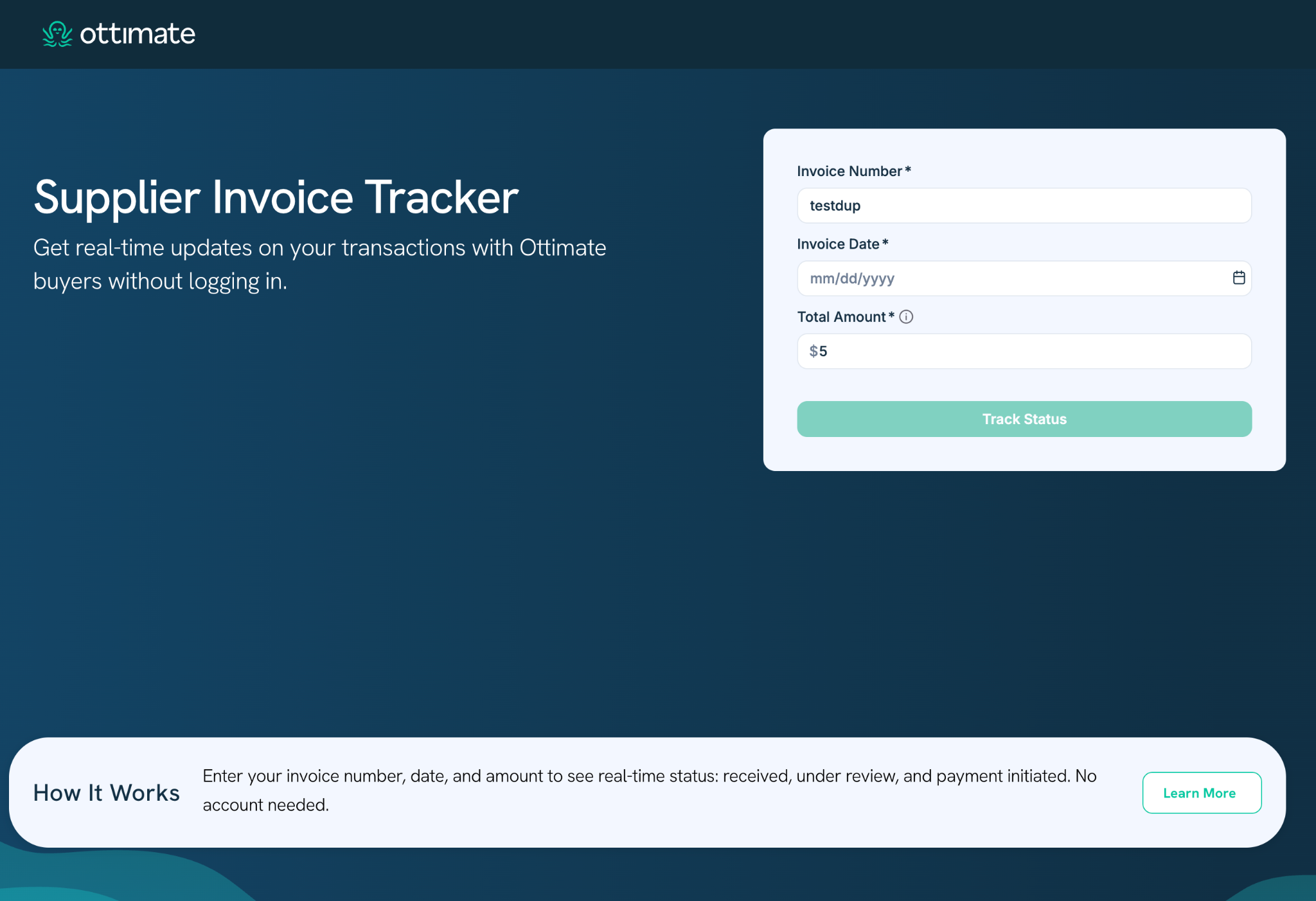
You'll need the following information from the invoice you sent to the buyer:
Invoice Number — the unique identifier on your invoice (e.g., INV-12345)
Invoice Date — the date printed on the invoice
Total Amount — the exact total on the invoice, in US dollars
Tip: Make sure these match your invoice exactly. Even a small mismatch in the total amount can prevent the system from finding your invoice.
How to Track Your Invoice
Go to the Invoice Status Tracker page provided by your buyer, or visit: https://ottimate.com/feature/supplier-invoice-tracker/
Enter your Invoice Number, Invoice Date, and Total Amount into the form.
Click Track Status.
Your invoice status will appear, showing you which stage it's currently at.
Understanding Your Invoice Status
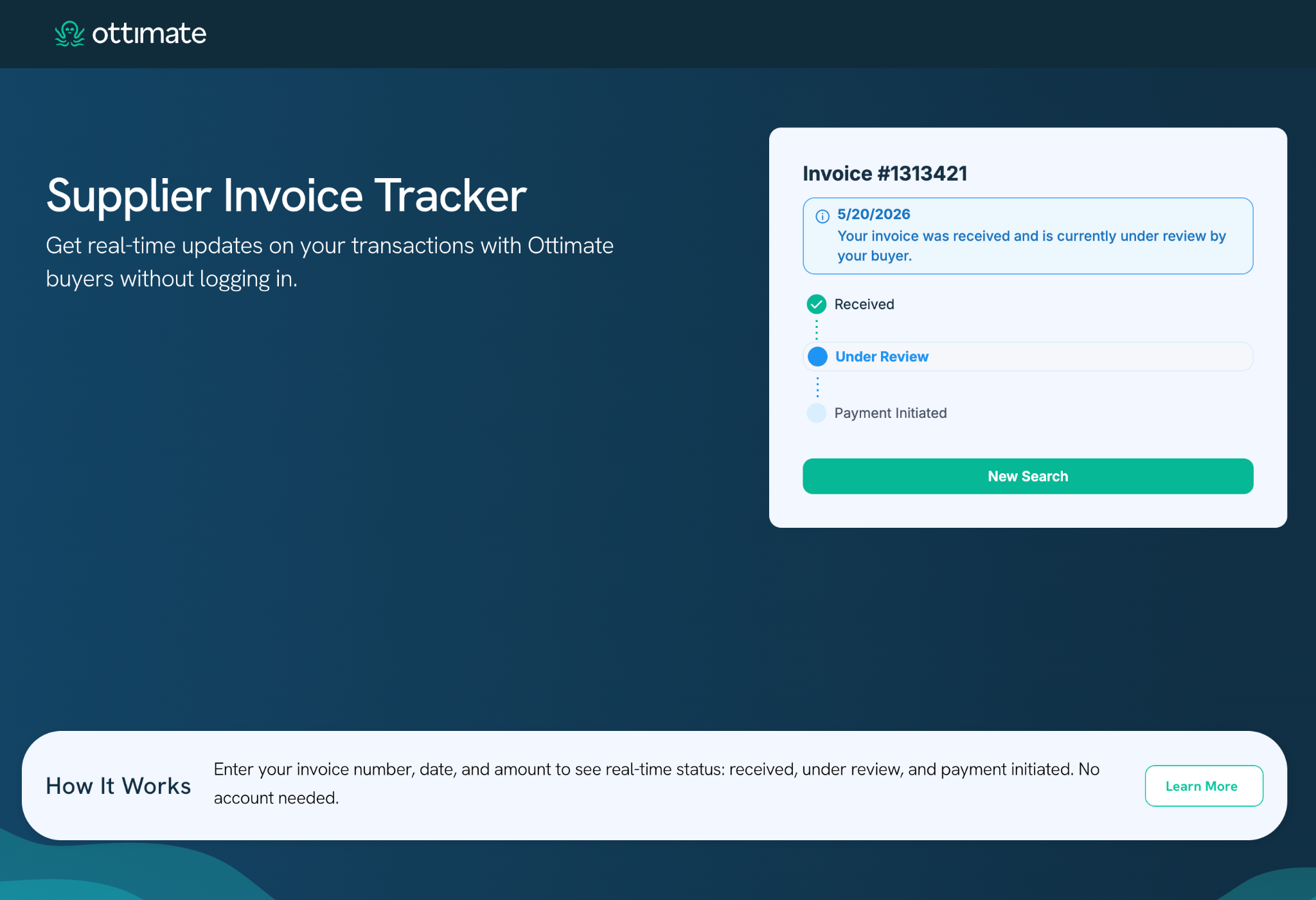
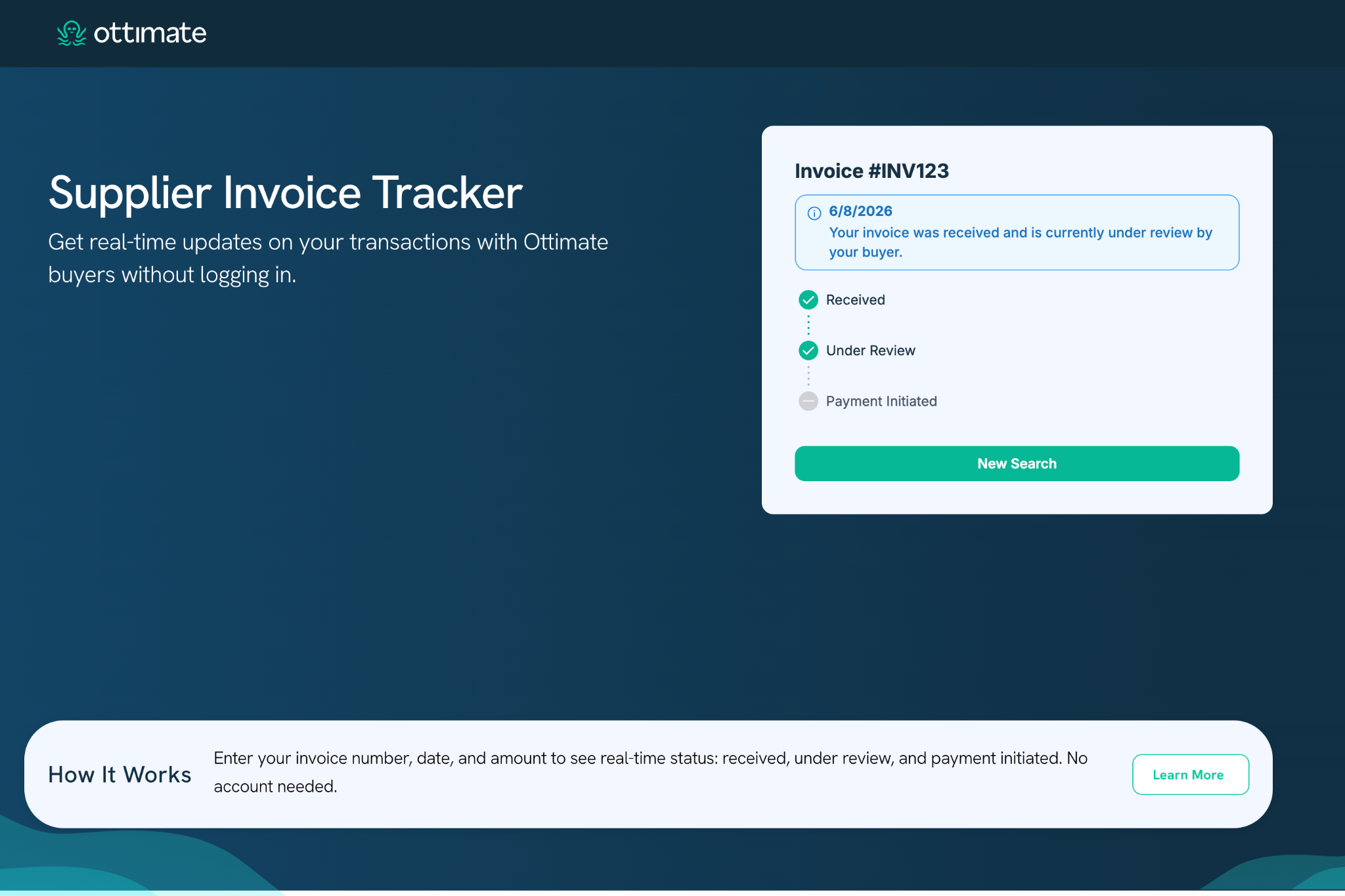
Once your invoice is found, you'll see a three-step progress tracker:
Received → Under Review → Payment Initiated
A note on "Payment Initiated"
For some buyers, the Payment Initiated step may appear greyed out. This means the buyer processes payments outside of Ottimate. Please contact your buyer directly for payment timing and delivery details in that case.
What If My Invoice Isn't Found?
If you see the message "We couldn't find a matching invoice", here are the most common reasons:
Mismatched details — Double-check that your invoice number, date, and total amount are entered exactly as they appear on your invoice. Even a difference of $0.01 in the amount will prevent a match.
Recent submission — Invoices sent very recently may not have been processed yet. Try again later that day or the next business day.
Invoice number format — Try entering the number with and without leading zeros (e.g., 123 instead of 00123) or without special characters (e.g., INV123 instead of INV/123). The system normalises formats automatically, but it's worth checking.
Other Messages You May See
"More than one invoice matches these details"
Two or more invoices in the system match what you entered. Please contact your buyer to confirm the correct invoice reference.
"Status tracking is not enabled for this invoice"
The buyer has not enabled status tracking for this invoice. Please reach out to your buyer directly for payment status.
"Too many unsuccessful attempts. Please wait a moment before trying again."
For security, the tracker limits the number of lookups per minute. Wait 60 seconds and try again.
"Something went wrong. Please try again."
A temporary technical error occurred. Please refresh the page and try again. If the problem persists, contact support.
Tips for a Successful Lookup
Invoice Number: Enter it exactly as written. The system ignores capitalisation and leading zeros, but include all characters.
Invoice Date: Use the date printed on the invoice — not the date you submitted it or the due date.
Total Amount: Enter the grand total exactly. Do not round. For example, if your invoice says $1,234.56, enter 1234.56.
Frequently Asked Questions
See the companion Invoice Status Tracker FAQ article for answers to common questions.
Still Need Help?
If you're unable to find your invoice or have questions about payment timing, please contact the buyer directly. For general Ottimate support, reach us at hello@ottimate.com.
Was this article helpful?
That’s Great!
Thank you for your feedback
Sorry! We couldn't be helpful
Thank you for your feedback
Feedback sent
We appreciate your effort and will try to fix the article