What it does
The Catalog Manager is a centralized workspace designed for auditing and maintaining catalog entries and their relationships to invoice line items. It provides Item Validation users with visibility into how catalog entries are being used for matching, enables targeted corrections, and offers basic catalog hygiene controls without needing engineering or support intervention. This v2 implementation focuses on visibility, light editability, and suppression controls, and is specifically for Starter Plan users.
How it works
The Catalog Manager provides the following key capabilities to manage catalog data:
View and Manage Mappings: Users can view catalog entries alongside their linked invoice line items, drill into the linked line items, and unmap them from the catalog entries.
Edit Attributes: Users can edit and save non-price catalog entry attributes. These changes are saved immediately and only affect future matching behavior.
Control Visibility: Users can hide or deactivate catalog entries to exclude them from line-level search and future matching. Hidden entries remain visible in the Catalog Manager for auditability, using the Inactive Entries filter button.
Identify Duplicates: A unique filter is available to identify and hide potential duplicate catalog entries that are driven by packsize inconsistencies.
Bulk Actions: Users can take actions on multiple linked invoice line items simultaneously, such as hiding selected items from search and matching.
Workflow Scope: All actions are scoped to a single company selected on the Lander (the entry point), which establishes the company context for the dataset.
What you'll see in Ottimate
The Catalog Manager workspace is structured around two main components:
The Lander and Basic Workflow
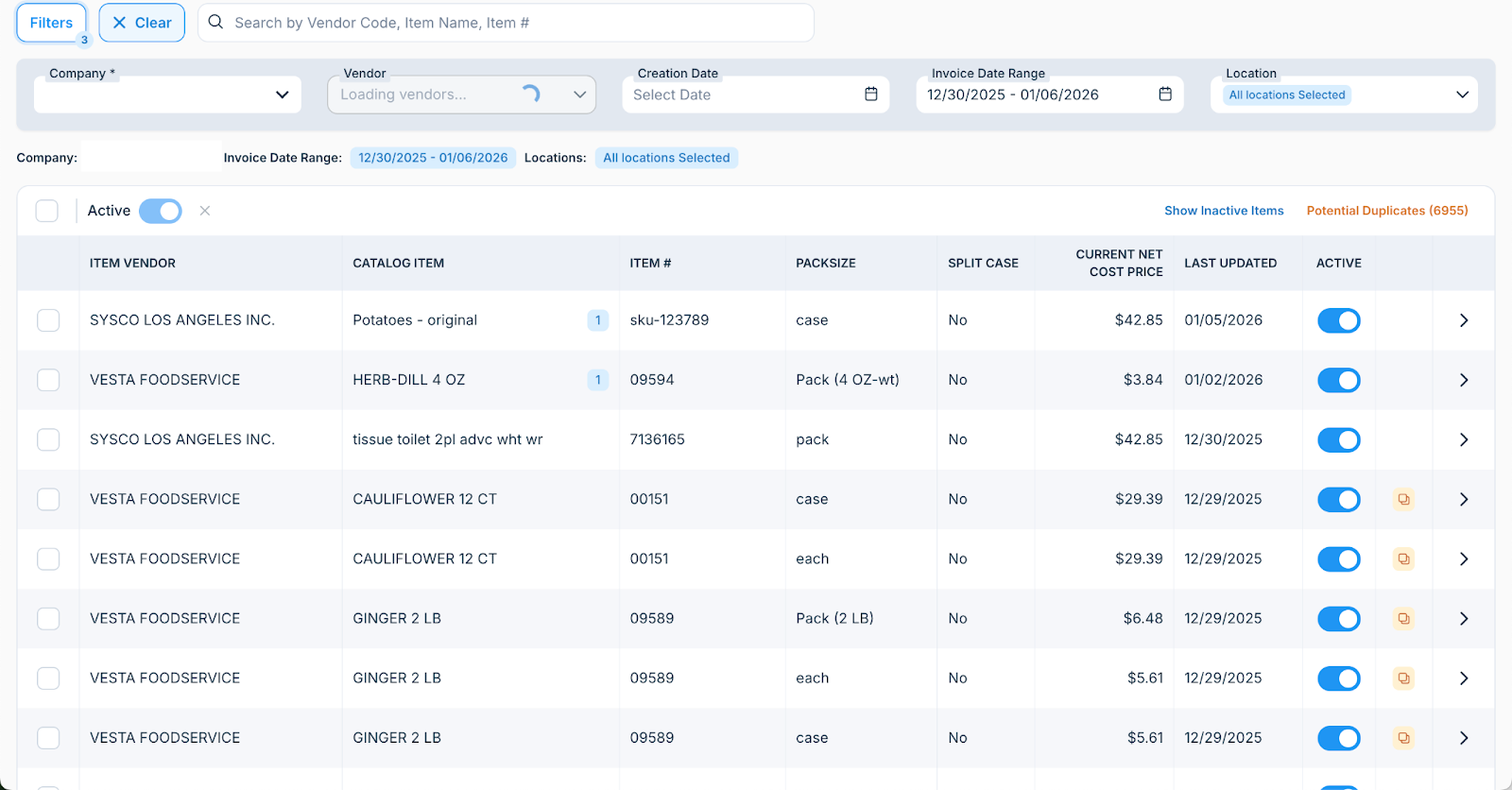
Summary
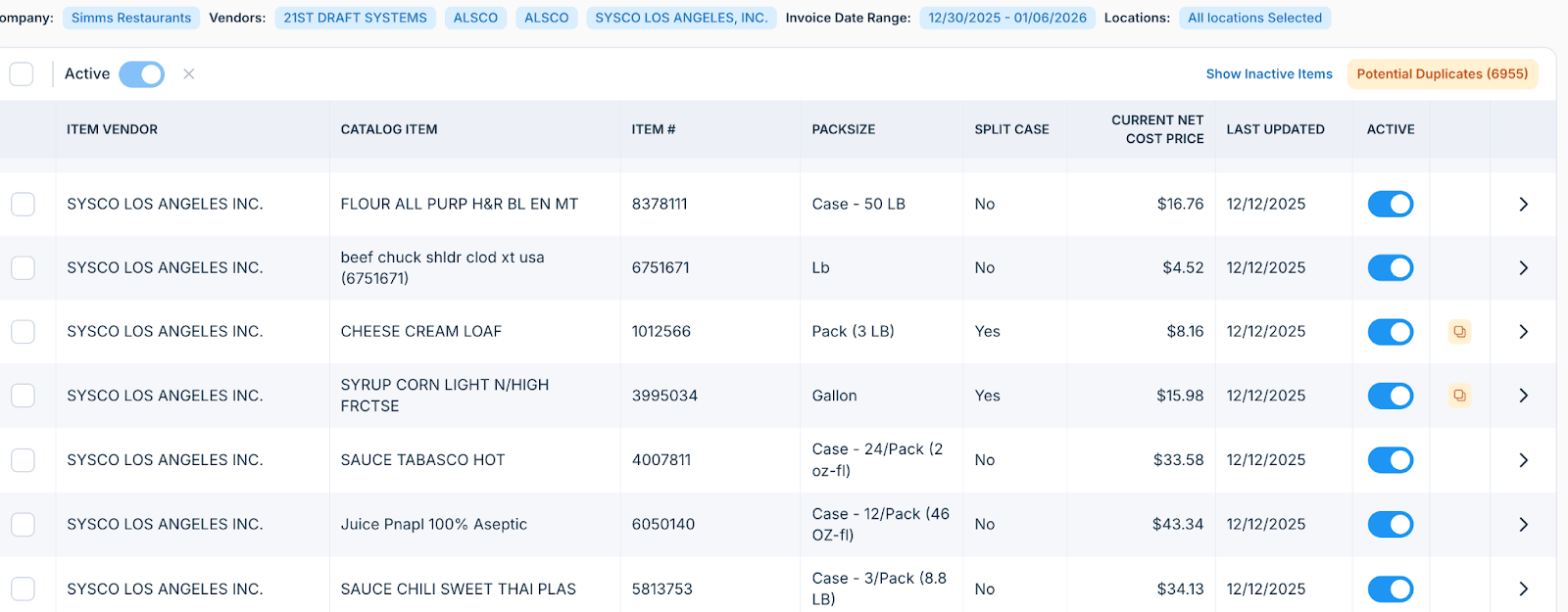
The Lander is the entry point into Catalog Manager. It establishes company context and allows users to constrain the dataset before interacting with the catalog table. All actions in Catalog Manager are scoped to a single company at a time. These functions include:
1. Company Selection
User selects a single company to view and manage catalog data
All catalog entries and linked invoice items are scoped to this selection
2. Filter and Search
Filters:
Vendor
Category
Created Date
Invoice Date Range (based on last mapped line item)
Search:
Item Name
UPC
Item Number
Vendor Name
Primary Table
Summary
The Primary Table is the core workspace for Catalog Manager. It presents catalog-level data enriched with linkage signals to invoice line items, enabling users to audit usage, detect issues, and take corrective action.
1. Table Columns
Vendor Name
Catalog Entry Name
Catalog Entry Item Number
Catalog Entry Packsize
Unit of Measure
Split Case Indicator
Current Net Cost Price
Last Updated Date
2. Linked Invoice Line Items
Users can expand a catalog entry row to view all invoice line items currently mapped to that entry within the selected filter window. They can do this via the chevron next to the item
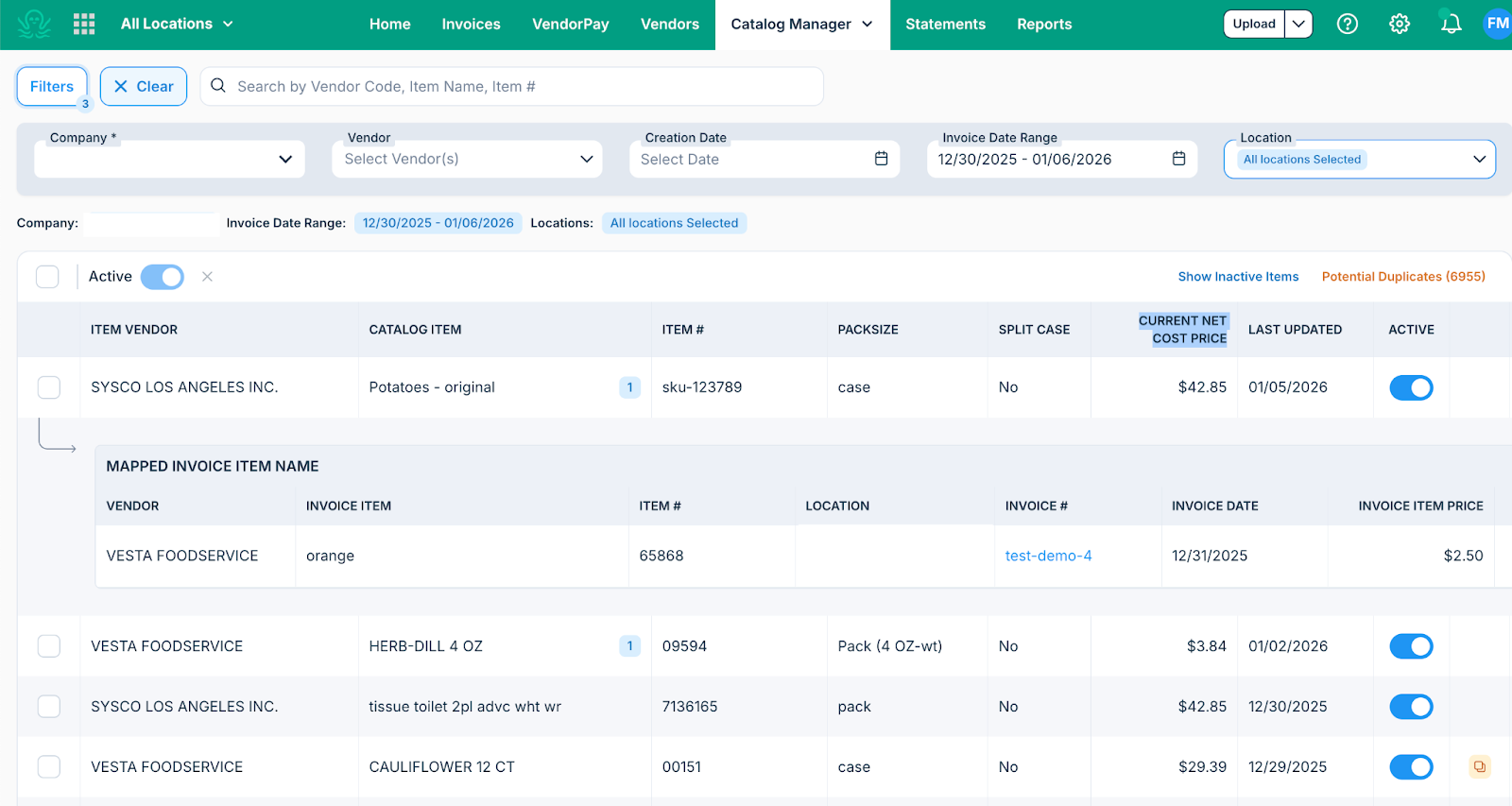
Displayed fields:
Vendor Name
Invoice Item Name
UPC
Item Number
Invoice Date
Invoice Number
Invoice Item Price
Link to Invoice
3. Catalog Entry Actions
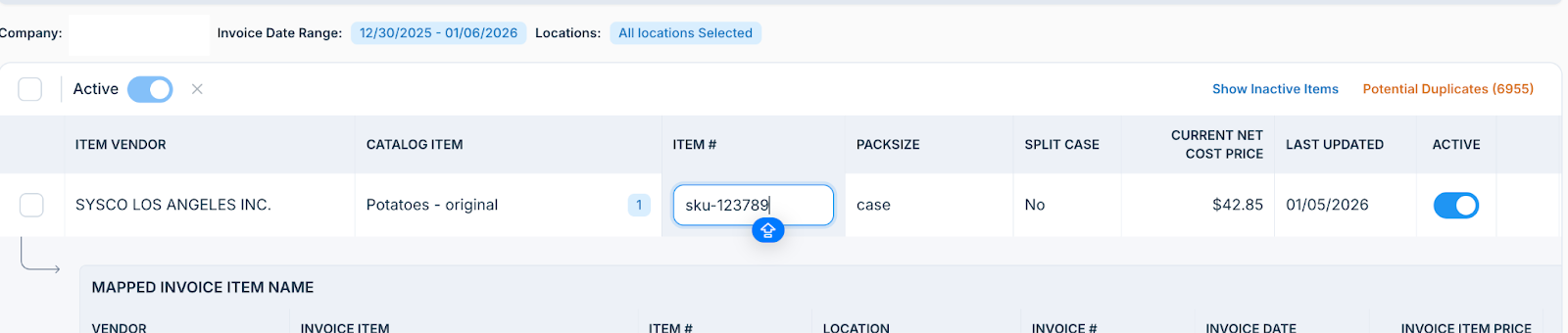
Edit Catalog Entry
Users can edit non-price catalog entry attributes directly in the table or detail view
Changes are saved immediately and affect future matching behavior only
Hide or Deactivate Catalog Entry
Users can toggle at the line level whether an item is active or inactive.
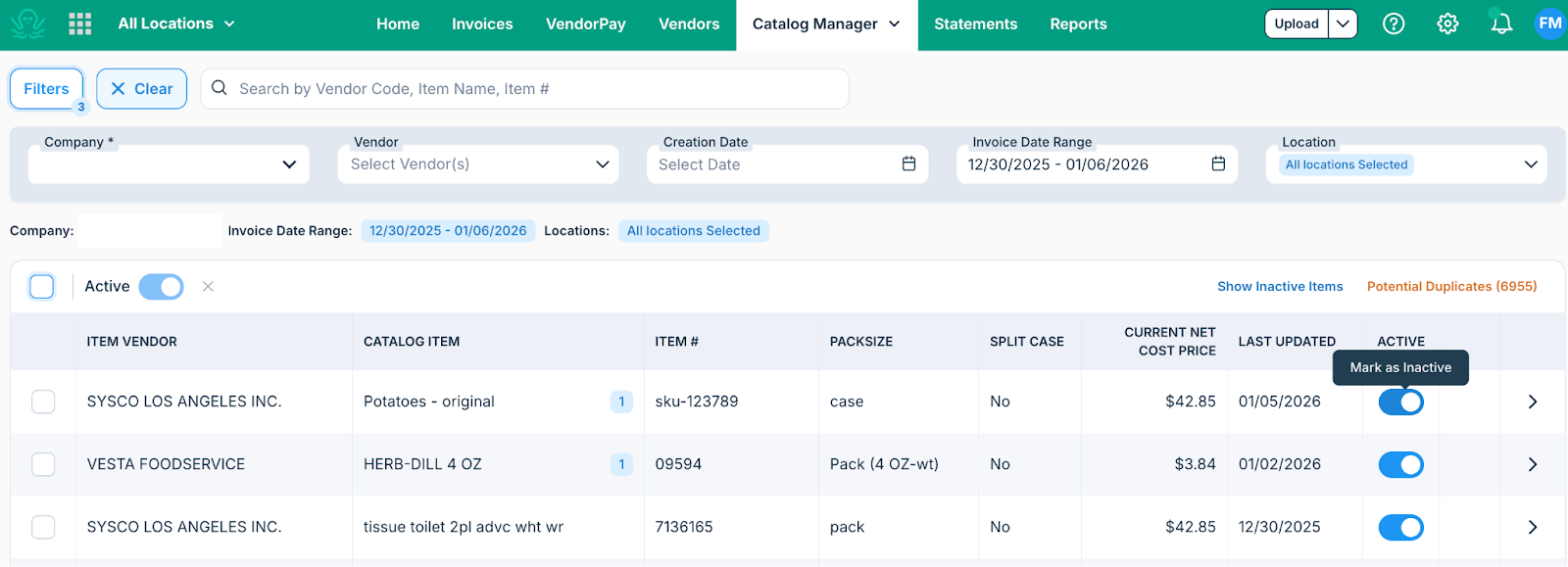
Hiding a catalog entry suppresses it from:
Invoice line item search dropdowns
Commis matching predictions
Hidden entries remain visible in Catalog Manager for auditability BY CLICKING “SHOW INACTIVE ITEMS
4. Linked Invoice Item Actions
Users can unmap the linked invoice item in the dropdown
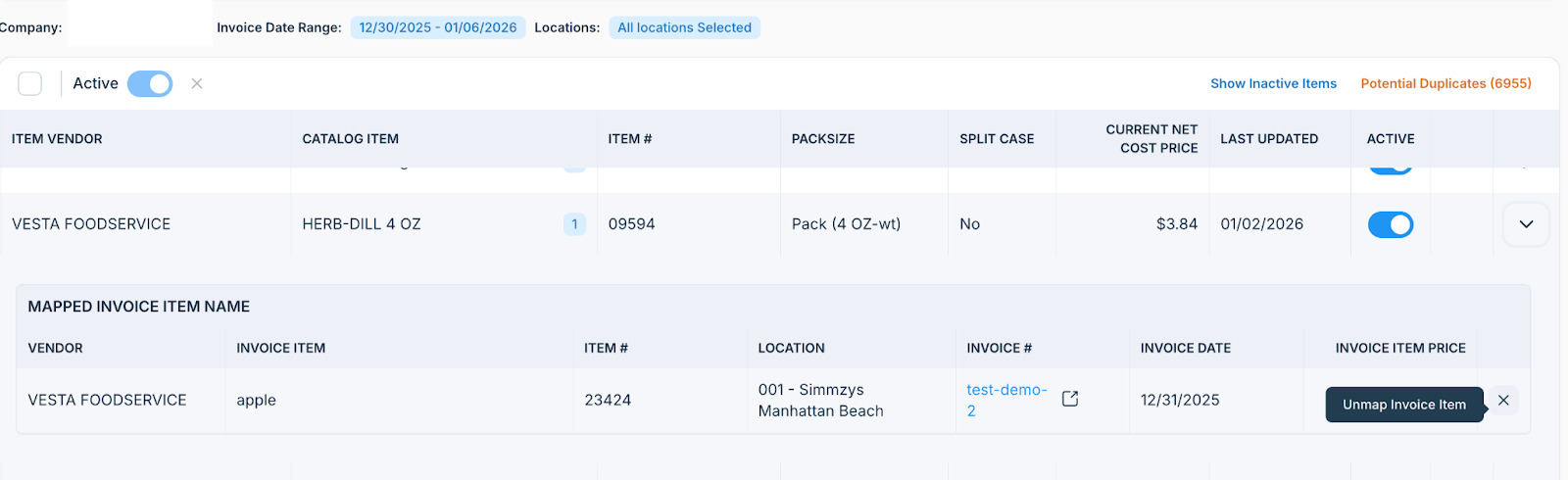
Unmap Linked Invoice Item
Removes the association between an invoice line item and the catalog entry
Functionally equivalent to unmatching the item.
Note: if the invoice is exported, the invoice UI likely won’t update
5. Bulk Actions on Linked Items
Users can take action on multiple linked invoice line items simultaneously.
Supported actions:
Hide selected invoice items from search and matching
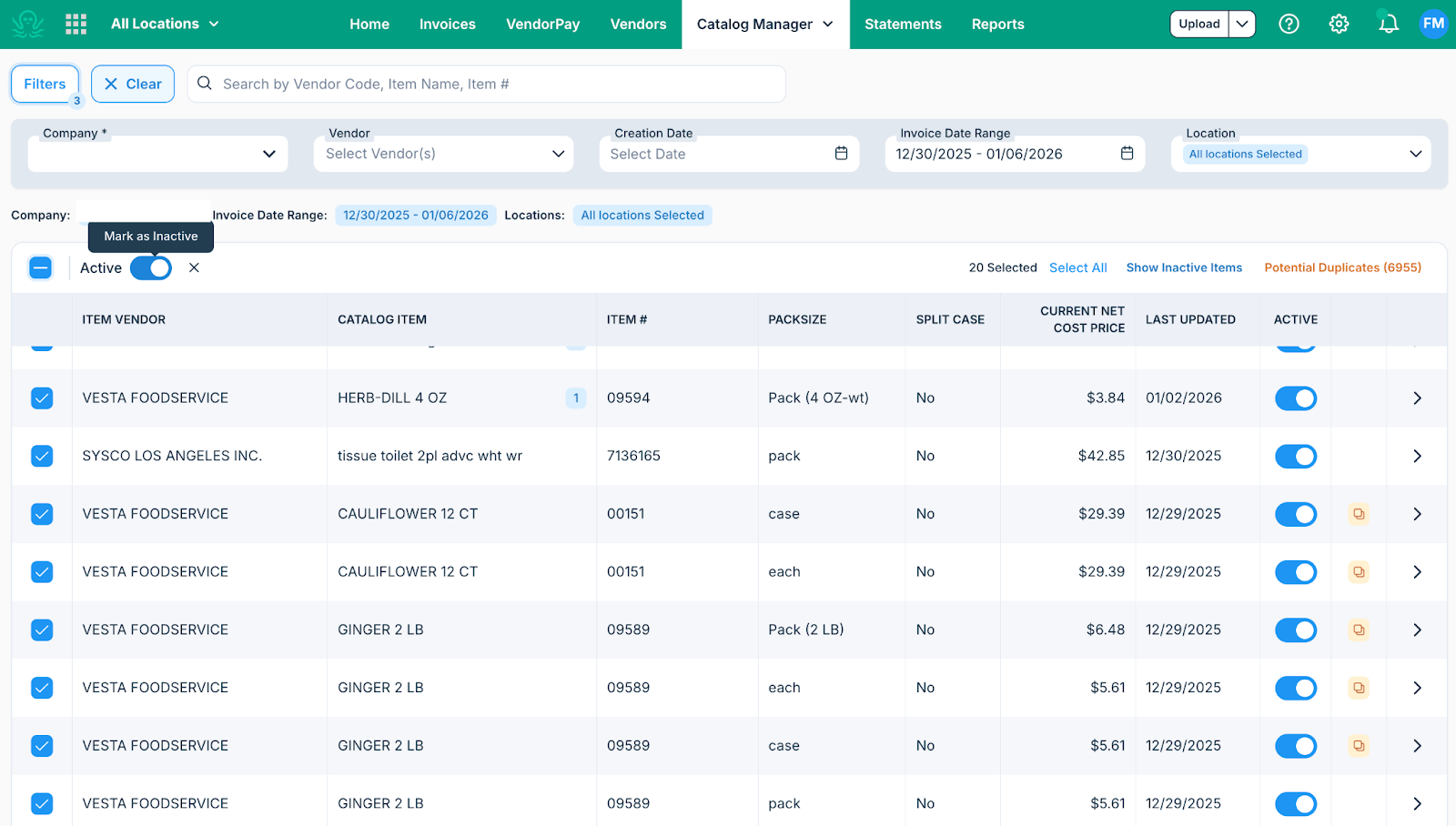
Key Features:
Multi-select via checkboxes
Bulk actions disabled when no items are selected
Confirmation modal required before execution
Updates reflect in real time after confirmation
6. Potential Duplicate Detection
Summary
Catalog Manager includes a filter for “Potential Duplicates,” highlighting catalog entries that are nearly identical except for packsize. These cases typically indicate an incorrect packsize configuration that may be driving bad matches or false variances.
The potential duplicate modal for managing resolutions
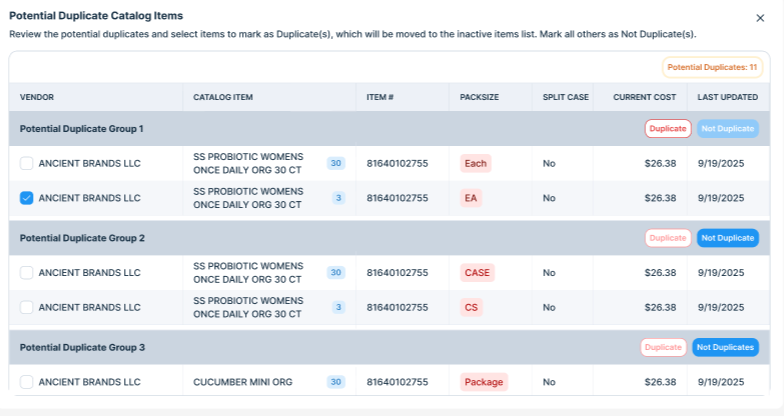
Characteristics:
Same vendor
Same or highly similar item name
Same or similar UPC or item number
Different packsize values
Troubleshooting
Was this article helpful?
That’s Great!
Thank you for your feedback
Sorry! We couldn't be helpful
Thank you for your feedback
Feedback sent
We appreciate your effort and will try to fix the article