What is Payment History?
The Payment History tab gives you a complete, timestamped record of everything that has happened to a payment — who created it, when it was approved, when funds were transferred, and how delivery was confirmed. It lives inside each individual payment record in VendorPay.
You no longer need to contact support to find out where a payment stands. Every status change is logged automatically and displayed in chronological order, with key details shown at a glance.
Where to find it Open any payment in VendorPay → All Payments tab, click the History tab inside the payment drawer. Each vendor in the payment run has its own expandable history row. |
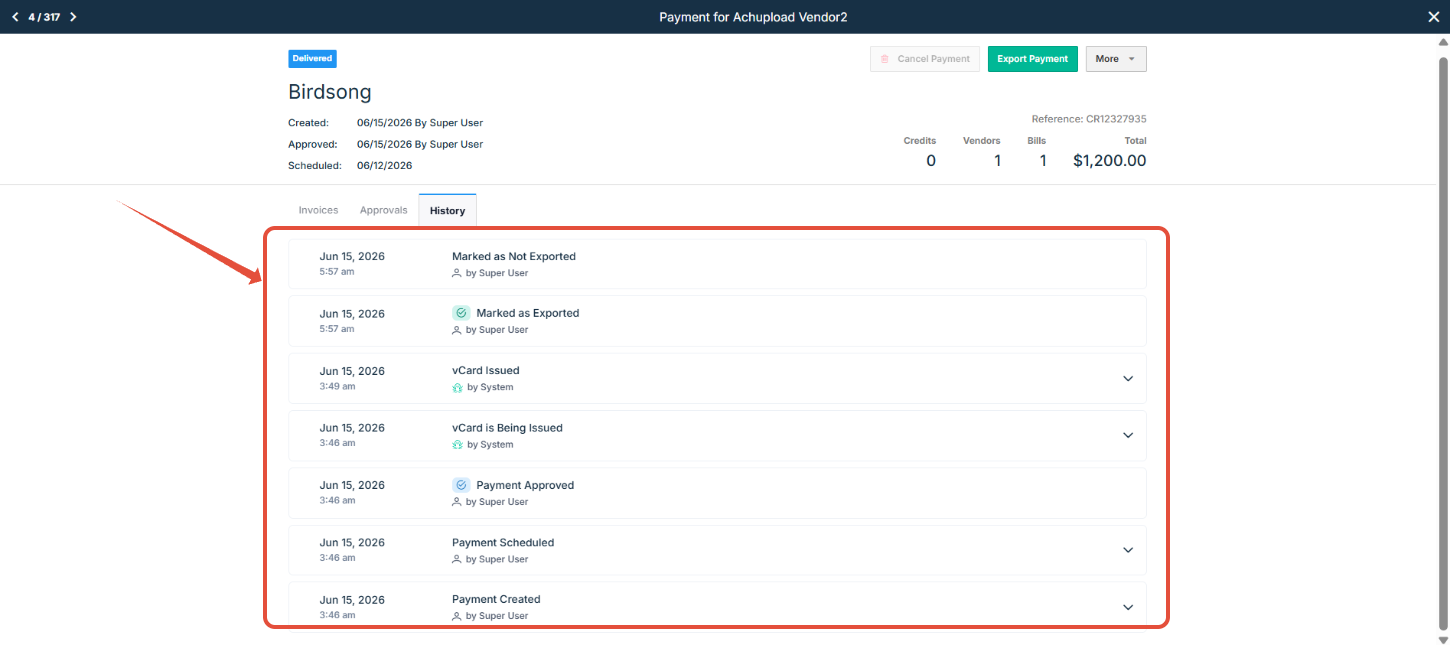
How the History Tab Works
When you open a payment and click History, you will see:
Timeline events — each event is listed with date, time, event name, and who triggered it (a user or the system).
Expandable rows — click any event to expand it and see additional details such as vendor name, amounts, account numbers, tracking numbers, or delivery status.
Events are listed most-recently first. The most recent event appears at the top of the list.
Payment Journeys by Method
The events you see in Payment History depend on the payment method used. The tables below show the full journey for each method — what each event means and what details are shown when you expand it.
ACH — Bank Transfer
Standard ACH transfers funds directly to your vendor's bank account, typically within 4-5 business days. Fast ACH accelerates this timeline to 1-3 business days.
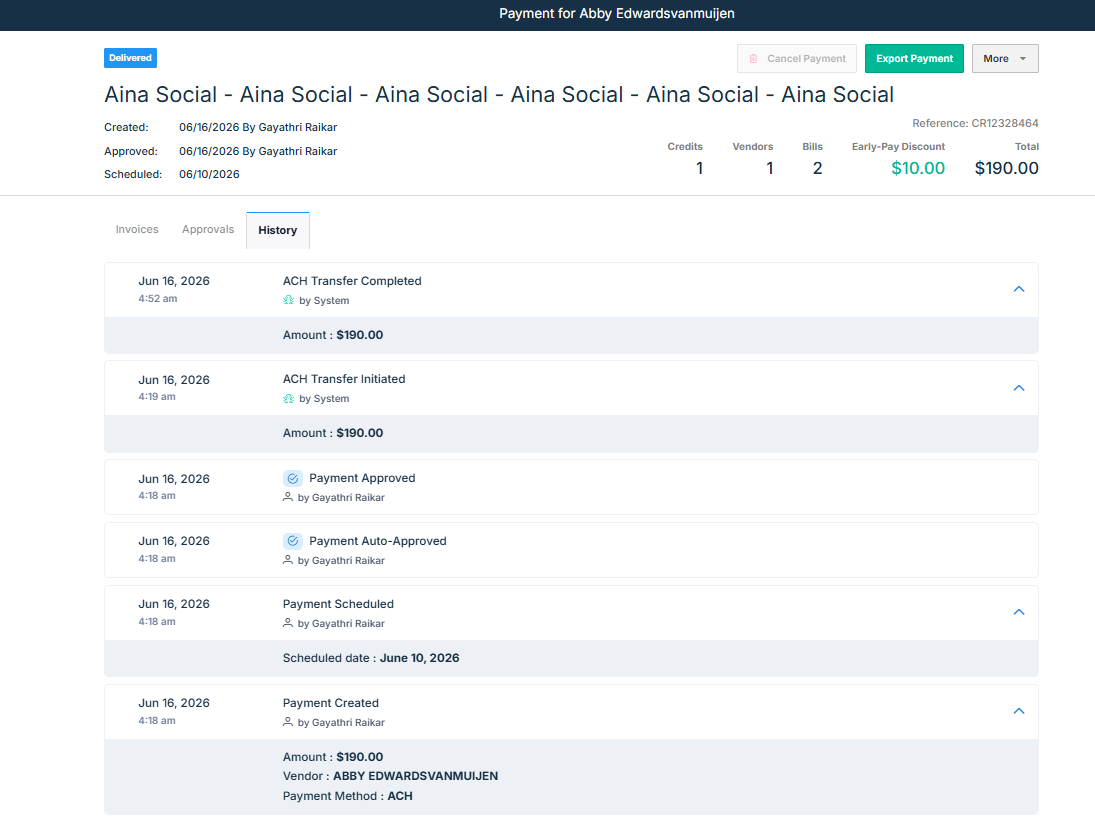
Step | Event | Details Shown |
|---|
1 | Payment Created | Amount, vendor name, payment method, created by |
2 | Payment Approved | Approved by (user name) |
3 | Payment Scheduled | Scheduled payment date, user who scheduled the payment |
4 | ACH Transfer Initiated | Amount, vendor’s bank account (last 4 digits) |
5 | ACH Transfer Completed | Vendor’s bank account (last 4 digits) + info note |
6 | Payment Exported | ERP / system destination (if applicable) |
Note on ACH returns ACH returns (e.g., incorrect account numbers) that occur after a transfer has settled are not trackable within Ottimate. Contact your vendor to confirm banking details if a return occurs. |
Check — Standard, Priority & Overnight
Check payments are printed by our check partner in their printing locations and mailed via USPS. You can track the check from the moment it is printed through to delivery confirmation.
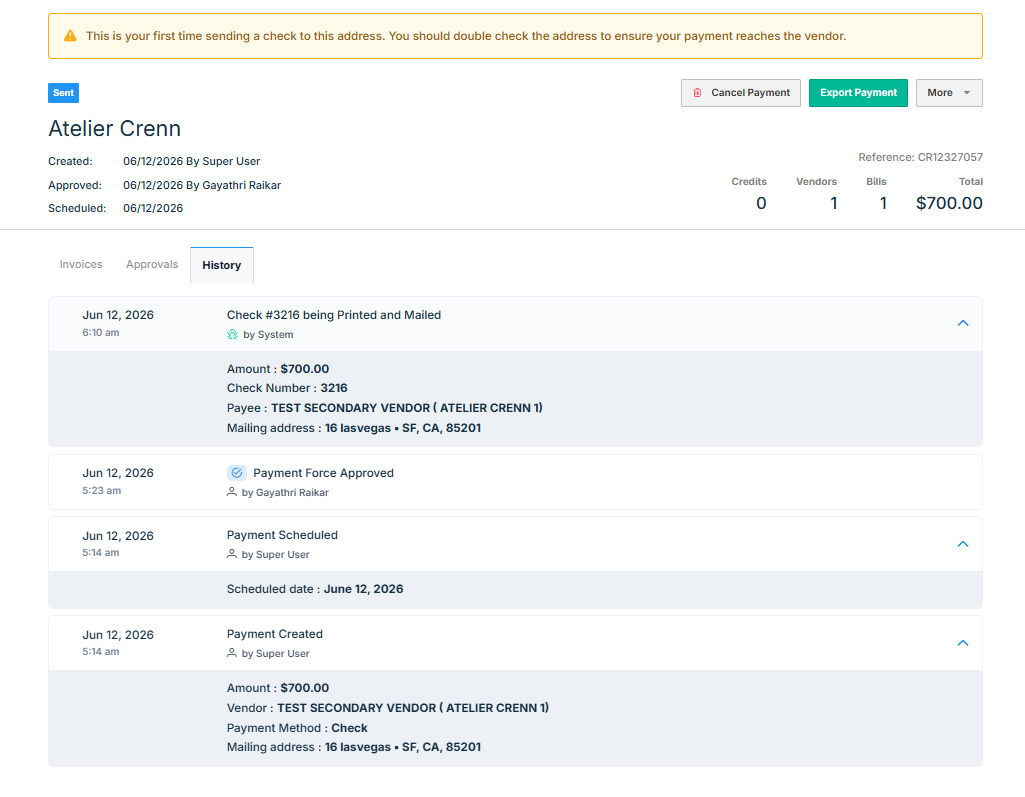
Step | Event | Details Shown |
|---|
1 | Payment Created | Amount, vendor name, mailing address, created by |
2 | Payment Scheduled | Scheduled Date and user who scheduled the payment |
3 | Payment Approved | Approved by (user name) |
4 | Check #XXXXX being Printed and Mailed | Check number, amount, payee name, mailing address |
5 | Check Delivered to Last Delivery Point | Delivery date + info note |
6 | Payment Exported | ERP / system destination (if applicable) |
Delivery confirmation note "Check Delivered to Last Delivery Point" confirms delivery to the last delivery point has been confirmed. Ottimate cannot confirm if the check has been deposited or cashed. |
Virtual Card (vCard)
A virtual card is a single-use card issued to your vendor for the exact payment amount. Ottimate delivers the card details via email, phone, or directly to your vendor's payment portal, depending on what your vendor supports.
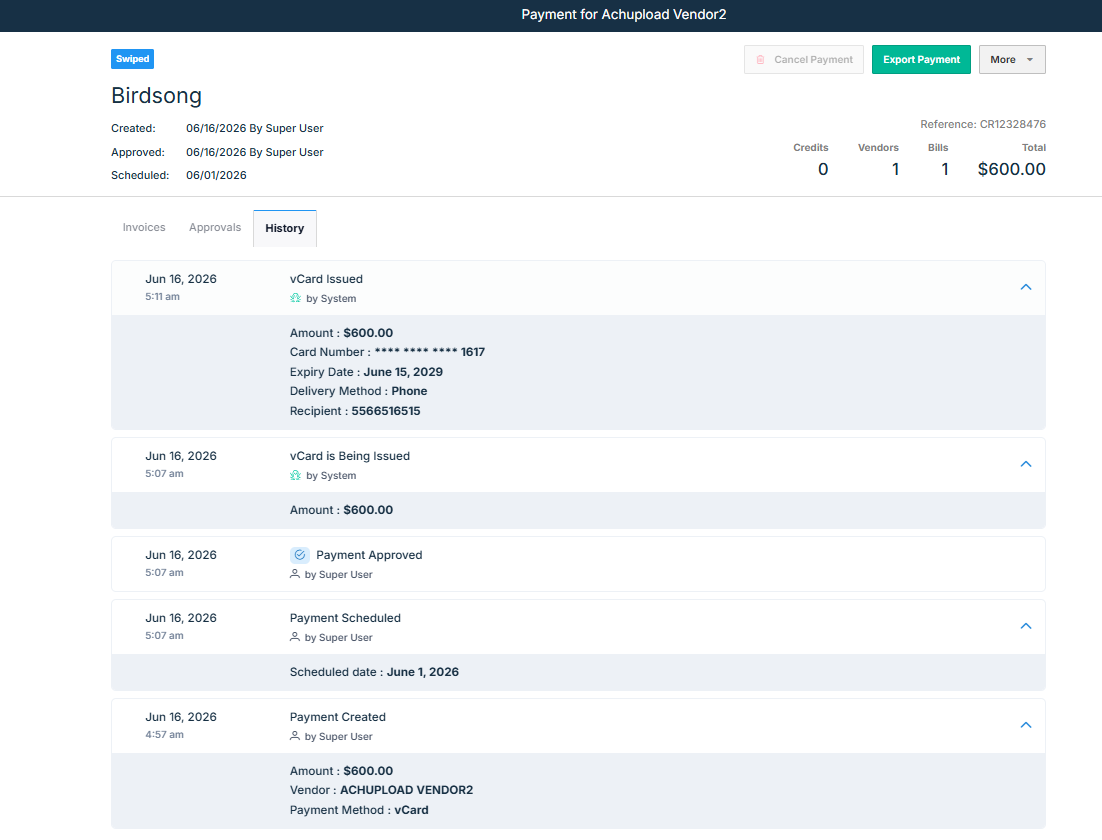
vCard — Email Delivery
Step | Event | Details Shown |
|---|
1 | Payment Created | Amount, vendor name, payment method, created by |
2 | Payment Approved | Approved by (user name) |
3 | Payment Scheduled | Scheduled payment date, user name who scheduled the payment |
4 | VCard is Being Issued | Amount |
5 | VCard Issued | Masked card number (last 4), amount, expiry date, delivery method: Email to Vendor |
6 | Initial VCard Notification Sent | Recipient email, type (Initial notification), send attempt # |
6b | 2nd Reminder Sent | Recipient email, type (2nd reminder), delivery status, send attempt # |
6c | 3rd Reminder Sent | Recipient email, type (3rd reminder), delivery status, send attempt # |
7 | Vendor Services Team Notified — Priority Outreach | Info: all email attempts went unanswered; Vendor Services team will reach out directly |
8 | VCard Used / Swiped by Vendor | Masked card number (last 4), amount swiped |
9 | VCard Closed | Cancellation reason (if applicable) |
Escalation path If all automated email reminders go unanswered after 5 days, or if the contact information is invalid, the Vendor Services team is automatically notified and will reach out to your vendor directly. You will see "Vendor Services Team Notified — Priority Outreach" in the timeline. |
vCard — Phone Delivery
Phone delivery follows the same creation, approval, and scheduling steps as email delivery. Once the card is issued, our Vendor Services team contacts your vendor by phone to deliver the card details.
Step | Event | Details Shown |
|---|
1–3 | Payment Created → Scheduled→ Approved | Same details as email delivery path |
4 | VCard Issued | Masked card number (last 4), amount, expiry date, delivery method: Phone |
5 | Reaching Vendor by Phone | Recipient phone number |
6 | Vendor Services Team Notified — Priority Outreach | Info: unable to reach vendor by phone; team will follow up directly |
7 | VCard Used / Swiped by Vendor | Masked card number (last 4), amount swiped |
vCard — Vendor Portal Delivery
For vendors who use a payment portal, Ottimate lodges the virtual card directly onto the vendor's portal on your behalf. No action is required from your team.
Step | Event | Details Shown |
|---|
1–3 | Payment Created → Scheduled→ Approved | Same details as email delivery path |
4 | VCard Issued — Portal | Masked card number (last 4), amount, expiry date, delivery method: Portal, portal URL |
5 | Card Being Lodged to Vendor Portal | Portal URL, portal username (if available) |
6 | Vendor Services Team Notified — Priority Outreach | Info: unable to complete payment via vendor portal; team will follow up directly |
7 | VCard Used / Swiped by Vendor | Masked card number (last 4), amount swiped |
Card on File (AutoPay)
Card on File payments are auto-charged to a stored card on the transaction date. Because the charge happens automatically, the transaction date is the first event that appears in the timeline.
Step | Event | Details Shown |
|---|
1 | Payment Recorded | Amount, vendor name, payment method, match type (manual/auto) |
2 | Payment Exported | ERP / system destination (if applicable) |
Offline Payments
Offline payments are manually tracked entries. Status updates are recorded as notes added by your team.
Step | Event | Details Shown |
|---|
1 | Payment Created | Amount, vendor name, payment method |
2 | Note(s) | Manual notes added by your team |
3 | Payment Exported | ERP / system destination (if applicable) |
Payment Status Reference
In addition to the timeline events, every payment has a status badge. Here is what each status means:
Status | What it means |
|---|
Delivered | For ACH payments, the payment has been delivered to the vendor’s bank account, for check payments, the check has been delivered to the lsaw and for vCard payments, the vCard details have been created and mailed to the vendor’s email in case for email payments |
Sent | The payment is actively being processed — funds are in transit or the card is being issued. |
Swiped | The payment has been fully delivered and settled. |
Failed | The payment could not be completed. Expand the Failed event in the history timeline to see the reason (e.g., an ACH return code or a bank account issue). |
Cancelled | The payment was manually cancelled before completion. For vCard payments, the cancelled event shows the original amount and refund status. |
Paid | For Offline payments, where the payment is marked as paid manually |
Common Events — Quick Reference
This table lists every event you may see across payment methods, in plain language.
Event Name | What happened |
|---|
Payment Created | A payment run was submitted. Logged with the amount, vendor, payment method, and the user who created it. |
Payment Approved | A user with approval authority approved the payment. |
Payment Scheduled | The payment has been queued and will be sent on the scheduled date shown. |
ACH Transfer Initiated | Ottimate has sent the ACH transfer instruction to the bank. Funds are in transit. |
ACH Transfer Completed | Both legs of the ACH transfer have settled. The vendor's account has been credited. |
Check #XXXXX Printed at Fulfillment Center | The check has been printed and is ready for mailing. The check number, amount, and payee name are shown. |
Check Mailed — Handed to USPS | The check has been handed off to USPS. A tracking number and expected delivery date are shown. |
Check Delivered to Delivery Point | USPS has confirmed delivery to the last delivery point. Ottimate cannot confirm if the check has been deposited or cashed. |
VCard is Being Issued | Funds have been moved to the virtual card pool and the card is being created. |
VCard Issued | The virtual card has been created and sent to the vendor via the selected delivery method (email, phone, or portal). |
Initial VCard Notification Sent | The first email with card details was sent to the vendor. Delivery status and send attempt number are shown. |
2nd / 3rd Reminder Sent | An automated reminder email was sent to the vendor. Includes delivery status and whether the card has been used yet. |
Vendor Services Team Notified — Priority Outreach | All automated delivery attempts have been exhausted. Our Vendor Services team has been notified and will contact the vendor directly. |
VCard Used / Swiped by Vendor | The vendor has charged the virtual card. Masked card number and amount charged are shown. |
VCard Closed | The virtual card has been closed, either after use or following cancellation. |
Card Being Lodged to Vendor Portal | Ottimate is submitting the virtual card details to the vendor's payment portal. |
Transaction Date (Card on File) | The date the auto-charge was processed against the stored card. This is the first event for Card on File payments. |
Payment Recorded (Card on File) | The auto-charged transaction has been matched and recorded in Ottimate. |
Payment Exported | The payment data has been exported to your ERP or accounting system. |
Payment Cancelled | The payment was cancelled. For vCard, the original amount, refunded amount, and refund status are shown. |
Payment Failed | The payment failed. The reason (e.g., ACH return code, bank account issue) is shown in the expanded event row. |
Frequently Asked Questions
My ACH transfer shows Completed — but the vendor says they haven't received the funds. What should I do?
ACH Completed means that both legs of the transfer have settled on Ottimate's side. Post-settlement returns (e.g., if the vendor's bank rejects the funds after settlement) are not trackable within Ottimate. Contact the vendor to confirm their banking details are correct an reach out to support if you need assistance.
The check was marked 'Delivered' but my vendor hasn't cashed it. Is that normal?
Yes. "Check Delivered to Last Delivery Point" confirms delivery to the last delivery point has been confirmed. Ottimate cannot confirm if the check has been deposited or cashed — that step happens at your vendor's bank.
What happens if my vendor doesn't open the vCard email?
Ottimate automatically sends up to 3 reminder emails over 5 days. If all reminders go unanswered, or if the email address is invalid, our Vendor Services team is automatically notified. You will see "Vendor Services Team Notified — Priority Outreach" appear in the history timeline.
What does 'by System' mean in the history timeline?
Events triggered automatically by Ottimate — such as ACH transfers, vCard issuance, email reminders, and USPS status polling — are attributed to System rather than a specific user. Events triggered by a person show that person's name.
Need help? Contact Ottimate Support
support@ottimate.com