Overview
ERP Vendor Mode (EVM) changes how vendors are identified and managed in Ottimate. Instead of relying on Ottimate's own internal vendor record, EVM makes your accounting system's vendor (the vendor as it exists in your ERP — e.g., Sage Intacct, NetSuite, QuickBooks) the single source of truth for vendor identity across the product.
Today, the same real-world vendor can show up multiple times in Ottimate under slightly different names, which causes duplicate vendor records, mapping confusion, and extra manual work. EVM fixes this by ensuring the vendor name and identity you see in Ottimate always matches what's in your accounting system.
With EVM enabled:
Users select the accounting-system vendor directly when working on an invoice
Vendor mapping happens automatically in the background — no separate setup step
Vendor names are consistent across the invoice list, invoice details, payments, reports, items, and exports
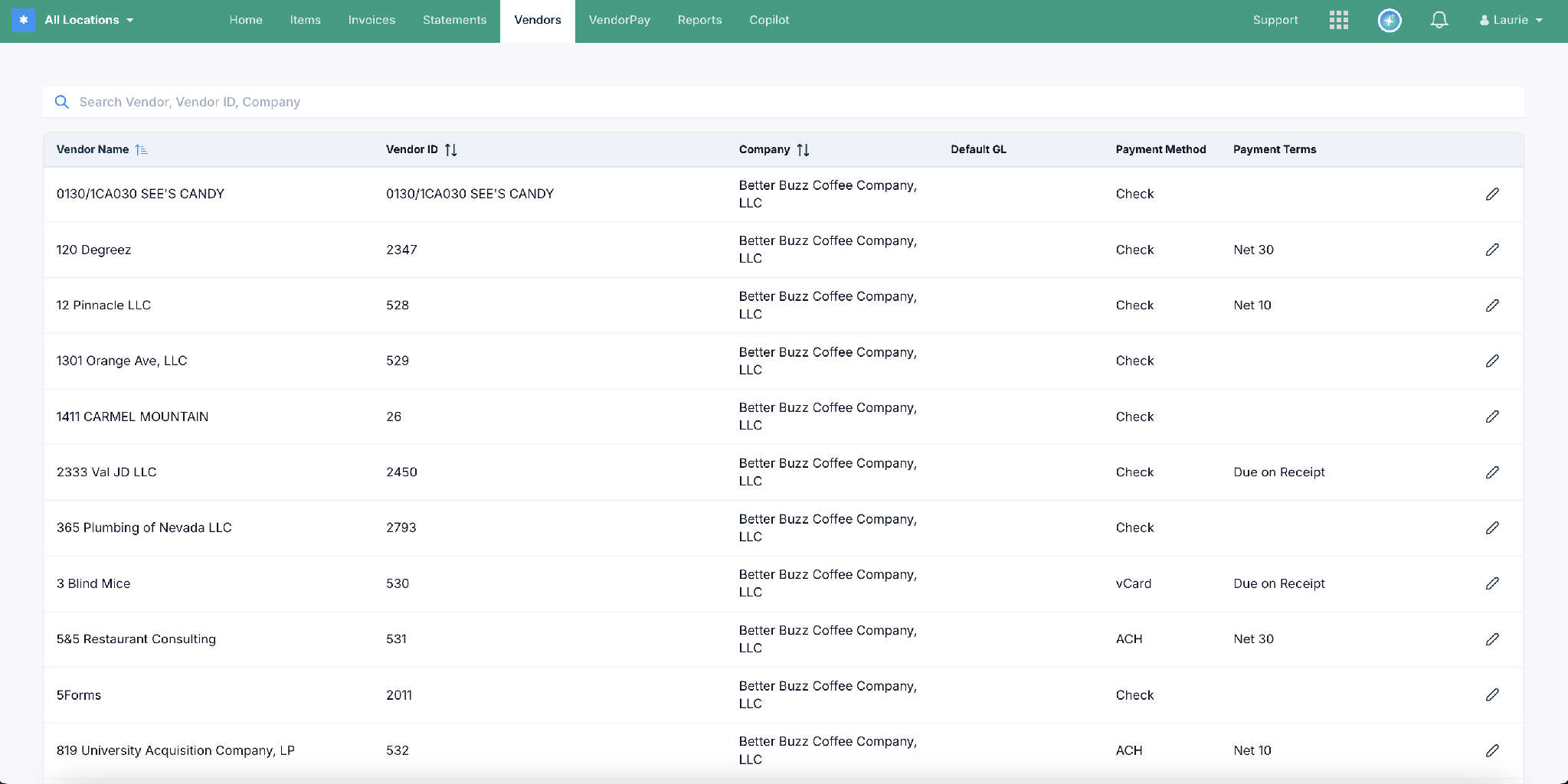
The Vendor Center shows the Accounting Vendor Name and ID exactly as they appear in your ERP. (Sample data shown.)
Availability
ERP Vendor Mode is currently in Alpha and is being rolled out gradually — it is not yet available to all customers. If you're interested in enabling EVM for your account, please reach out to Ottimate Support or your Account Manager to check eligibility and get on the rollout list.
Vendor management by connection type
API customers: vendors sync automatically from the ERP using the “Sync Vendors” button.
CSV Customers: vendors are imported in bulk via spreadsheet using the "Import Vendors" option.
QuickBooks Desktop (QBD) customers: vendors sync via a Web Connector, not a direct pull — Ottimate cannot pull vendors directly from QBD. Customers push vendors from QuickBooks Desktop into Ottimate instead. The “Sync Vendors” button isn't shown, but QBD customers still work with ERP Vendors throughout the product and remain eligible for the EVM beta.
How It Works
1. Vendor selection
When processing an invoice, the user selects the accounting-system vendor directly. If it isn't found, the invoice is flagged as “Missing Vendor” instead of being auto-matched to the wrong record.
API customers select from vendors synced directly from the ERP. See below:
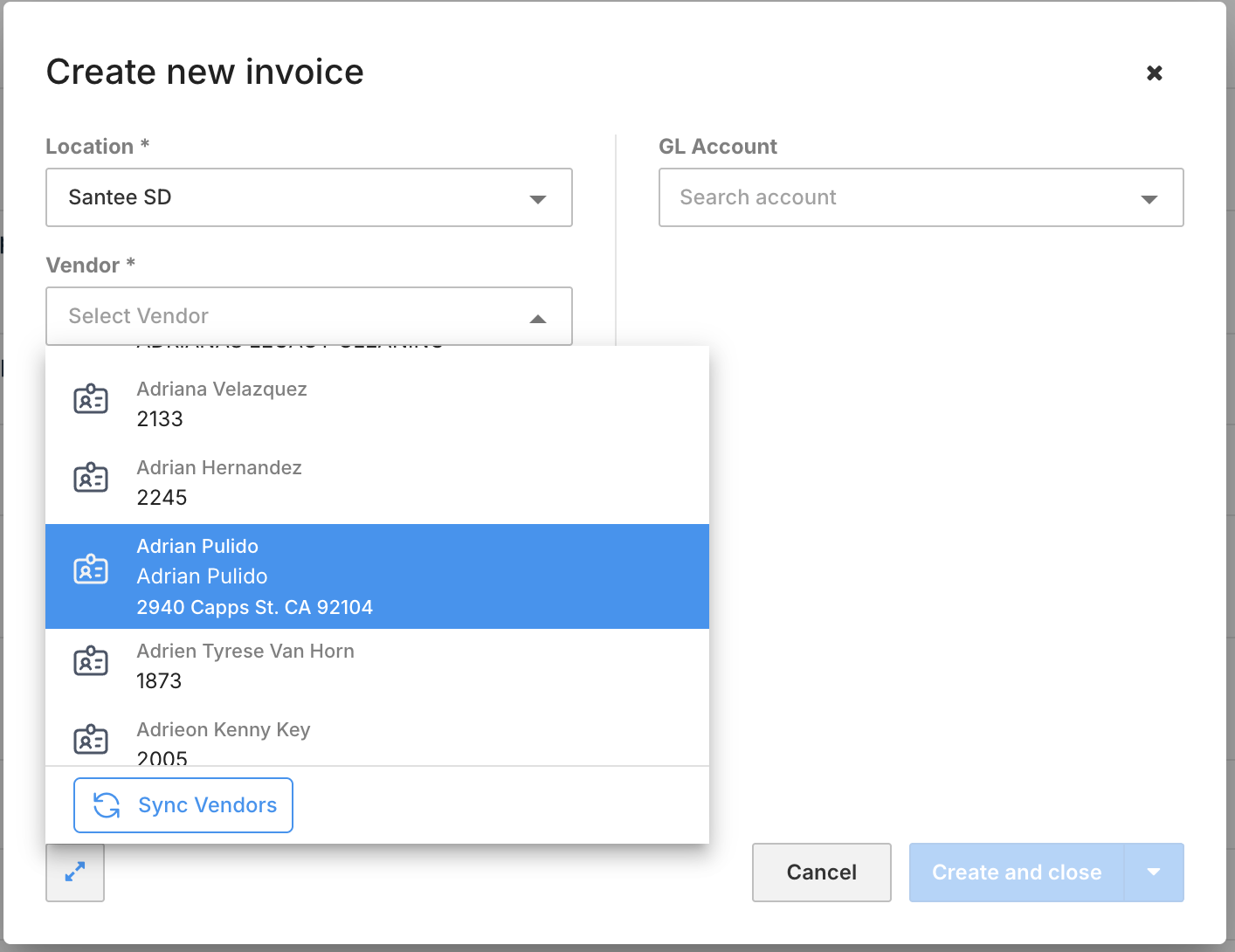
CSV customers, on the other hand, select from an imported vendor list after clicking 'Import Vendors'.
QuickBooks Desktop customers select from vendors pushed in via the Web Connector. See below:
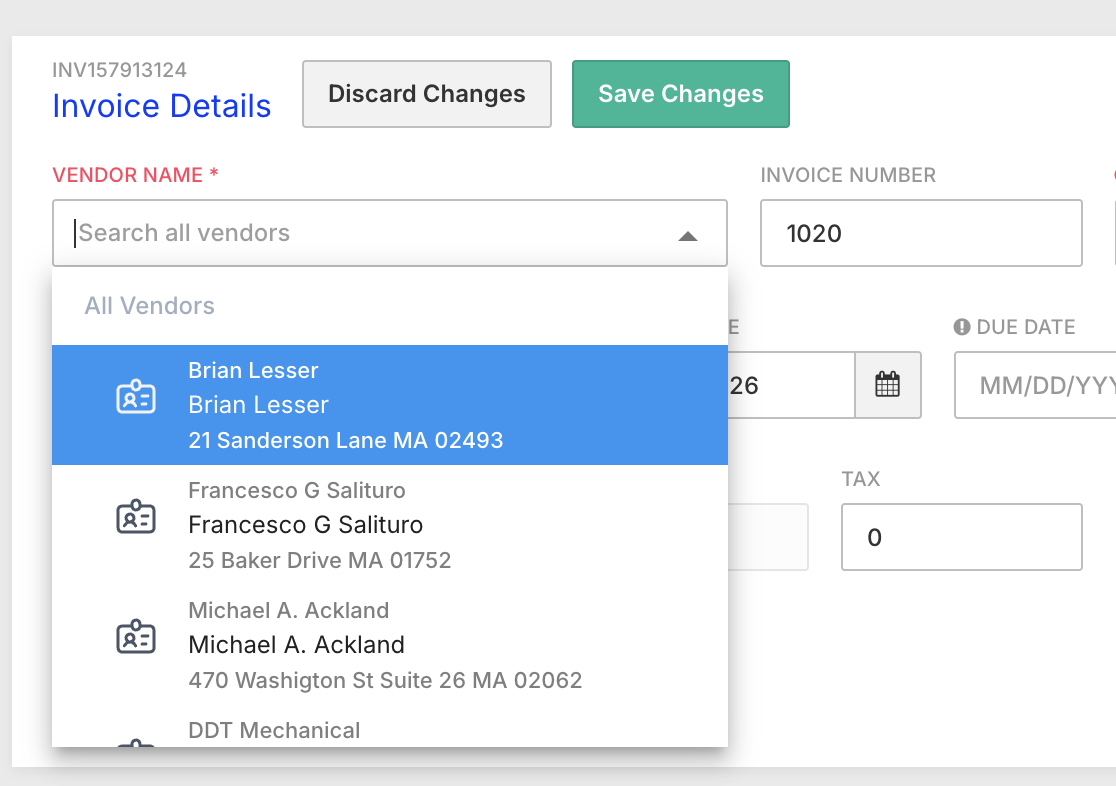
2. Automatic mapping
Once a vendor is selected, Ottimate automatically creates the underlying vendor mapping needed for payments and configuration — no manual setup step required.
3. Consistent vendor display
The accounting-system vendor name is what's shown everywhere — invoice list, invoice details, payments, reports, items, and exports — replacing the old Ottimate-only vendor name.
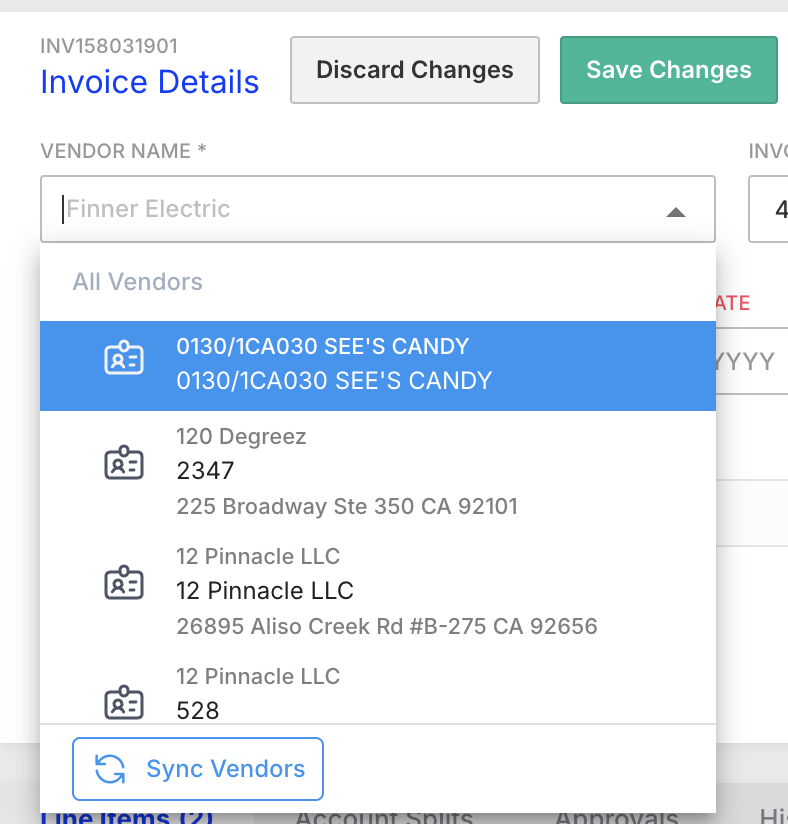
The ERP vendor is shown directly on the invoice.
4. Payments and the one-time address review (Vendor Pay)
Remittance address and payment details are still pulled from the underlying vendor payment record, not the accounting-system vendor record — so a wrong vendor mapping can still result in a payment going to the wrong place.
For Vendor Pay customers specifically: the first time a user assigns an ERP Vendor to an invoice, Ottimate asks them to review the remittance address used for check payments. This is a one-time confirmation only — once confirmed, the dialog is never shown again for that vendor/location combination (RVAD).
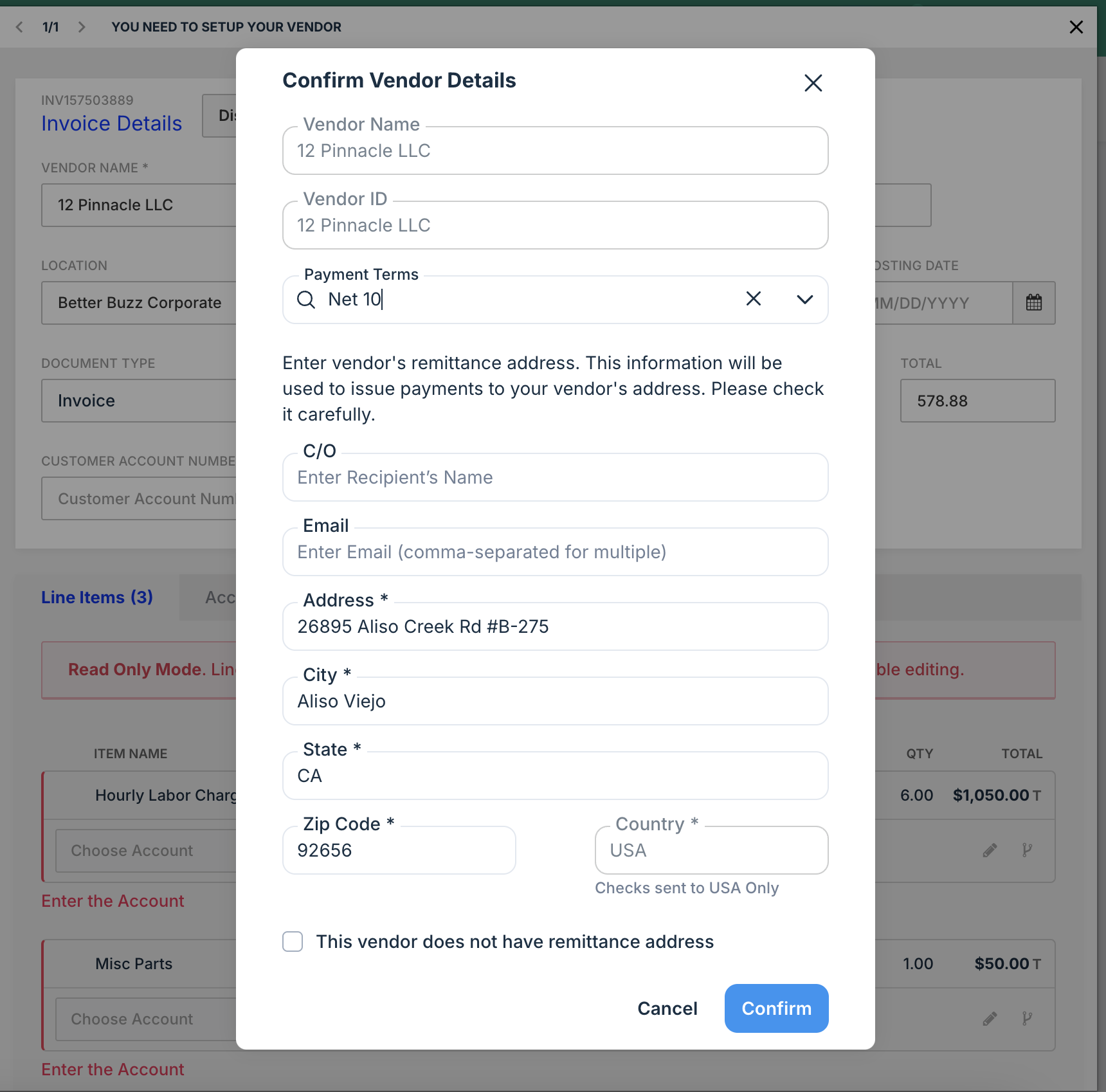
One-time remittance address review for Vendor Pay customers.
5. Statements
Vendor statements continue to use the original Ottimate vendor (not the accounting-system vendor) for now, mainly to correctly handle multi-company invoice scenarios. This is a known, documented exception.
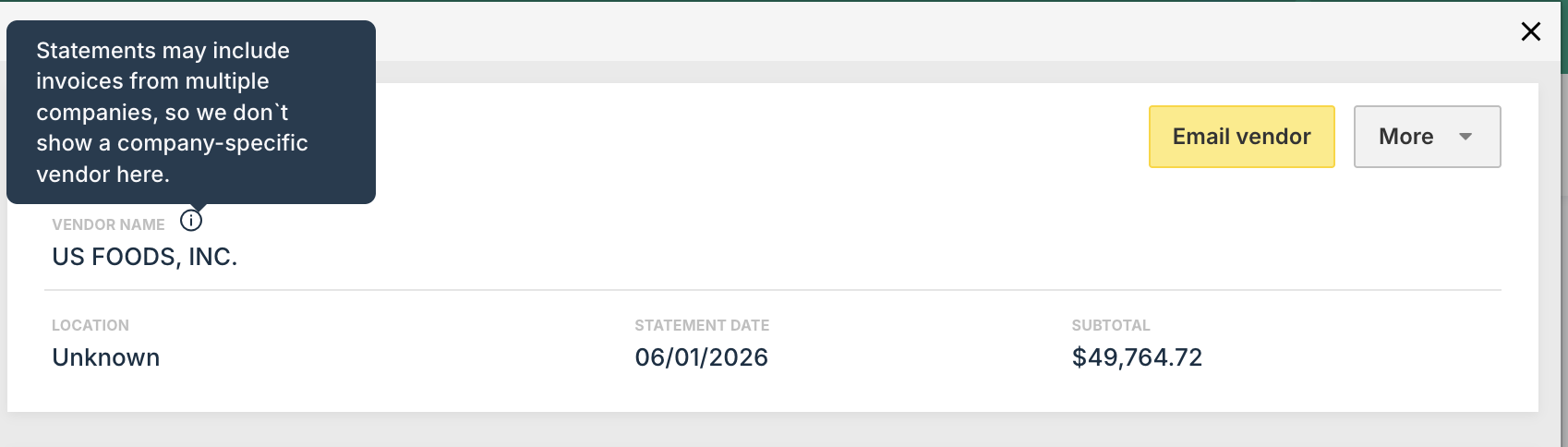
Statements currently display the legacy Ottimate vendor name.
FAQs
Q: What happens if the vendor I need isn't in my accounting system yet?
A: The invoice will show as “Missing Vendor” until the vendor is created in your accounting system and synced (or added manually/via CSV).

A “Missing Vendor” flag on the invoice list.
Q: Will this change how my vendor payments are addressed?
A: Not directly — remittance address and payment routing still come from the underlying vendor payment configuration, not the accounting-system vendor record. For Vendor Pay customers, a one-time address review happens the first time a vendor is assigned to an invoice (see “How It Works” above).
Q: I use Bill Pay / VendorPay — can I get EVM?
A: Not yet. EVM isn't currently enabled for Bill Pay/VendorPay customers during this phase of rollout.
Q: I use QuickBooks Desktop — can I use EVM?
A: Yes. QBD customers are still eligible for the EVM beta. The main difference is that vendors are pushed from QuickBooks Desktop into Ottimate via a Web Connector, rather than synced automatically the way API customers' vendors are.
Q: What about vendor duplicates — will EVM get rid of them?
A: EVM significantly reduces the appearance of duplicates, since the accounting-system vendor becomes the record users see and select.
Additional Information
For further assistance, contact Ottimate Support by emailing Support@ottimate.com or clicking here.
Was this article helpful?
That’s Great!
Thank you for your feedback
Sorry! We couldn't be helpful
Thank you for your feedback
Feedback sent
We appreciate your effort and will try to fix the article