A hold keeps an approved invoice out of payment runs until you release it. Use it for disputed charges, pending credits, or anything you are not ready to pay. A hold does not change the invoice’s approval status — it only blocks payment.
Placing a hold
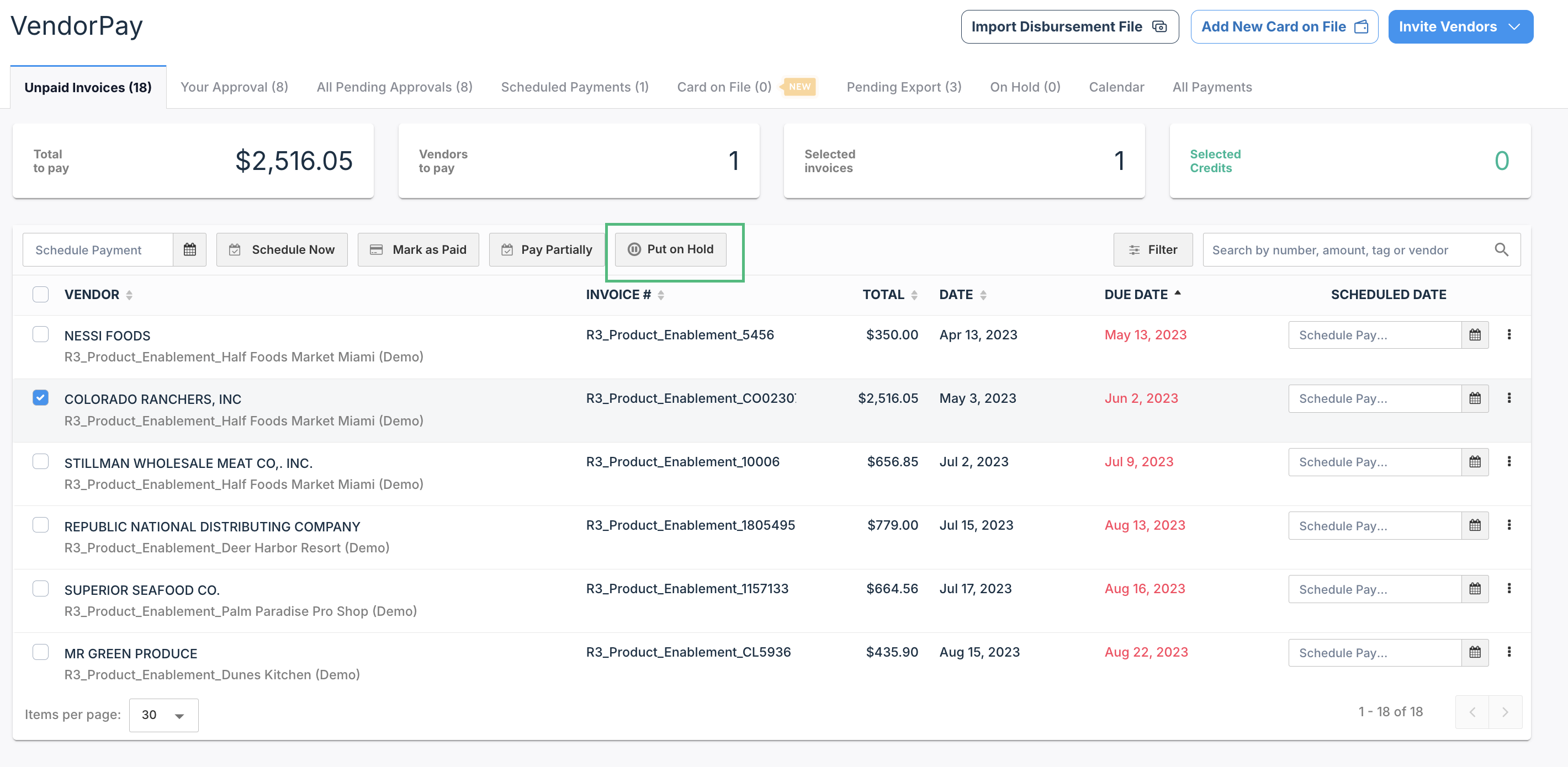
In VendorPay, go to Unpaid Invoices.
Select the invoice (or several) and choose Put on Hold.
Enter a reason. A reason is required — you can pick a previously used reason from the list or type a new one.
Confirm. The invoice moves to the On Hold tab.
You can also hold a single invoice from its detail page under the More actions menu, and you can hold an entire vendor — every unpaid invoice from that vendor stays out of payment runs until the vendor hold is lifted.
While an invoice is on hold
It is excluded from payment runs and cannot be scheduled.
It shows a hold indicator with who placed the hold and the reason.
The hold reason can be edited from the On Hold tab.
Releasing a hold
Open the On Hold tab, select the invoice, and remove the hold. It returns to Unpaid Invoices and can be paid normally. Placing and releasing holds requires VendorPay access with the hold permission — if you do not see the option, check with your administrator.
Was this article helpful?
That’s Great!
Thank you for your feedback
Sorry! We couldn't be helpful
Thank you for your feedback
Feedback sent
We appreciate your effort and will try to fix the article