What's changing
Starting November 17, 2026, every new Ottimate account includes the Tasks tab - a live tracker for background operations like invoice exports, payment exports, accounting syncs, and PO syncs.
Before vs. after
Before: when you exported invoices, scheduled payments, or synced your accounting system, Ottimate ran the job in the background with no way to check progress. You'd see a brief loading message and then nothing - if something failed, you had no way to know without contacting Support.
Now: every one of these actions shows up in Tasks, where you can see:
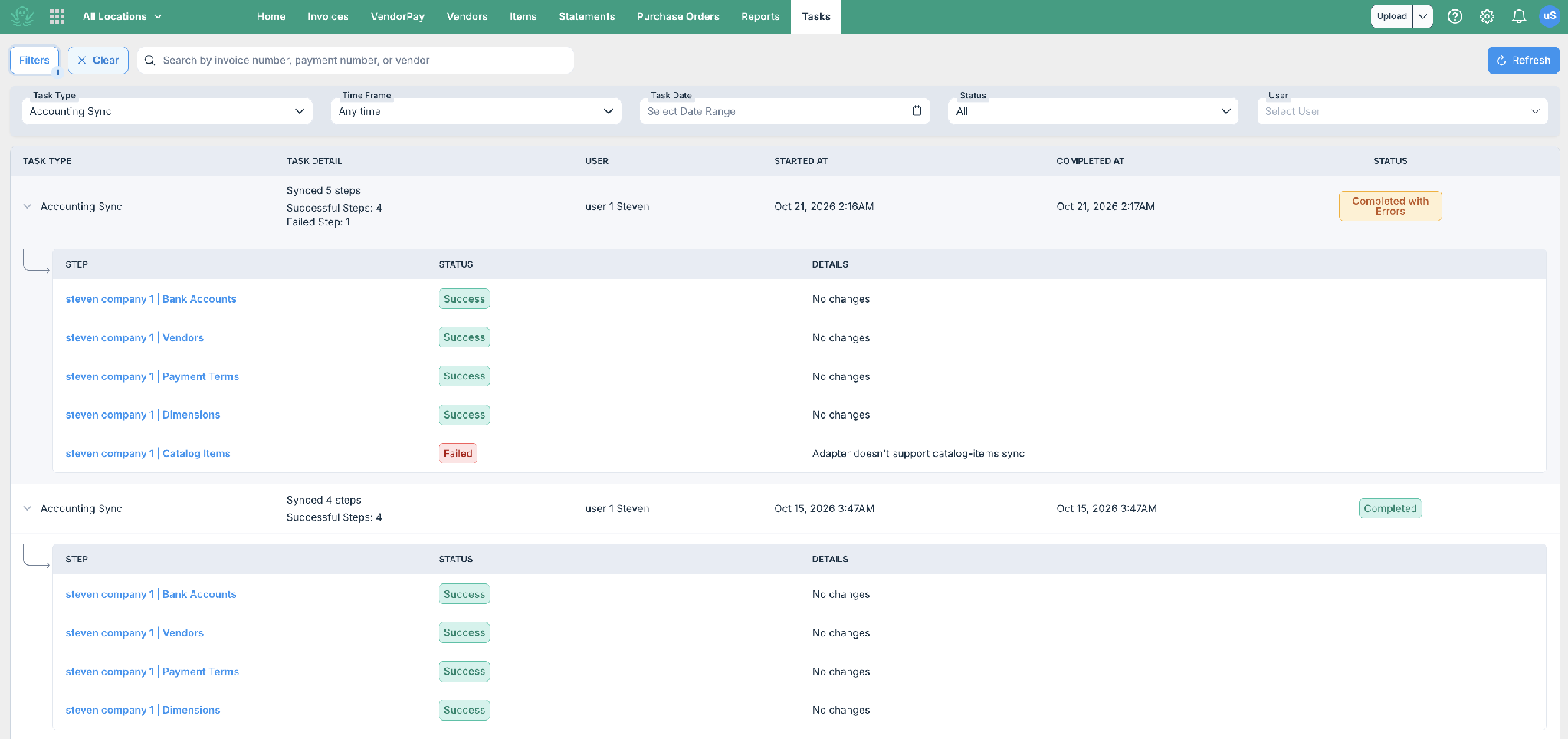
Whether it's Queued, Running, Completed, Completed with Errors, or Failed
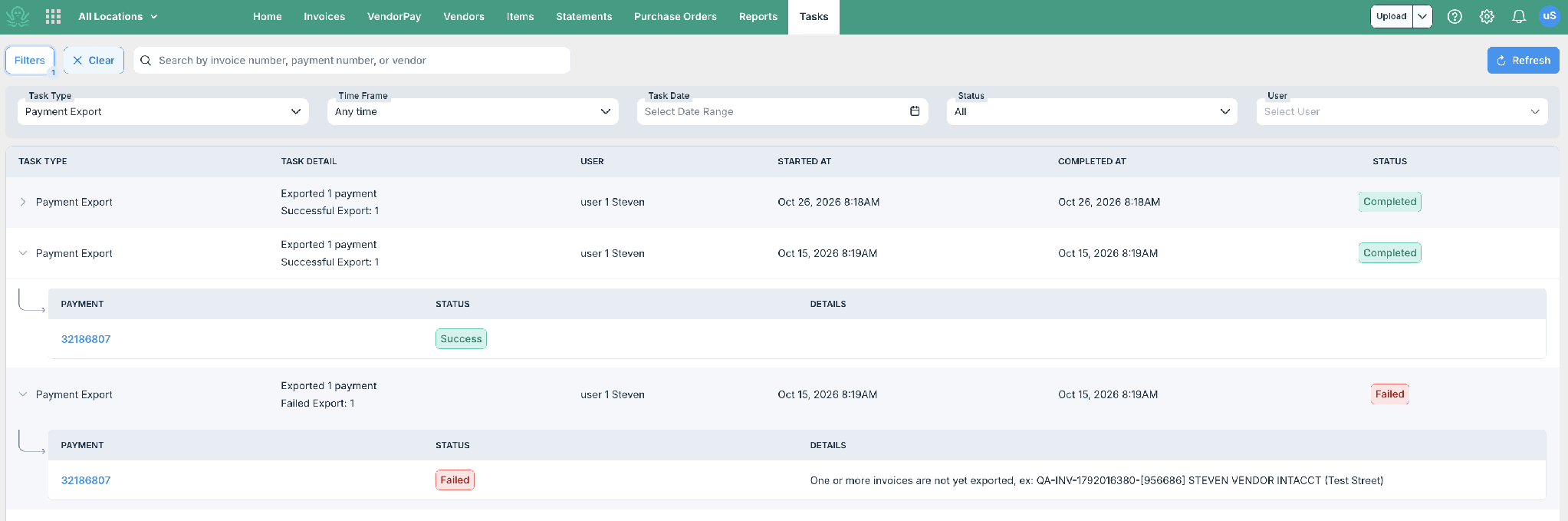
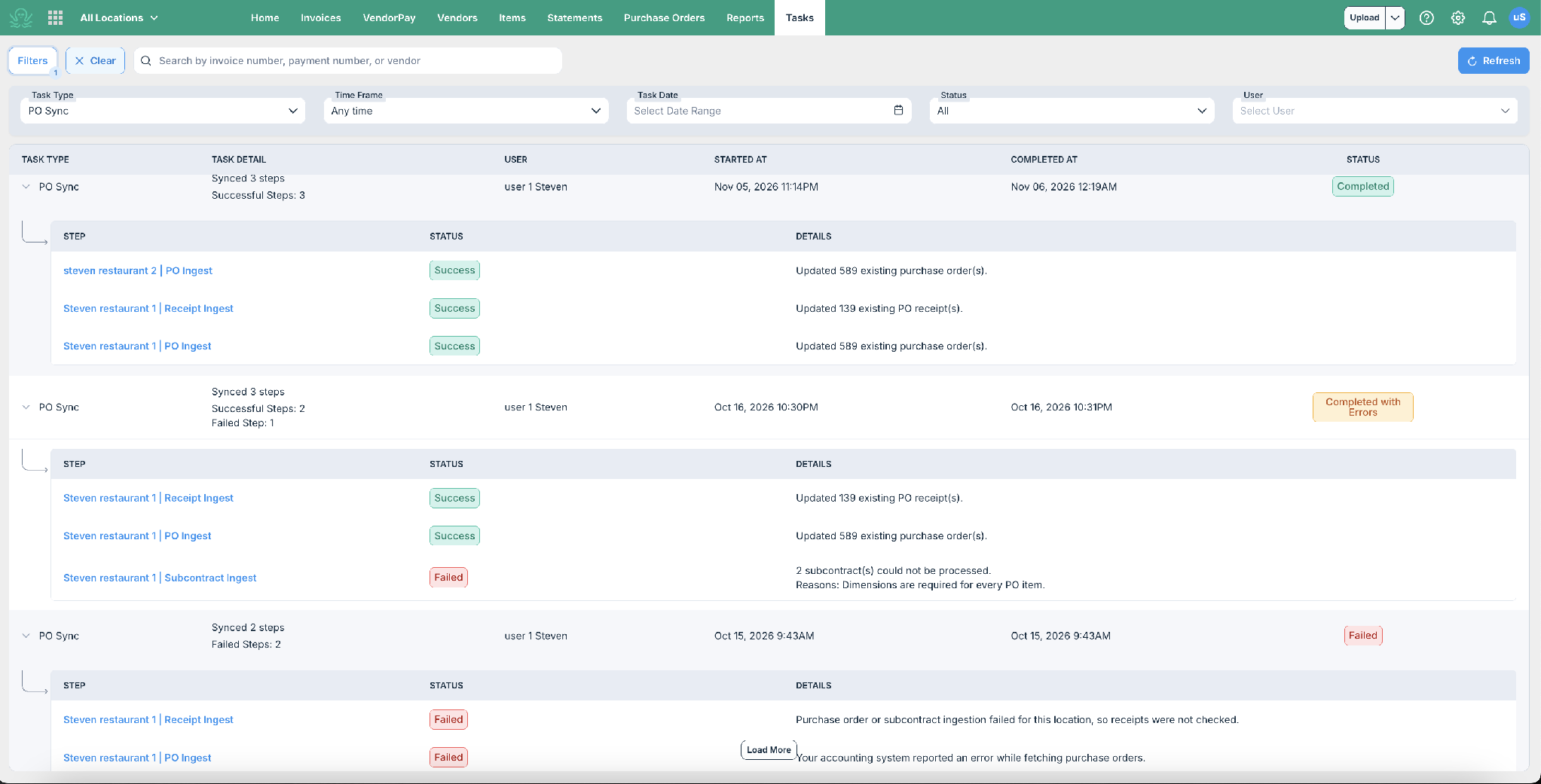
Which specific invoices, payments, or sync steps succeeded or failed, and why
Where to find it
Click Tasks in the top navigation bar.
What you can track
Some task types only appear if your account uses that feature - for example, Payment Export only shows for VendorPay accounts.
How to read a task
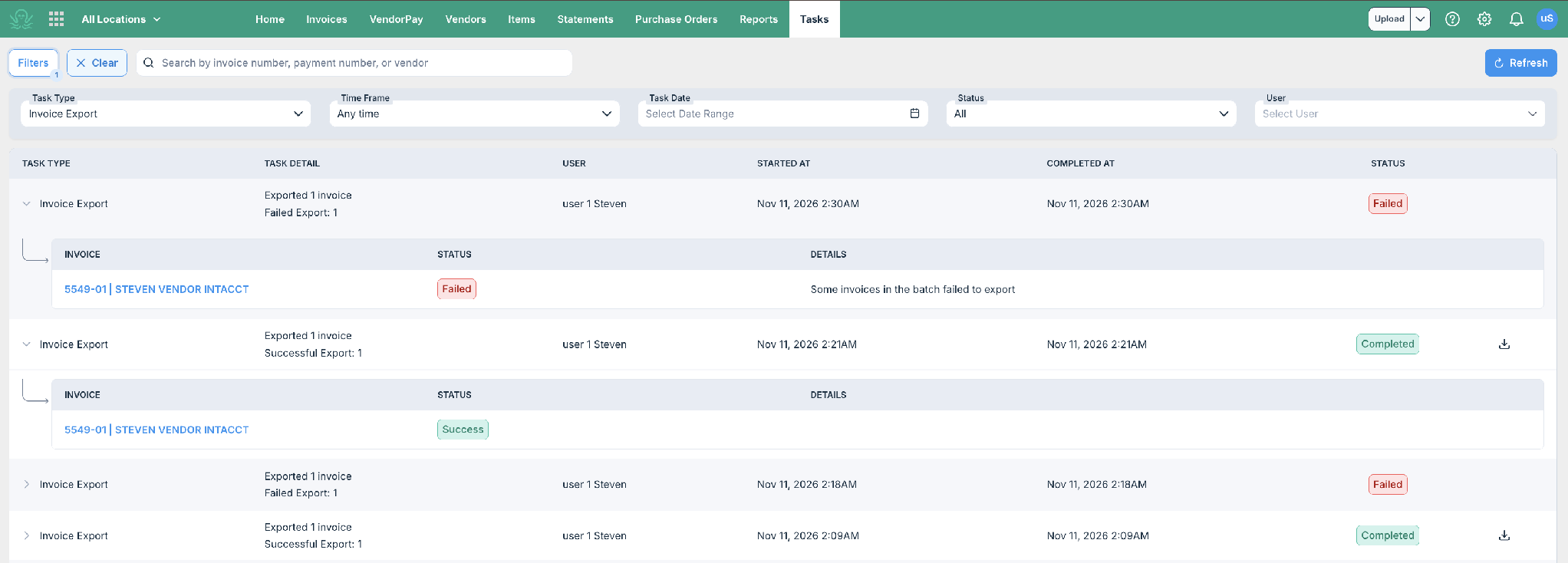
Each task shows a summary, such as "Exported 5 invoices - Successful: 4, Failed: 1." Click the row to expand it and see the result for each individual invoice, payment, or sync step, including any error message.
Where to start each action
Accounting Sync
Go to Settings → Locations → [Your Location] → Sync Accounting - or turn on Automatically sync accounting every night under Advanced Settings.
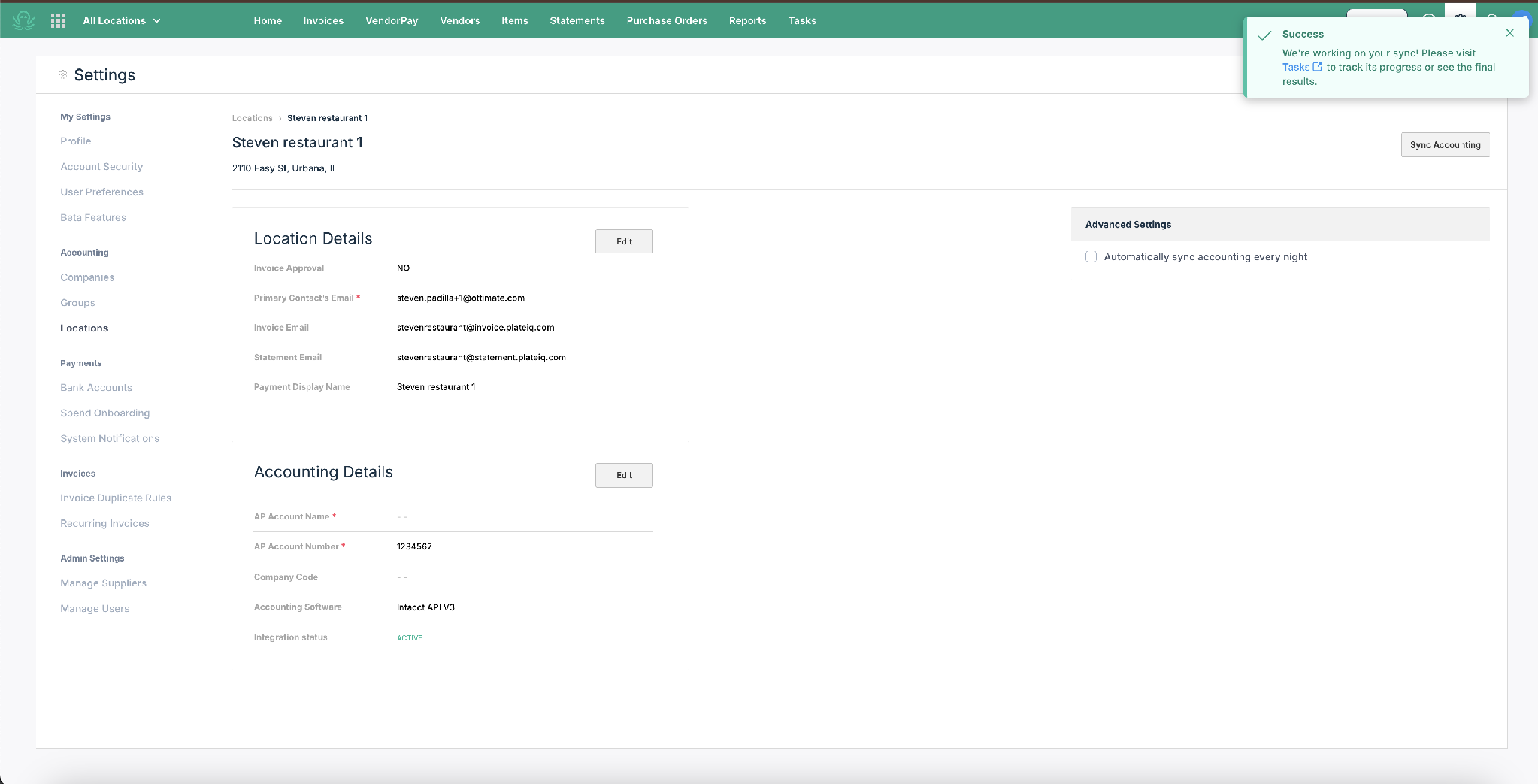
You'll see: "We're working on your sync! Please visit Tasks to track its progress or see the final results."
Invoice Export
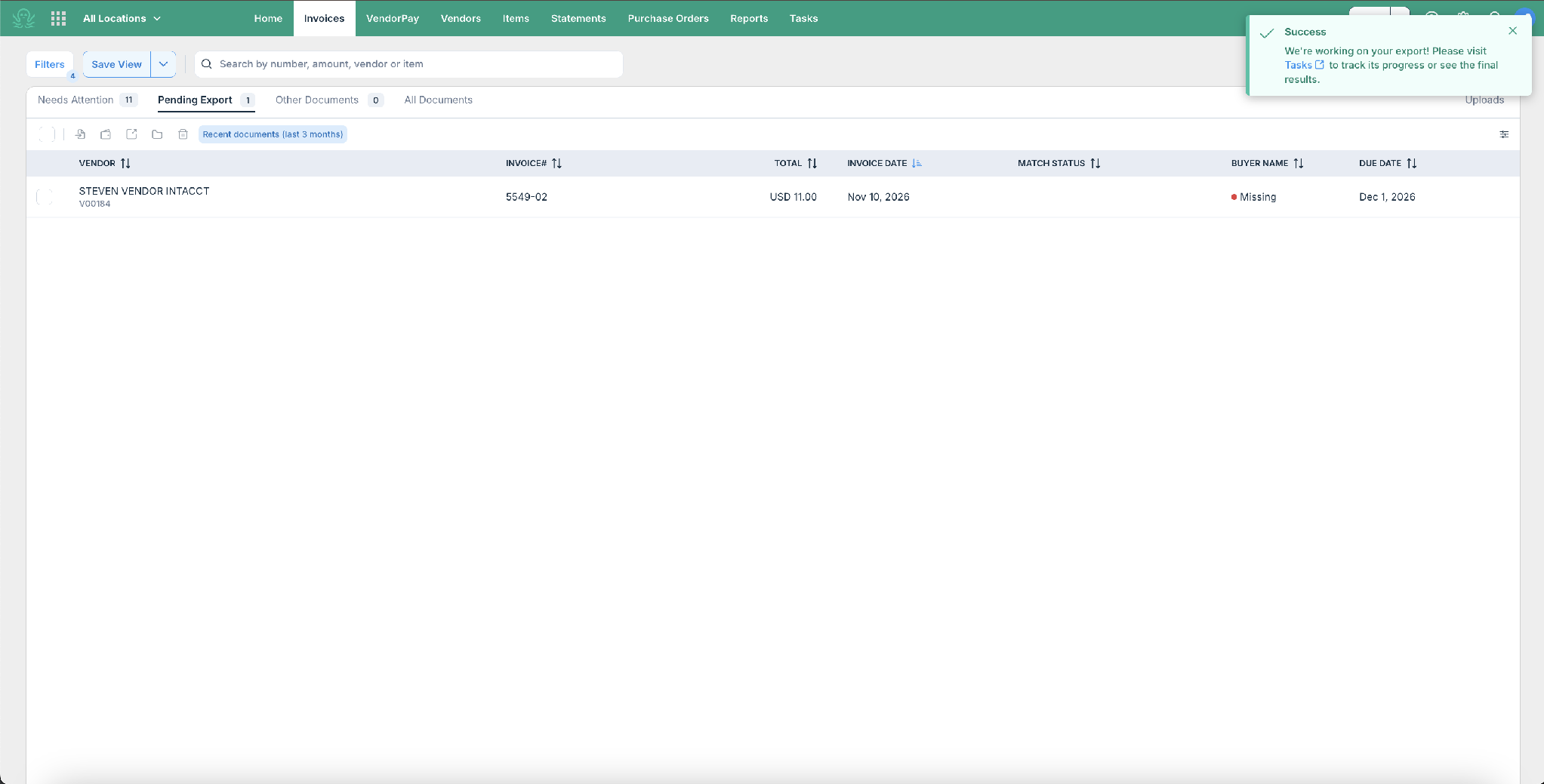
Go to Invoices → Approved or Pending Export section.
Payment Export
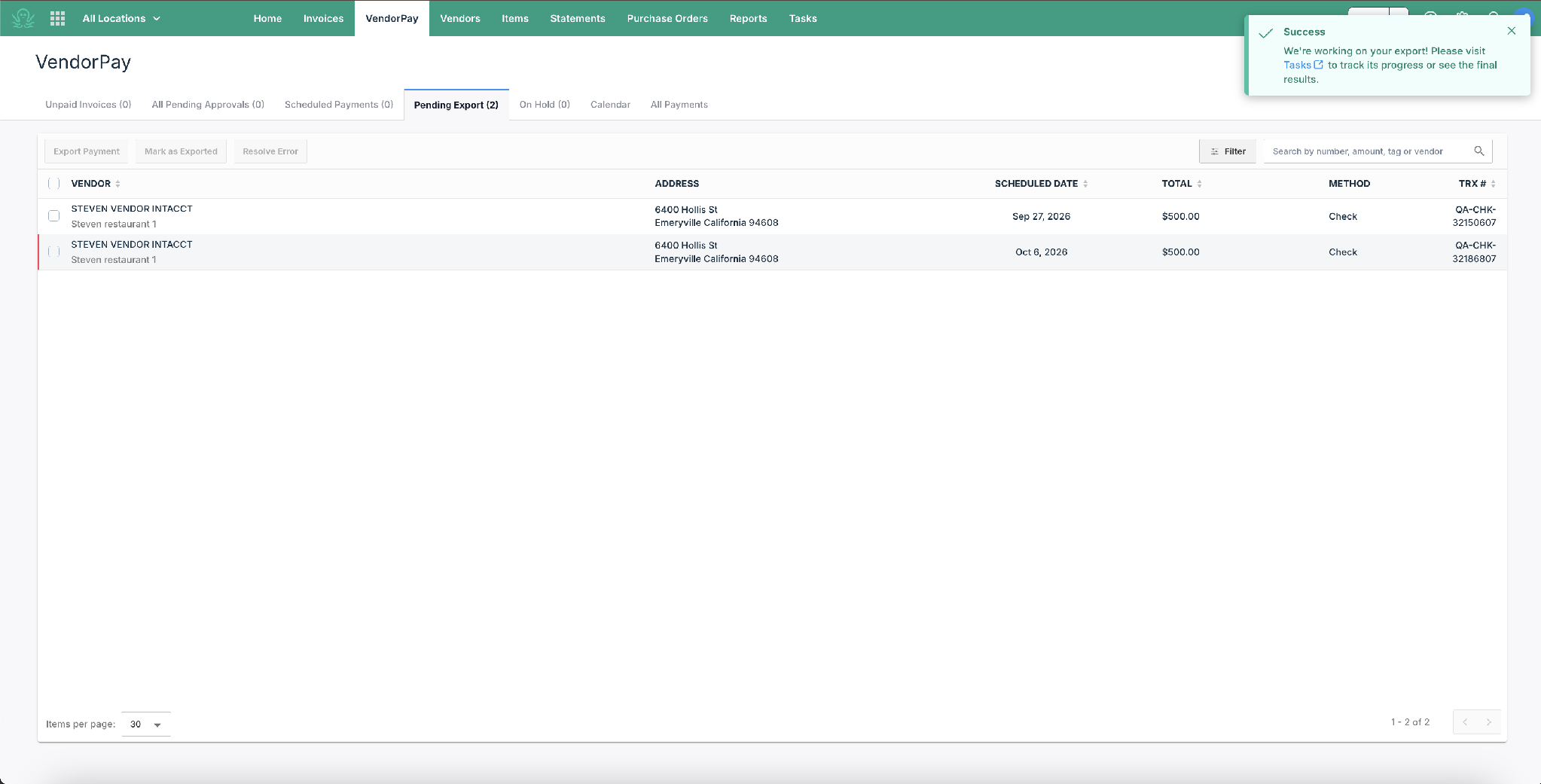
Go to VendorPay → Pending Export → Export Payment.
PO Sync
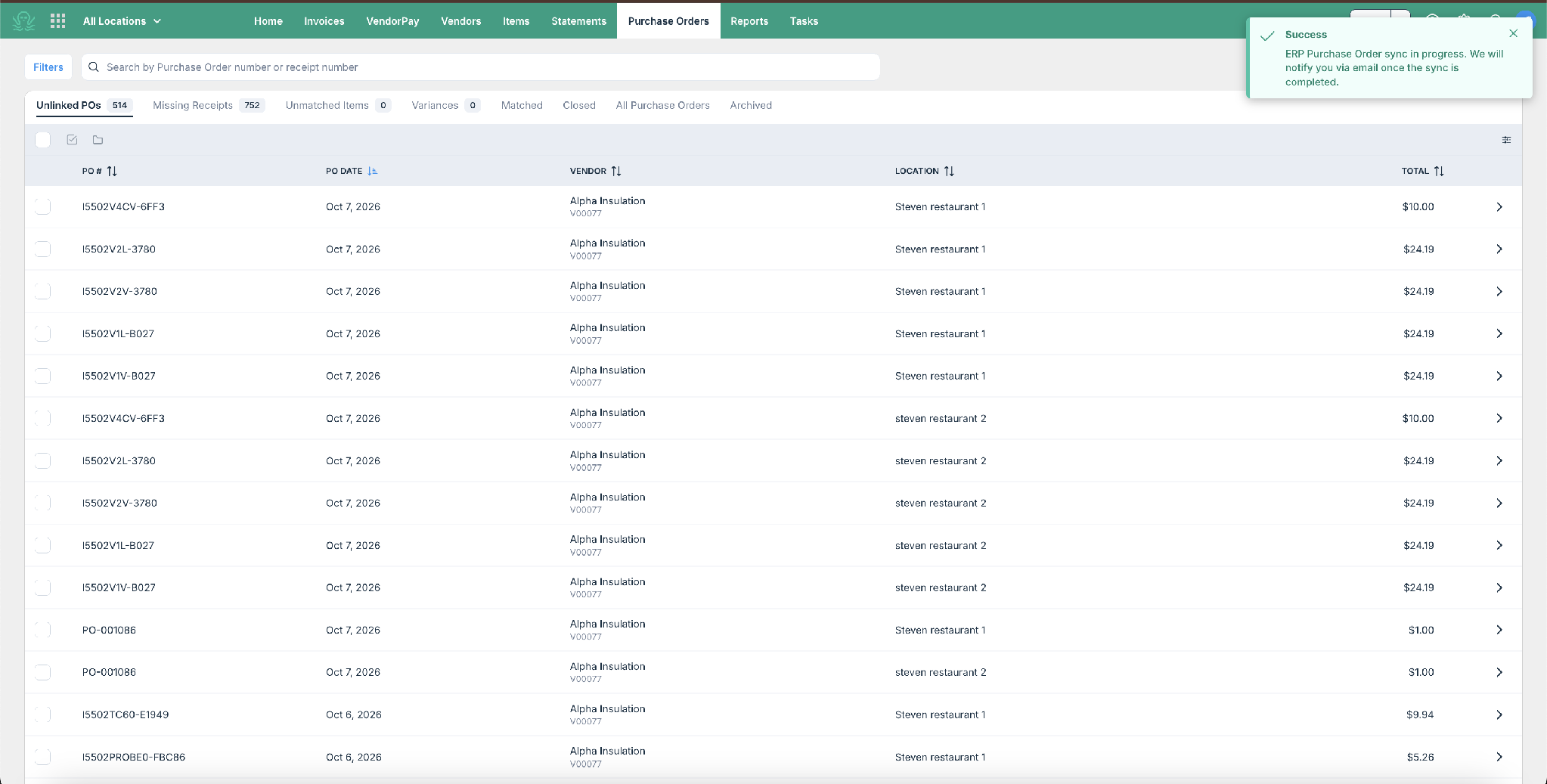
Runs automatically as part of your ERP's purchase order sync, from the Purchase Orders tab.
Invoice & Payment Auto-Export
These run automatically on a schedule set up with Ottimate Support - no action needed from you. They're shown as System in Tasks:
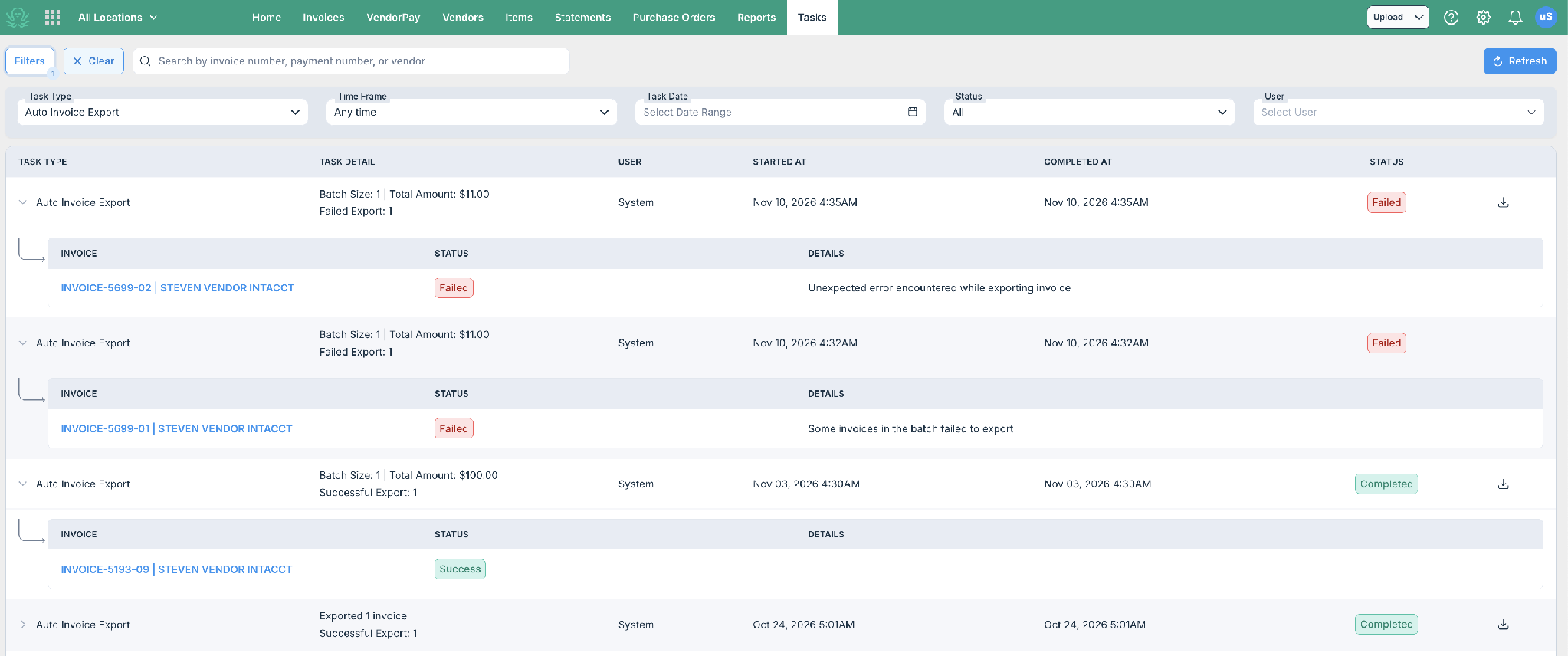
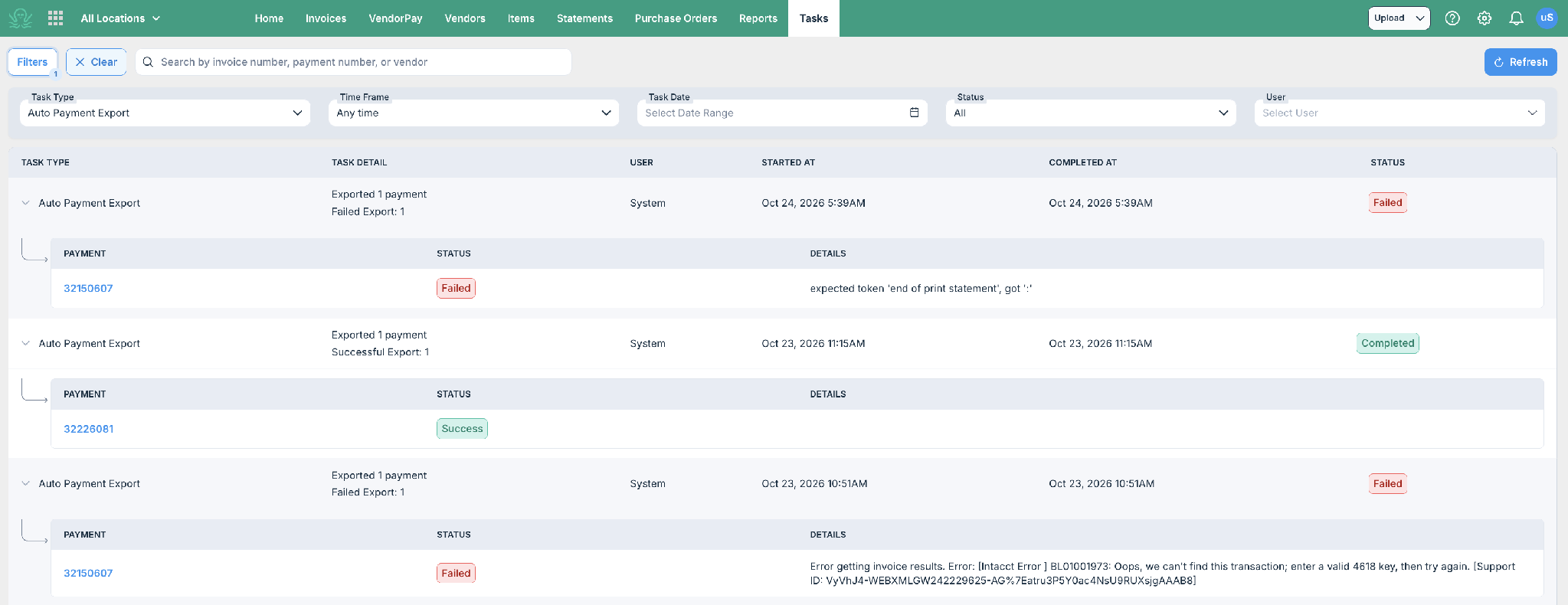
When you start an export or sync, you'll see a short confirmation message pointing you to Tasks - that's where to check progress from then on.
Downloading a completed export
If your account uses file-based exports (rather than a direct integration with your accounting system), completed exports have a download icon on the right side of the row, next to the status. Hover over it to see “Download export report,” and click it to get the same file you’d have previously received as a direct browser download.
Download icon on completed Invoice Export tasks, with the “Download export report” tooltip:
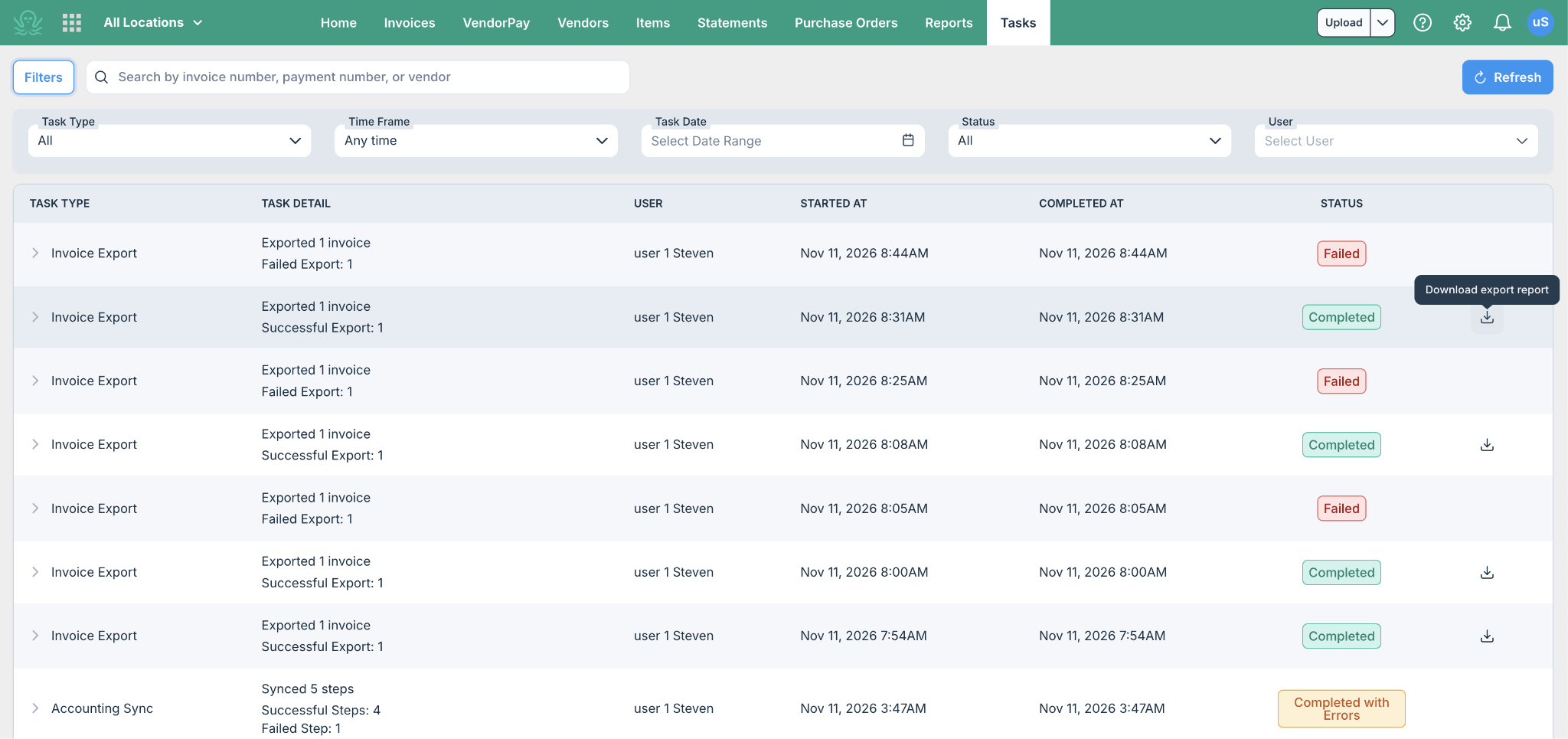
This icon only appears on Completed exports for file-based accounts. Failed exports won’t have a file to download, check the expanded row for the error instead. If your account integrates directly with your accounting system, exports go straight through and there’s no separate file to download.
FAQ
Does Tasks confirm the export landed in my accounting system? For direct integrations, yes - the result reflects what your accounting system reported back. For file-based exports, it confirms the file was generated and is ready to download, not what happened after you imported it.
What's the difference between "Rejected" and "Failed" on a payment export? Rejected (yellow) means your accounting system declined the payment - usually something to fix on your end, like a missing vendor ID. Failed (red) means something went wrong on Ottimate's side - contact Support.
I wasn't sure my export worked, so I ran it again. Did it export twice? No - Ottimate prevents duplicate processing automatically. Check Tasks first to confirm status before re-running.
Can I see tasks that other people on my account started? That depends on your permission level. Ask your account admin if you need visibility into all tasks.
Why does an accounting sync show some steps as "completed" that I don't even use? Steps your accounting system doesn't support, or that aren't configured, show as completed/skipped - this isn't a failure, it just means there's nothing to sync for that step.
Where did my direct download go? It’s still there, just one click away. If your account exports via file download (not a direct accounting system integration), completed exports now show a download icon in the Tasks tab, next to the status. Click it to get the same file as before. See “Downloading a completed export” above for the details.
Was this article helpful?
That’s Great!
Thank you for your feedback
Sorry! We couldn't be helpful
Thank you for your feedback
Feedback sent
We appreciate your effort and will try to fix the article