This help document outlines the final steps to export your payment files from Aptech PVNG for subsequent upload into Ottimate. These steps begin immediately after your payments have been approved.
TABLE OF CONTENTS
- Pre-Requisite:
- Step 1: Accessing the Correct Account & Location
- Step 2: Selecting Vendors for Payment
- Step 3: Approval Stage
- Step 4: Executing the Payment & Export
- Step 5: Downloading the File
Pre-Requisite:
Client has to contact support at support@aptech-inc.com to request activation of the Ottimate payment function if they wish to use it.
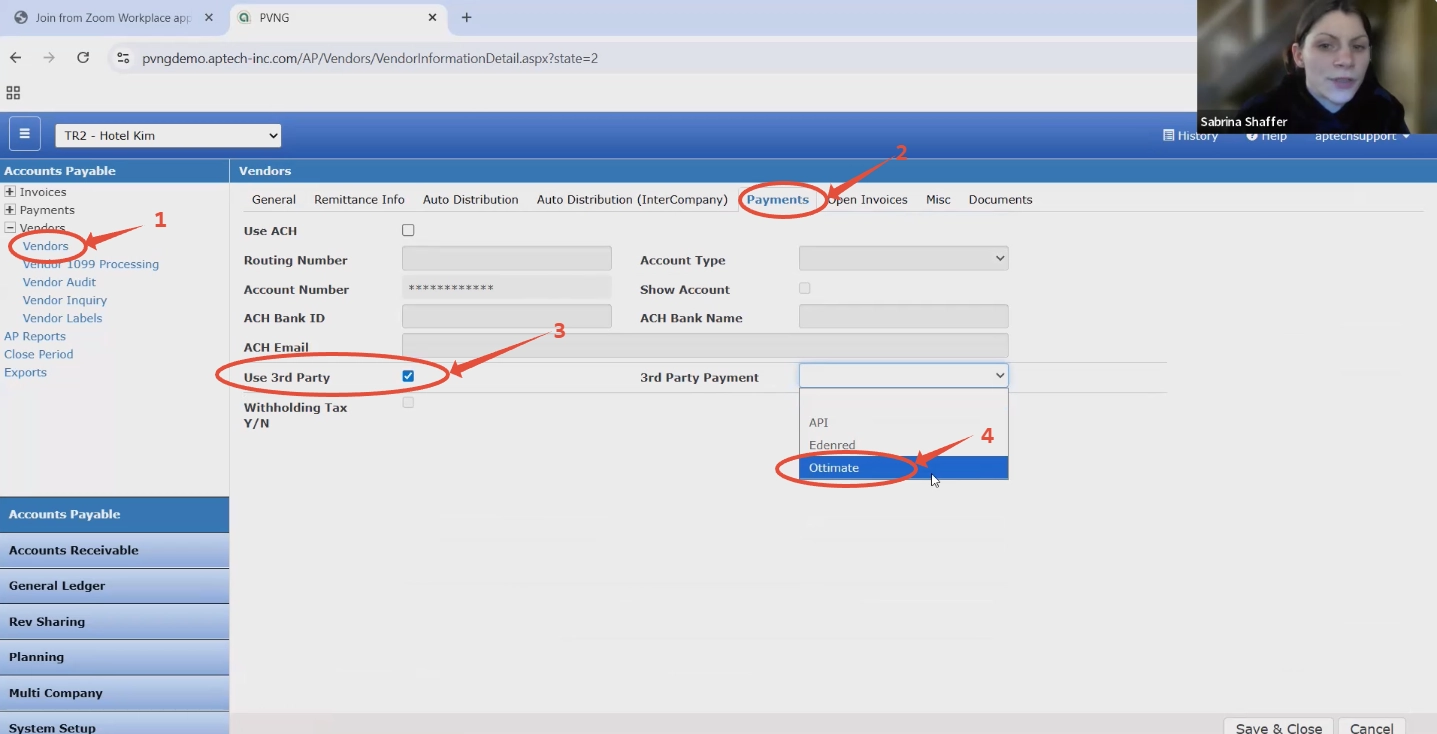
Also, to enable a vendor to be paid via Ottimate, go to “Vendors” tab and select the vendor and go to “Payments” tab and select “Third Party Payment” and select the payment type by Ottimate. Please refer to the below screenshot.
Step 1: Accessing the Correct Account & Location
- Log in to the Aptech PVNG system.
- From the top menu, select the specific Company/Hotel for which you are processing payments (e.g., "TR2 - Hotel Kim")
Step 2: Selecting Vendors for Payment
- Navigate to Accounts Payable → Payments → Payments.
- Click New+ to create a new payment batch.
- From the list of open invoices, select the specific invoices you wish to pay.
- Click Save & Close
Step 3: Approval Stage
- Navigate to Accounts Payable → Payments → Approve Payments.
- Locate the payment batch created in Step 2.
- Select the batch and click Approve
Step 4: Executing the Payment & Export
Navigate to Accounts Payable → Payments → Issue Payments.
Locate the approved batch and click the Edit (Pencil) Icon.
Fill in the following fields:
- Bank Code: Select the account the funds are being drawn from (This is just for Aptech purpose)
- Next Check No: Enter the starting number for the batch.
- Check Layout: Set this to "Standard Layout".
- Payment Type: CRITICAL — Ensure this is set to "Ottimate". This tells Aptech to use the correct export formatting.
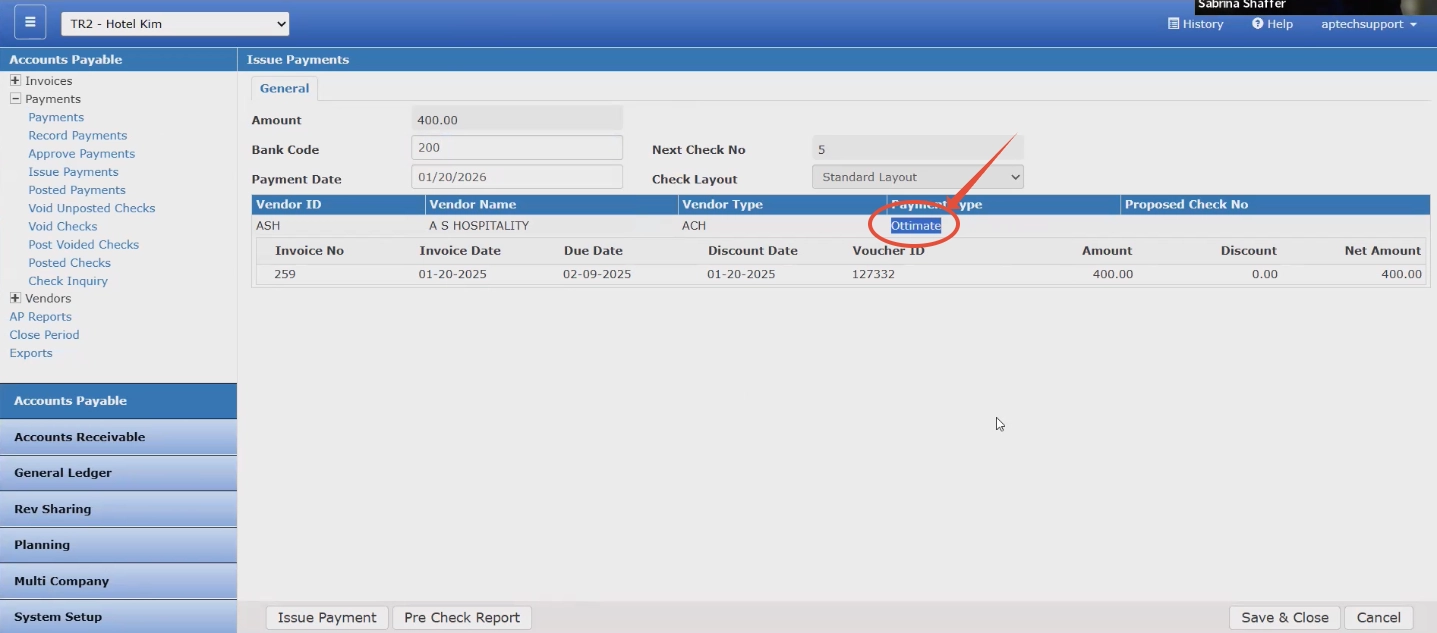
Click Issue Payment.
Step 5: Downloading the File
- A new browser tab will automatically open titled "Ottimate Export" (This step marks all the invoices as paid in Aptech)
- Click the Download button.
- The system will generate a CSV file formatted specifically for Ottimate's disbursement tool.
Was this article helpful?
That’s Great!
Thank you for your feedback
Sorry! We couldn't be helpful
Thank you for your feedback
Feedback sent
We appreciate your effort and will try to fix the article