If you can still log in
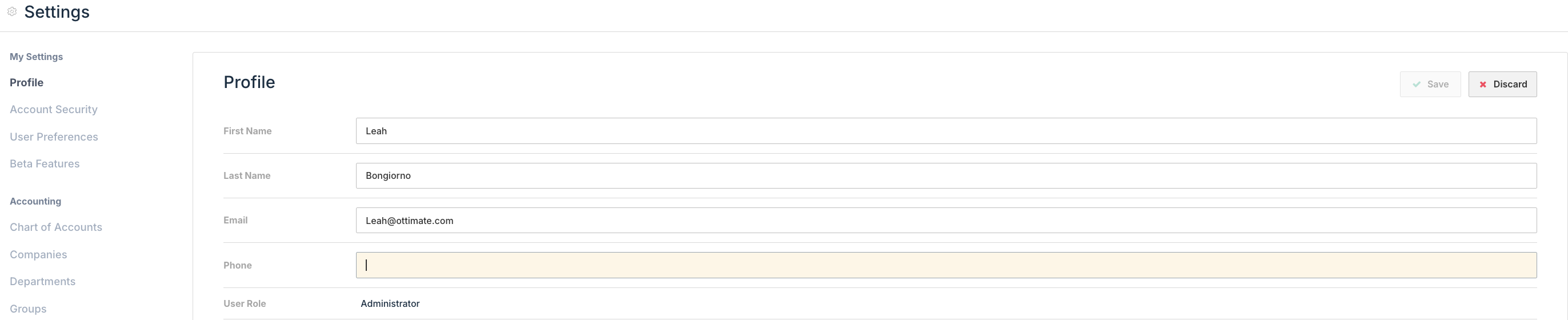
Go to Settings > Profile.
Edit your mobile number from your contact details.
You will then see the new MFA contact number under the Account Security tab in Settings.
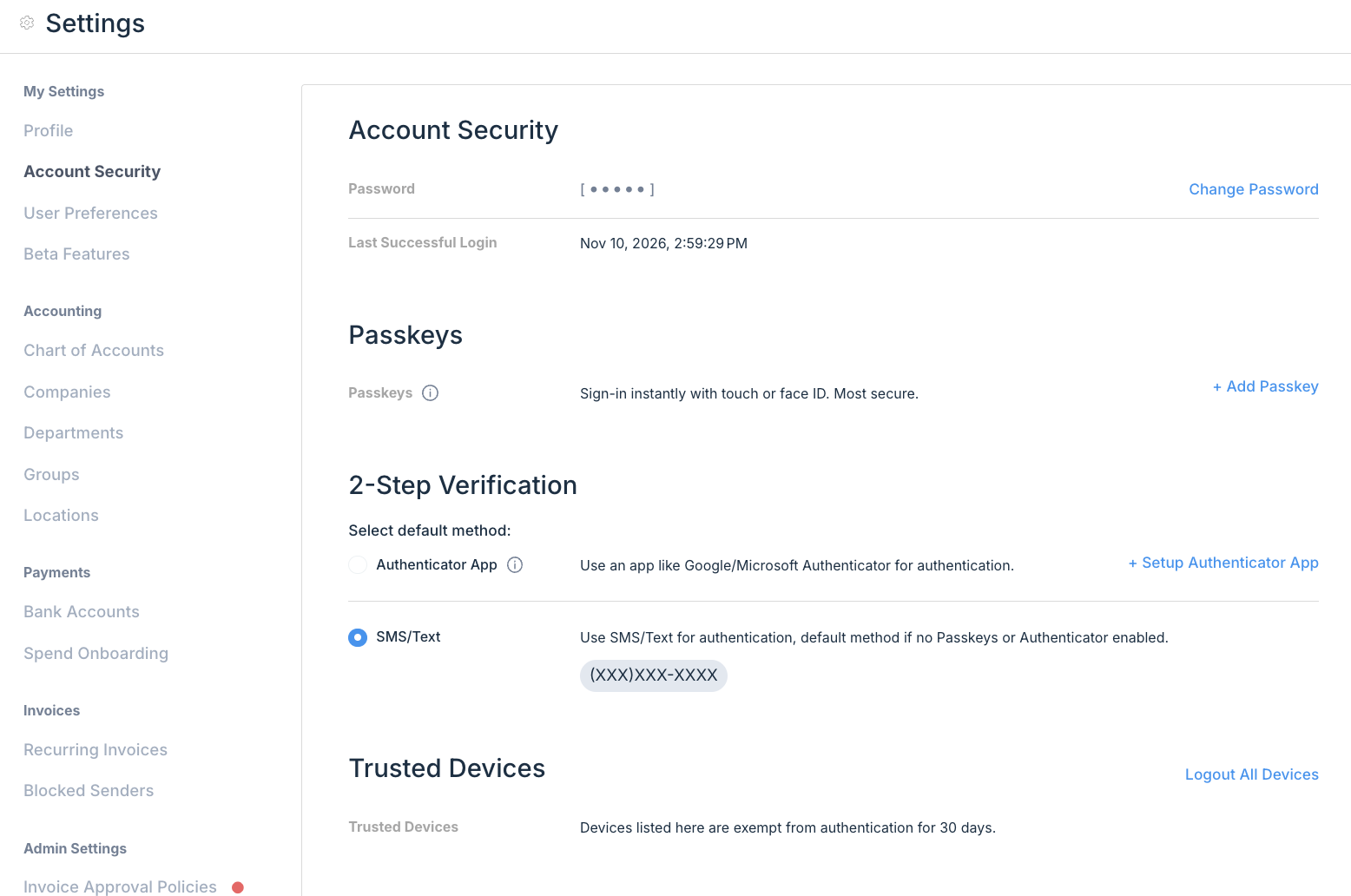
While you are there, consider setting an authenticator app or a passkey as your default method. Both are more secure than SMS, and the phone number then only matters as a fallback.
Please note that we currently restrict SMS authentication to certain regions. If your country isn't on the below list, kindly reach out directly to support@ottimate.com to assist with login options. 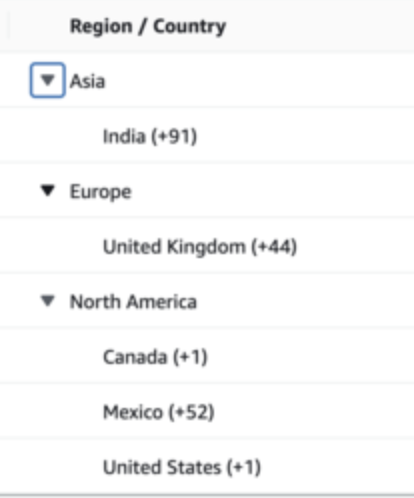
If you cannot log in (new phone number, lost phone)
An administrator on your account can reset your MFA so you can enroll fresh:
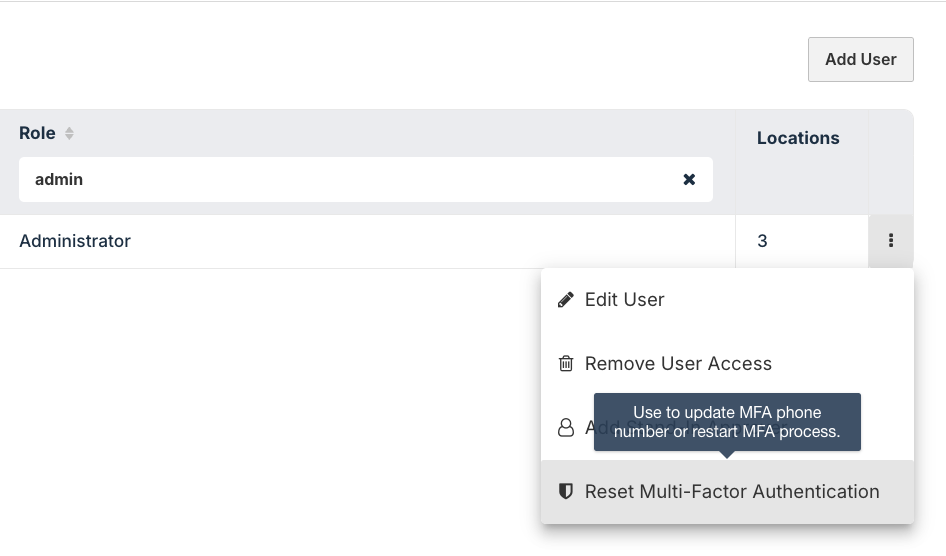
Administrator goes to Settings > Manage Users and locates the needed user.
From the drop-down menu on the far right, click Reset Multi-Factor Authentication. This clears the old enrollment, including the old phone number.
At the next login, the user sets up 2-Step Verification again with their new phone number.
Trusted devices: a device you have verified stays trusted for 30 days, so you may not be prompted for a code on every login. You can log out all devices from Settings > Security at any time.
If you log in through your company’s SSO, Ottimate does not manage your phone number or verification codes — your identity provider does. Contact your IT administrator.
You can find additional details on SSO here: Single Sign-On (SSO): How It Works
Was this article helpful?
That’s Great!
Thank you for your feedback
Sorry! We couldn't be helpful
Thank you for your feedback
Feedback sent
We appreciate your effort and will try to fix the article