OVERVIEW
When a vendor doesn't charge sales tax, you often still owe use tax to the jurisdiction where you received the goods or services. Miss it and the liability sits on your books unbooked, waiting for an auditor to find it. Catching those invoices today means combing thousands of exported invoices by hand, one line at a time.
The Use Tax Review dashboard does that detective work for you. It surfaces every invoice you exported to your ERP with no tax captured anywhere, groups the exposure by GL account, vendor, and state, and lets you open any invoice to see the exact evidence, so your accounting team can walk into a use-tax accrual review with the list already built and every candidate backed by its source document.
The dashboard helps you answer questions like:
Which invoices did we export this period with no tax on them anywhere?
How much untaxed spend is that, and is it going up or down versus last period?
Which GL accounts, vendors, and states does that exposure concentrate in?
For any one invoice, can I prove no tax was charged, at the header, the line item, and the GL split?
WHAT THIS DASHBOARD DOES, AND WHAT IT DOESN'T
Read this first, because it defines the whole product. The dashboard flags possible untaxed invoices as candidates for your review. It reports untaxed spend, which is a fact about what you bought. It does not decide whether any invoice is taxable, it does not calculate a tax rate, and it never shows a tax amount owed. Every tax decision, filing, and accrual stays with you and your tax advisors. This is a hard boundary, not a footnote.
The dashboard shows a short version of this note under the title ("Candidates for review, not tax advice"); hover or focus it for the full statement.
HOW IT WORKS
The dashboard reads the invoices already in your Ottimate account and flags an invoice as a use-tax candidate only when it was exported to your ERP and carries no tax at any of four levels:
Header tax — no tax on the invoice header.
Line items — no line marked as taxed or carrying a tax amount.
Line descriptions — no line described as a tax line.
GL splits — no GL split carrying a tax amount.
If tax shows up at any one of those four levels, the invoice is not flagged. Only exported, verified invoices are considered, so what you see maps to what actually went to your ERP.
A few things the dashboard does on purpose so the list stays trustworthy:
Ship-to is captured so that you can identify the taxation jurisdiction(s) that may be applicable.
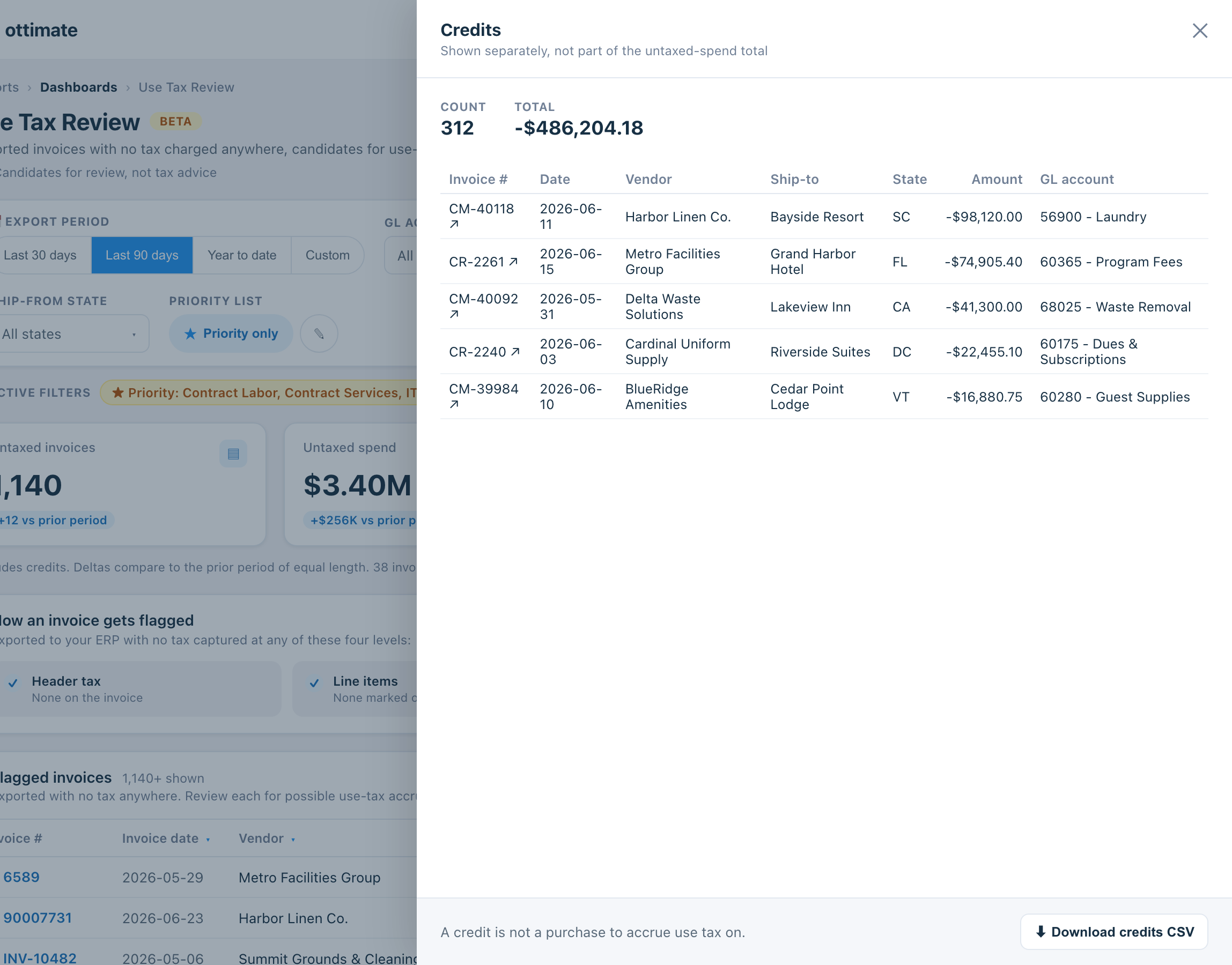
Credits are separate. A credit memo isn't a purchase to accrue use tax on, so credits never count toward the untaxed-spend total. They're inspectable in a separate Credits view.
Tax-authority payments stay in, flagged. Payments that look like remittances to a tax authority (a treasurer, a department of revenue) are kept in the list but tagged "likely remittance" so you can spot and set them aside. The dashboard flags them, it doesn't remove them for you.
Note: a "no tax anywhere" rule can occasionally over-flag, for example when tax was charged but got captured inside a broader line rather than as its own tax line. That's why every flagged invoice opens to its real source evidence, and why the last call is always yours. If you spot a pattern that's consistently wrong, tell Ottimate Support so the team can review it.
WHERE CAN I FIND THE USE TAX REVIEW DASHBOARD?
The Use Tax Review dashboard lives in the Dashboards area of the Reports module.
Reports → Dashboards → Use Tax Review
HOW DO I USE THE DASHBOARD?
Open Reports → Dashboards → Use Tax Review.
Set the export period at the top left (Last 30 days, Last 90 days, Year to date, or a custom range).
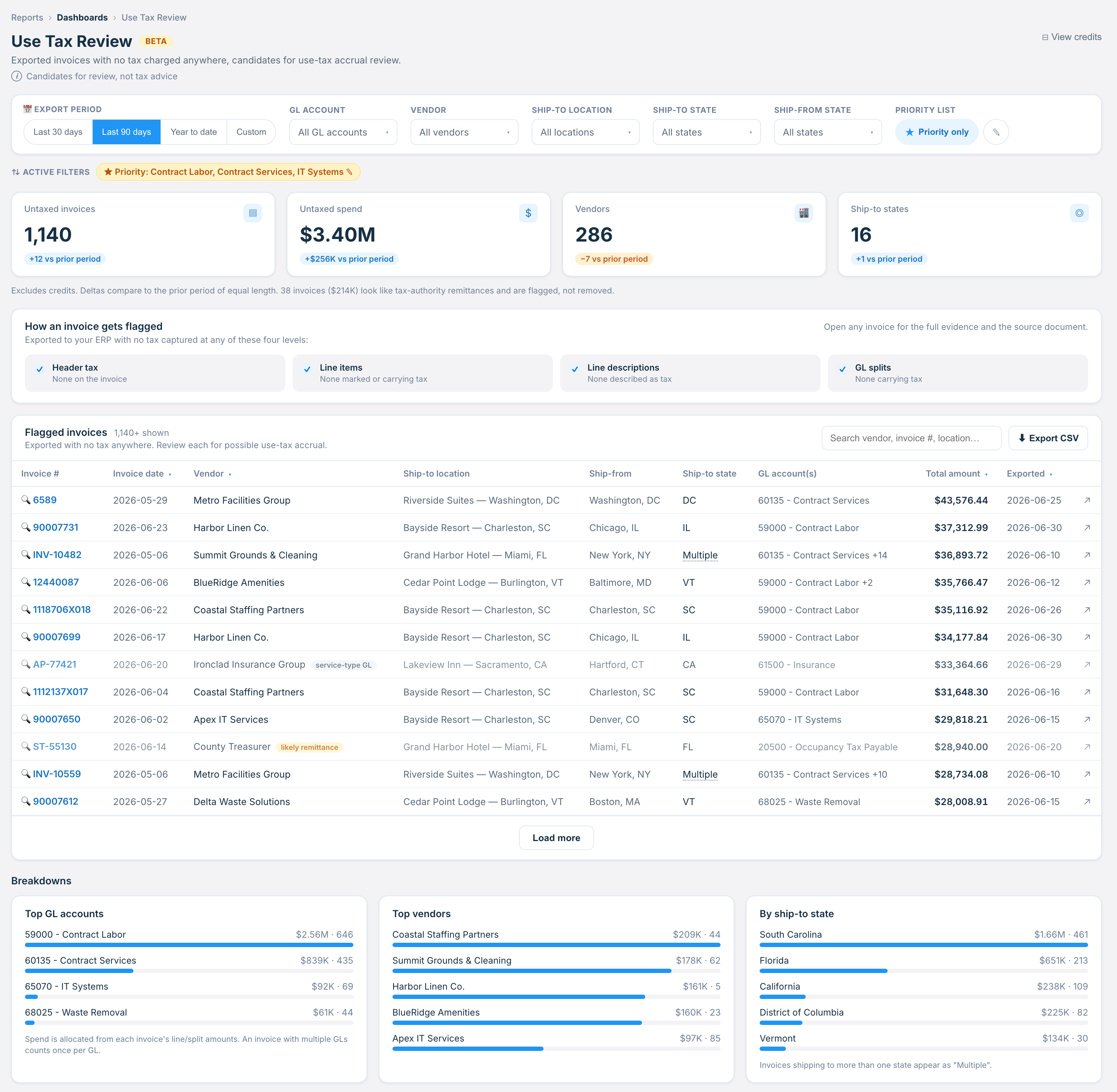
Read the four summary tiles for the headline: how many untaxed invoices, how much untaxed spend, how many vendors, and how many ship-to states, each with the change versus the prior period.
Work the Flagged invoices list. Sort by amount to go top-down, or use the filters and breakdown cards to focus on a GL account, vendor, or state.
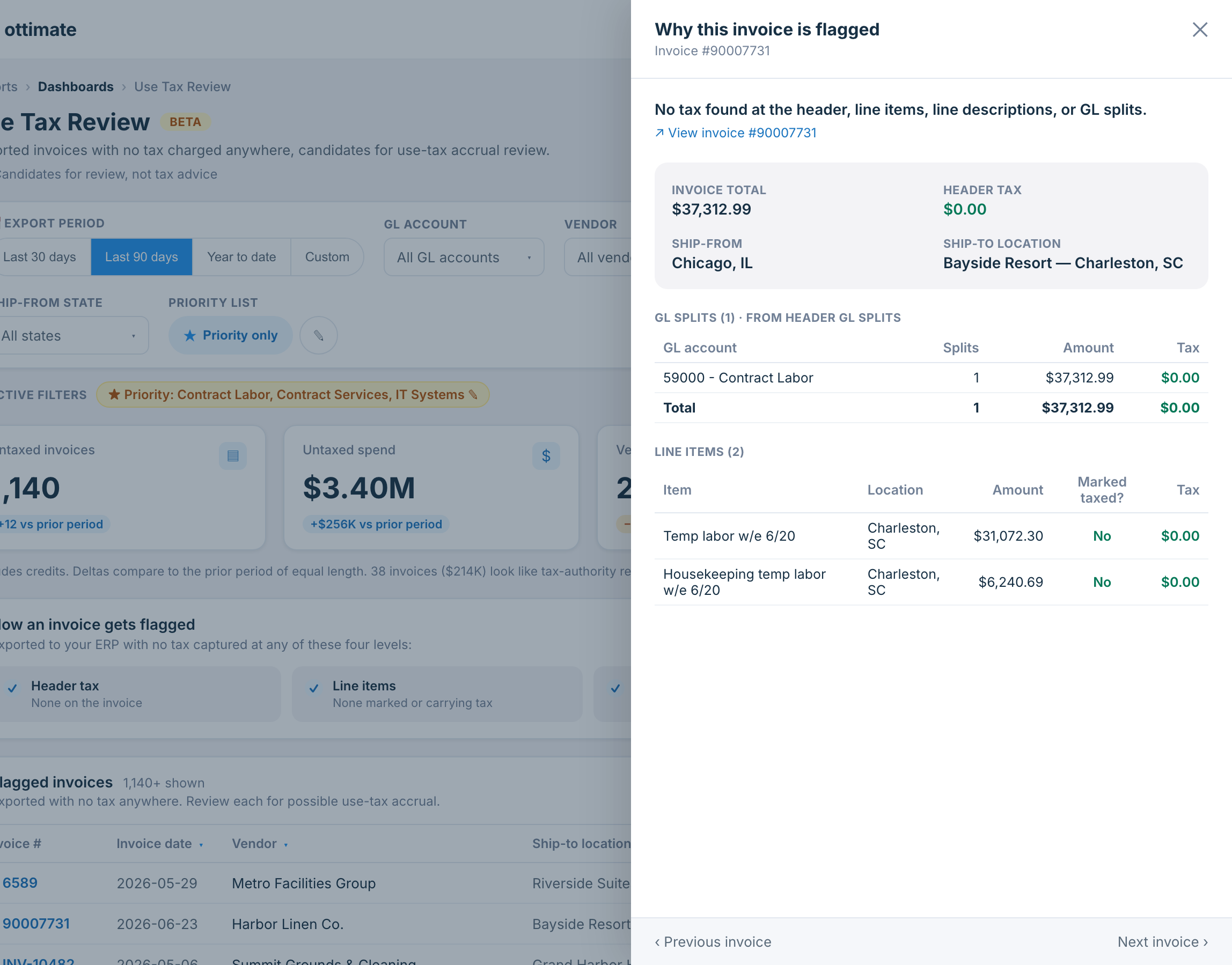
Click any invoice number to open the evidence panel and confirm tax is $0 at the header, line, and GL-split level, or jump straight to the source invoice in Ottimate.
Click Export CSV to pull the flagged list, matching your current filters, into a worksheet for your accrual entry or your auditor.
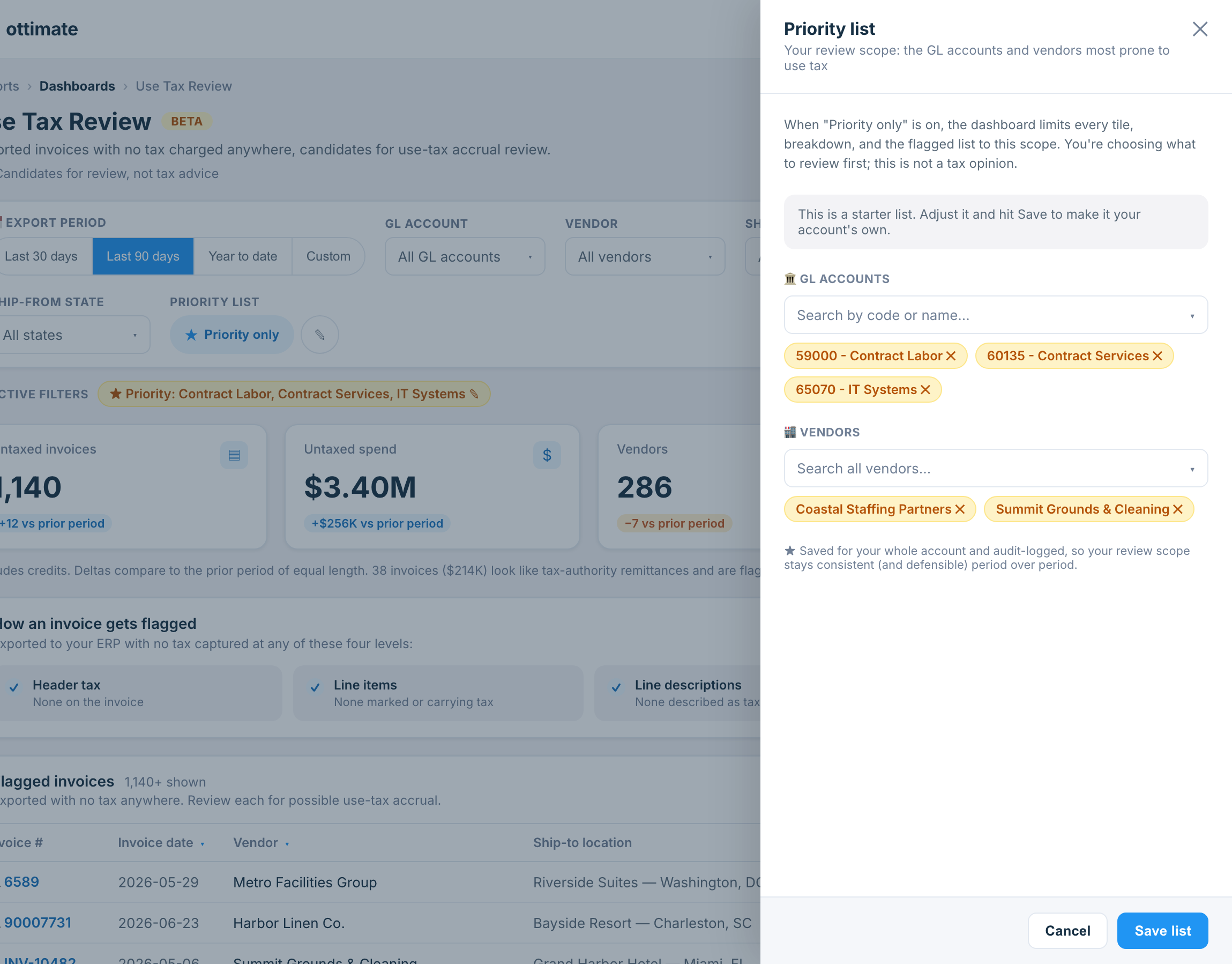
If your account has set up a priority list (the GL accounts and vendors you care about most for use tax), turn on Priority only to narrow the whole dashboard to that scope. More on that below.
HOW DO I FILTER FOR A SPECIFIC EXPORT DATE RANGE?
Every number on the dashboard is scoped by the export period, so this is the control you'll reach for first.
Use a preset for a quick range: Last 30 days, Last 90 days, or Year to date.
For an exact window, click Custom and pick a start and end date. This is the one to use when you're reviewing a specific month or quarter.
The tiles, breakdowns, and flagged list all update together, and the change chips on the tiles compare your window to the prior period of equal length.
The period is based on the export date (when the invoice was sent to your ERP), so the filter controls when an invoice was exported, not when it was paid.
WHAT ARE THE ELEMENTS OF THE DASHBOARD?
Summary tiles
Four tiles across the top, each with a change chip versus the prior period of equal length:
Untaxed invoices — the count of exported invoices with no tax captured at any of the four levels. Excludes credits.
Untaxed spend — the total spend on those invoices. This is a fact about spend, not a tax amount owed.
Vendors — the number of distinct vendors across the flagged invoices.
Ship-to states — the number of distinct taxing jurisdictions where those goods or services were received.
A footnote under the tiles reminds you that credits are excluded and, when relevant, calls out how many invoices look like tax-authority remittances (flagged, not removed).
"How an invoice gets flagged" panel
A small panel that spells out the four checks (header tax, line items, line descriptions, GL splits) right on the page, so anyone reading the list can see exactly what was verified before an invoice landed there.
Flagged invoices list
The core of the dashboard, and the work. Every candidate invoice, one per row, with these columns:
| Column | What it shows |
|---|---|
| Invoice # | The invoice number. Click it to open the evidence panel. |
| Invoice date | The date on the invoice. Sortable. |
| Vendor | The vendor name, with context badges where they apply (see below). Sortable. |
| Ship-to location | The property or location that received the goods or services. |
| Ship-from | Where the vendor shipped from. Context, not the taxing jurisdiction. |
| Ship-to state | The taxing jurisdiction. An invoice received across more than one state shows "Multiple"; hover it to see the states. |
| GL account(s) | The GL account, or accounts, the invoice was coded to, as code and name. |
| Total amount | The invoice total. Sortable; the list opens sorted by amount, largest first. |
| Exported | The date the invoice was exported to your ERP. Sortable. |
| View invoice | A link that opens the source invoice in Ottimate. |
You can search the whole flagged set by vendor, invoice number, or location, sort by date, vendor, amount, or export date, and load more rows as you go. Export CSV pulls the list for your current filters.
Some rows carry a small context badge next to the vendor. These describe the GL or the vendor, they never make a tax call, and the row stays in the list either way:
likely remittance — looks like a payment to a tax authority (a treasurer, a department of revenue), so probably not a purchase to accrue on.
tax account — booked to a tax-liability GL account (a tax you collect and remit), so probably not a purchase.
service-type GL — coded to a GL that's typically a service (insurance, consulting, management fees). Services are often outside use-tax scope, but that's your team's call.
Evidence panel ("Why this invoice is flagged")
Click any invoice number to slide open the evidence. It shows the invoice total and a $0 header tax, the GL splits grouped by account with their tax column at $0, and the line items with an "is it marked taxed?" column and a $0 line tax, so you can see, from the real source rows, that no tax was charged at any level. A link opens the source invoice in Ottimate, and Previous / Next step you through the list without leaving the panel.
Breakdowns
Three cards below the list show where your untaxed spend concentrates: Top GL accounts, Top vendors, and By ship-to state. Click any row to filter the whole dashboard to that GL account, vendor, or state. Spend is allocated from each invoice's line and split amounts, so an invoice coded to more than one GL counts once per GL.
Credits view
Click View credits at the top right to open credits in a separate panel, with their own count and total. Credits are shown for completeness and can be exported, but they never count toward the untaxed-spend headline, because a credit isn't a purchase to accrue use tax on.
Priority list
Your account can define a priority list: the GL accounts and vendors you most want to review for use tax. Click the pencil next to Priority only to open the editor, pick GL accounts and vendors from your own data, and save. Turn on Priority only and the dashboard limits every tile, breakdown, and the flagged list to that scope, so a monthly review opens right on what matters. The list is yours to define (Ottimate never sets it for you), it's saved for the whole account, and every change is recorded, so your review scope stays consistent and defensible period over period. In a multi-account login, each account keeps its own list and the dashboard view combines them.
FILTERS AVAILABLE ON THE DASHBOARD
Filters sit in the bar at the top and apply to the tiles, breakdowns, and flagged list together. Each selection shows as a removable chip, and you can clear them all at once.
| Filter | Description |
|---|---|
| Export period | Last 30 days, Last 90 days, Year to date, or a custom start / end range. Based on the export date. |
| GL account | Multi-select. Search by code or name and pick one or more GL accounts. |
| Vendor | Multi-select, searchable across all of your vendors (the list starts with your top vendors by spend; type to reach the rest). |
| Ship-to location | Multi-select, searchable. Scope to specific properties or locations. |
| Ship-to state | Multi-select. The taxing jurisdiction: where the goods or services were received. |
| Ship-from state | Multi-select. Where the vendor shipped from, for context. |
| Priority only | Limits the whole dashboard to your account's priority GL accounts and vendors. Edit the list with the pencil next to the toggle. |
ACCESS & PRICING
Use Tax Review requires the same two reporting permissions as the Operational Efficiency dashboard: View Admin Reports and View Analytics Dashboards. A user needs both, not either one. If you can already open the Operational Efficiency dashboard, you can open Use Tax Review. If you can't find it, you're likely on a "View" only or "No-Access" role; ask a user with Administrator role permissions to enable both the View Admin Reports and View Analytics Dashboards permissions for your user.
Access is scoped two ways, on every query: you see invoices only for the account(s) you belong to, and within an account, only the locations you have access to.
The dashboard is included at no additional cost.
FAQs
Does the dashboard tell me how much use tax I owe?
No, by design. It surfaces invoices where no tax was captured and reports untaxed spend, which is a fact. It never calculates a tax rate or a tax amount owed, and it doesn't decide whether an invoice is taxable. You and your tax advisors make every tax determination. A full tax-determination product (rates and amounts) is a separate path for the future and runs through a dedicated tax engine.
Can I mark invoices as reviewed, accrued, or excluded in the dashboard?
Not in this version. An in-dashboard review workflow, where you disposition each invoice and worked items leave the queue, is planned. For now, filter to your scope, Export CSV, and track your dispositions in that worksheet. The priority list is the way to keep your review focused on the GL accounts and vendors that matter most.
Can I book the accrual from here?
Not yet. Booking an accrual directly on the invoice, where you enter what's taxable and your own rate, is on the roadmap. Today you export the flagged list and post the accrual entry in your accounting system.
Why is an invoice on the list when tax was actually charged?
Occasionally tax was charged but got captured inside a broader line rather than as its own tax line, so the "no tax anywhere" check doesn't see it. Open the evidence panel to confirm against the real invoice rows, and if you find one, exclude it in your worksheet. If you see a repeating pattern, tell Ottimate Support with the invoice number so the team can review the detection.
What does "Multiple" mean in the ship-to state column?
Some invoices cover more than one property and span more than one state. Those show "Multiple" instead of a single state; hover the cell to see the exact states. It's showing you the real spread rather than forcing one jurisdiction onto the whole invoice.
Why are credits shown separately?
A credit memo isn't a purchase you'd accrue use tax on, so counting it would understate your untaxed spend. Credits live in their own View credits panel where you can still inspect and export them.
Does the dashboard cover all my locations?
It covers every location you have access to within your account. If you're scoped to a subset of properties, you'll see those; use the Ship-to location filter to focus on specific sites.
How current is the data, and how far back does it go?
The dashboard reads the invoice data already in your Ottimate account, so exported invoices appear after a short processing delay. History depends on how long your account has been on Ottimate; use the custom date range to reach back as far as your processed history allows.
Can I get this emailed to me on a schedule?
Not yet. Scheduled delivery is on the roadmap. For now, open the dashboard on your review cadence (monthly works well for most teams) and export the list.
For further assistance, contact Ottimate Support by emailing support@ottimate.com or click the link here and submit a support ticket.
Was this article helpful?
That’s Great!
Thank you for your feedback
Sorry! We couldn't be helpful
Thank you for your feedback
Feedback sent
We appreciate your effort and will try to fix the article